
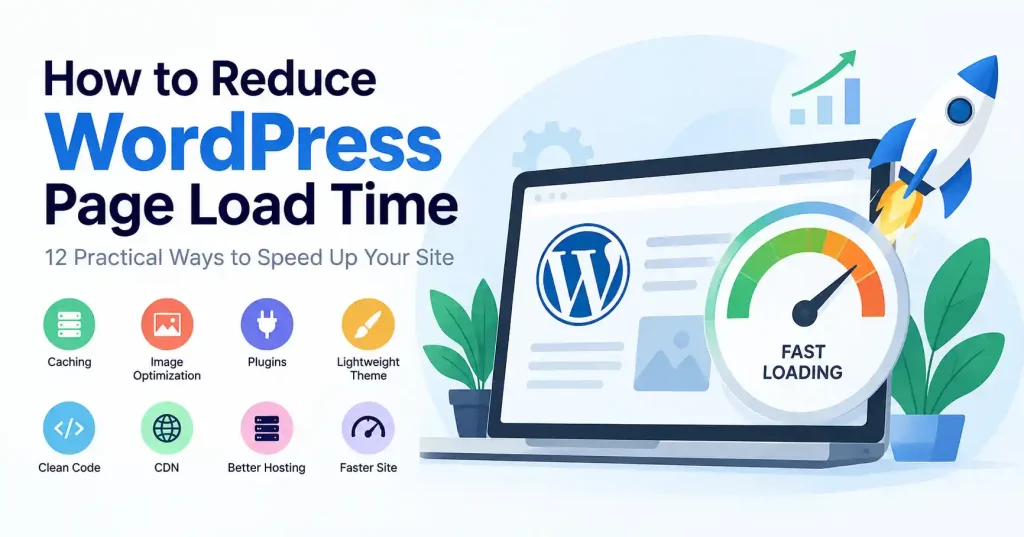

A WordPress site that feels slow usually has more than one reason behind it. A huge hero image can hurt. So can too many plugins. Weak hosting is also a factor. Unoptimized scripts add delay too. If page caching is missing, that can cost even more time. All of these small problems stack up and visitors end up waiting.
To speed things up, you do not need to push every setting to the limit. The better plan is to find the parts that drag performance and fix them carefully, without causing new issues.
First, check how the site runs today. Measure before you change anything. PageSpeed Insights and Lighthouse can provide timing data. Look at Largest Contentful Paint, or LCP. LCP tracks when the biggest visible element on the page finishes loading. Aim for an LCP of 2.5 seconds or less at the 75th percentile.
Why Is Your WordPress Website Loading Slowly?
WordPress itself isn’t automatically slow. Performance usually depends on how the site is built, hosted, and maintained.
Common causes include:
- Large or poorly compressed images
- Slow or overloaded hosting
- No page caching
- Too many plugins
- Heavy WordPress themes
- Excessive JavaScript and CSS
- Third party scripts
- Poor database maintenance
- Too many redirects
- Unoptimized fonts and media
Think about a simple business site. The page uses a light theme, yet the home screen loads a 4 MB hero picture. It also pulls in a few tracking tools, loads an embedded video, and brings in several animation files. If you swap the theme, the result may feel small. But if you focus on what loads at the top first, the impact can be much larger.
How to Reduce WordPress Page Load Time
You do not have to fix everything at one time. Start with the first area below. Make the change, then check how it performs. If it looks good, go on to the next area. Keep going until you hit the next problem point.
1. Measure Your Current Page Speed
Make a starting point. Run checks on your home page. Then test a key blog post. Next, review a service page. Also test any other main template you use.
Look at:
- LCP
- INP
- CLS
- Time to First Byte (TTFB)
- Total page size
- Number of requests
- Render blocking resources
Don’t obsess over a single laboratory score. A page can score differently depending on device, connection, server response, and the resources loaded during the test.
The useful question is: what is slowing this particular page down?
2. Enable Full Page Caching
For any WordPress site, caching is square one. Seriously, it’s the first thing you look at.
No page caching? Then WordPress has to churn: processing PHP, hitting the database, piecing together the page, and spitting out HTML for every single request. But a page cache can save a ready made version. That way, later visitors don’t make the server do the same work again.
If your web host already offers server level caching, just use that. Don’t pile a bunch of WordPress caching plugins on top, and don’t just assume a caching plugin is set up right once it’s installed. Check it. Check whether pages are actually being served from cache after configuration.
3. Compress and Resize Images
Images can take a lot of the data used when a page loads.
When you upload an image, resize it to match what the page layout actually needs.
For instance, if a post view shows the picture at about 800 pixels wide, sending a 5000 pixel file is not necessary.
Also, choose newer image formats when they make sense. This can cut the file size.
Try not to reuse one very large image in every spot.
WordPress has also introduced image performance improvements over recent releases, including mechanisms for prioritizing likely LCP images.
One important detail: don’t lazy load the image that’s responsible for your main above the fold content just because lazy loading sounds like a performance best practice. Your LCP resource often needs to be discovered and loaded early.
4. Choose a Lightweight WordPress Theme
Your theme shapes a big part of what users see.
If you load a theme packed with sliders, motion effects, custom blocks, and extra font files, the site can end up heavier than it should be. Pages may take longer to load.
Even features you never use can still add bloat. That extra code can hurt speed.
For sites with lots of text and images, a smaller theme usually works better. Look for clean code and basic settings you can adjust without fuss.
When you are checking themes, look beyond the demo page.Check how much unnecessary code and functionality you actually need.
You can also see our guide to best free WordPress themes for SEO optimization when comparing lightweight options.
5. Remove Plugins You Don’t Need
The number of plugins isn’t the only thing that matters. What each plugin loads matters more.
One plugin might have almost no noticeable frontend impact, while another can add JavaScript, CSS, database queries, external requests, or admin processes across the entire site.
Audit your plugins periodically. Ask:
- Is this plugin still necessary?
- Does another plugin already provide this feature?
- Does it load assets on pages where they’re not needed?
- Is it actively maintained?
- Can the feature be handled by the theme, WordPress core, or server?
Don’t delete plugins blindly. Back up the site first and test important functionality after removing anything.
6. Minify CSS and JavaScript Carefully
Minification trims extra stuff from CSS and JavaScript. This includes spaces and comments. Files usually get smaller, yet shrinking size by itself does not fix all slowdowns.
Often the real cause is the amount of work the browser has to do. Try cutting unused CSS when you can. Also, postpone work that is not needed right away in JavaScript. Make sure scripts do not stop the page from drawing key content. If JavaScript bundles are large, the main thread may stay busy even after everything has loaded.
Be careful with strong optimization options. Changes like combining scripts, delaying them, or deferring them can cause trouble. Buttons and drop down menus may stop working. Forms, sliders, analytics, and checkout flows can also break.
7. Reduce Third Party Scripts
Widgets for chat, analytics, ad scripts, social embeds, heatmaps, video players, and other third party services can trigger extra network calls and add load to the browser.
Check each outside script on key pages. If the tool does not help much, take it out. If you must keep it, try loading it later, or only on the pages that truly need it.
For example, a booking widget probably doesn’t need to load on every blog article.
8. Use a CDN for Static Resources
A content delivery network dishes out static files from locations parked closer to your visitors. Every single browser request no longer has to trudge all the way back to the main origin server. This setup shines when an audience is scattered across global regions.
Yet, a standard CDN will not save you from sloppy optimization. If your core server drags its feet and generates HTML at a snail pace, slapping a cache in front fixes nothing. The root issue stays put.
9. Improve Your Hosting and TTFB
WordPress can be set up pretty well, but the hosting may be the real limit.
If your TTFB stays high over time, look at what is going on in the server setup. Check RAM and CPU, the database speed, how caching is set, and whether your site is far from most visitors.
When the server takes too long to answer at the start, the rest of the page load gets pushed back too.Web performance guidance specifically highlights TTFB because the browser can’t begin rendering the page’s response until the server starts delivering it.
Before moving hosts, though, verify that the problem really is hosting. A badly configured plugin or uncached WordPress page can also create a slow response.
10. Optimize Fonts
Fonts can create unnecessary requests and delay text rendering when a site loads too many families or weights.
Keep your font setup simple. If the design uses one family with two weights, there’s little reason to load six different variations.
Where possible, use modern font formats, remove unused weights, and make sure your font loading strategy doesn’t unnecessarily delay important content.
11. Clean Up the WordPress Database
Over time, a WordPress database can end up with lots of extra stuff. You may see old revisions, expired transients, unused metadata, spam comments, and more.
If your site publishes often, cleaning the database can make things feel less crowded. It can help the install stay easier to manage.
Still, do not expect cleanup to act like a magic performance switch. If the bottleneck is a large hero image or a slow script from a plugin, then removing old revisions will not suddenly speed up the page.
Before you run any cleanup steps, make a full backup of the database.
12. Reduce Redirects and Unnecessary Requests
Every redirect introduces another step before the browser reaches the requested resource.
Review chains such as:
HTTP → HTTPS → www → final URL
The browser should land on the last page without extra stops. This matters a lot after a site migration, a switch to HTTPS, or changes to the URL paths.
If you are dealing with WordPress redirect issues, check our guide for fixing ERR_TOO_MANY_REDIRECTS in WordPress. It walks through the setup problems that often cause redirect loops.
Don’t Optimize Everything at Once
One of the easiest mistakes is changing ten performance settings simultaneously.
If the site becomes faster, you won’t know which change helped. If something breaks, you’ll have a much harder time identifying what caused it.
A better workflow is:
- Measure the page.
- Identify the largest bottleneck.
- Make one meaningful change.
- Clear relevant caches.
- Test the page again.
- Check functionality on desktop and mobile.
- Keep the change if it improves the result.
This approach takes a little longer, but it gives you a cleaner performance setup.
How to Check Whether Your WordPress Site Is Actually Faster
Run tests before and after optimization using the same URL and, where possible, similar test conditions.
Pay particular attention to the LCP element. If it’s a large hero image, investigate that image first. If the server response is slow, focus on hosting and caching instead. If JavaScript is consuming the main thread, reducing or delaying scripts may matter more than image compression.
Real user data is also useful because laboratory tests don’t represent every visitor’s device and connection. A page that looks excellent on a fast desktop connection can behave very differently on a mid range mobile device.
FAQ’s
What is the fastest way to reduce WordPress page load time?
First, measure the page load. Then look at page caching. Check the image sizes too. Review the hosting response time. Also scan for extra plugins or scripts that you do not need. Usually the best gains come from fixing the main slowdown. Do not try to turn on every option at once.
Do WordPress plugins slow down websites?
A few plugins can slow a site down. This often happens when they bring in frontend code, add styles, pull in outside files, or run database queries. Just counting plugins will not tell you how fast things are. You need to check what each one does and how it works.
Should I use a WordPress caching plugin?
Caching can cut down on repeat work on the server. Still, the best plan depends on where you host your app.
If your host already has solid server side caching, you might not need another layer. Adding a second cache can add extra moving parts without much gain.
Does image compression improve WordPress speed?
Yes, reducing image dimensions and file size can reduce the amount of data browsers need to download. The biggest opportunity is usually images that are much larger than their displayed dimensions.
Can a CDN make WordPress faster?
A CDN helps by serving static files from locations closer to where people are. That cuts down how far items like images, CSS, and JavaScript have to travel. It does not solve every kind of server performance issue.
What is a good LCP for WordPress?
A typical goal is an LCP under 2.5 seconds on at least 75% of visits. LCP tracks the moment the biggest on screen part finishes rendering. So, fixing the asset that drives that large element can help a lot.
Conclusion
Want a faster WordPress site, Don’t just blindly drop in another optimization plugin. Measure things first, track down the actual bottleneck. And then work through caching, images, heavy themes, scripts, hosting, fonts, and third party tools one by one.
You are not trying to chase a perfect number on one test page. The real point is a site that loads quickly, feels responsive, and stays that way as you add new posts, photos, plugins, and features. Those small speed gains are simpler to manage when you include them in what you do each day. If you leave them for later, you will end up coming back to the same issues..

Pingback: WordPress Images Slowing Website? How to Fix It