
Ever tweak a WordPress page, hit publish, and still stare at the old version? Cached files are almost certainly to blame. Getting the hang of wiping this data saves you hours spent hunting down phantom bugs that have nothing to do with your theme, plugins, or core setup.
Here is how it works: WordPress keeps copies of full pages, database queries, scripts, and stylesheets so things load snappy for the next visitor. Simple enough, right, the headache starts because multiple caching layers stack on top of one another. Emptying one bucket leaves old data sitting in another.
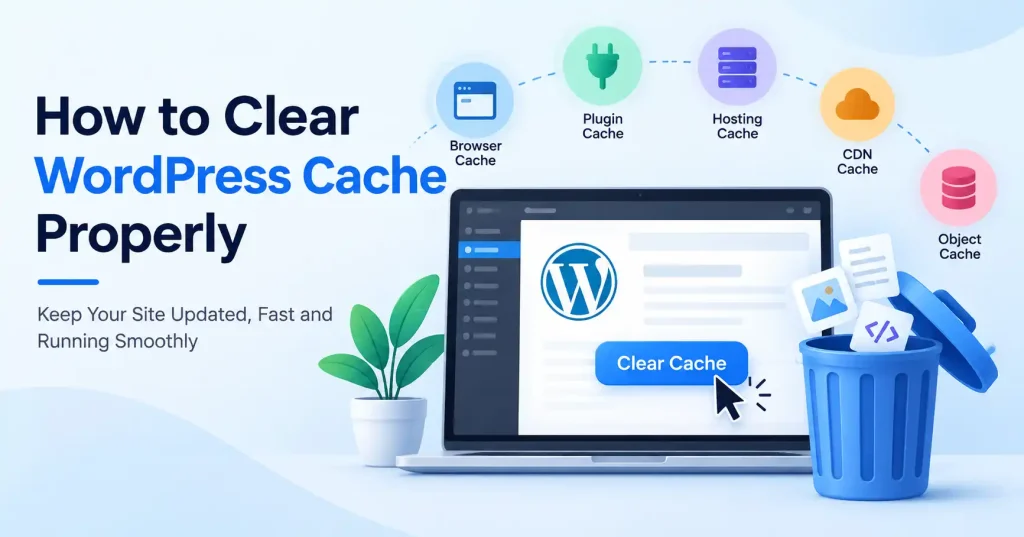
Hitting clear cache inside your favorite plugin often falls flat for that exact reason. Depending on your stack, you might have to purge your local browser, clear out your web host, flush the CDN, or reset object caching before those stubborn changes finally show up.
What Is WordPress Cache?
Think of WordPress cache as a digital stash. It saves temporary files so your site skips rebuilding the whole layout whenever someone drops by. You can run caching through plugins, on your web server, inside visitor browsers, across a CDN, or right down at the object cache tier.
Say a reader clicks an article. Normally, WordPress scrambles to chew through PHP, interrogate the database, load your theme, fire off plugins, and piece together the raw HTML. It takes work. A page cache just tucks that ready made HTML away, handing it off instantly the next time.
WordPress itself supports different caching mechanisms, and these layers are separate from one another. That distinction matters when troubleshooting an old page, missing CSS, outdated JavaScript, or a change that refuses to appear.
When Should You Clear WordPress Cache?
You don’t have to clear the cache every single time you push a post live. Most systems handle that purging automatically behind the scenes.
Manual clearing? Save it for those rare moments when things look off and the site refuses to match what you actually built.
Common situations include:
- You changed CSS or JavaScript but the old design is still loading.
- You updated a WordPress page but visitors see the previous version.
- A plugin update caused an unexpected display problem.
- You changed your theme settings and the frontend hasn’t updated.
- Images or other media appear outdated.
- You migrated the website or changed the domain.
- You changed DNS, CDN, or caching settings.
- A developer made code changes that aren’t appearing on the live site.
There’s also a practical troubleshooting benefit. If you’ve already confirmed that the new version of a page is correct inside WordPress, clearing the relevant cache layer can quickly tell you whether stale cached content is responsible.
How to Clear WordPress Cache Properly
The safest approach is to work through the cache layers rather than randomly deleting files. Start with the cache closest to WordPress and move outward if the old content remains.
1. Clear Your WordPress Caching Plugin
First, see if you even have a caching plugin installed. Every tool names it a bit differently, though you will usually spot buttons like Clear Cache, Purge Cache, Delete Cache, or Flush Cache.
Head into your WordPress dashboard. Track down the plugin settings or just hover over the top admin toolbar, then hit whatever triggers a page cache wipe.
Don’t assume all the options do the same thing, especially if the tool splits up object, database, browser, and page caches. Staring down an outdated post? Page cache is what you clear first.
2. Clear the WordPress Object Cache
Don’t confuse object caching with page caching. Rather than stashing a full, finished HTML page, it saves common database queries and raw data bits so WordPress avoids running the exact same heavy lookups over and over. Simple as that.
Persistent setups lean on external tools like Redis or Memcached, the thing is, WordPress handles persistent objects on its own track. Emptying your standard page cache plugin? It probably won’t touch the object cache at all.
Look for a Flush Object Cache button in your hosting panel or plugin settings. Hit that whenever database updates stubbornly refuse to appear on the front end.
Power users on the terminal have another route. Fire off the wp cache flush command via WP CLI. It’s a quick fix on managed servers and local dev stacks where you’re already living in the shell.
3. Clear Your Browser Cache
WordPress is humming along, but your browser is clinging to a stale preview. Fire up an incognito window, punch in the exact URL, and see if the proper updates finally show up. If so? Cache is guilty.
You can scrap those banked files through browser settings without nuking your whole history. Target only that stubborn site instead, which saves you the massive headache of having to log back into all your daily accounts.
4. Purge Your Hosting Cache
Many WordPress hosts provide server level caching outside the WordPress dashboard. Depending on the hosting environment, this might include full page caching or other server side caching systems.
Open your hosting control panel. Then check for cache tools like “Purge Cache,” “Flush Cache,” “Clear Cache,” or “Dynamic Cache.”
This part is simple to miss. You might have already cleared the WordPress plugin cache.If the hosting server is still serving an older cached page, your changes may remain invisible.
5. Clear Your CDN Cache
When your site uses a CDN, files can sit cached at these edge spots. Think images, CSS, JavaScript, even whole HTML pages. This really matters for static stuff.
Instead of wiping the whole cache, see if your CDN will purge just one URL or file. That targeted purge is usually better. It cuts down on rebuilding caches for no good reason, Especially when you know precisely what changed.
So if you updated a logo, a stylesheet, some JavaScript, or another static bit, purging just that one thing might be all you need.
6. Clear Cache After Theme or Plugin Changes
Theme and plugin changes are common reasons for stale content.
Suppose you change a button color in your theme settings, but the frontend still shows the old color. First clear the WordPress page cache. If the issue remains, test the page in a private browser window and then check your hosting or CDN cache.
If the site starts behaving strangely after a plugin update, caching may not be the actual cause. For example, a PHP memory problem can create completely different symptoms. If that happens, troubleshooting the underlying server or plugin issue is more useful than repeatedly clearing cache. You can also review this guide on how to fix the WordPress memory exhausted error.
How to Clear WordPress Cache Without Breaking Your Site
Clearing cache is normally a routine maintenance action, but avoid treating it as a substitute for troubleshooting.
Before making major configuration changes, keep a recent backup. Then clear the cache layer relevant to the problem instead of deleting random folders through File Manager or FTP.
It’s also worth checking whether your caching plugin automatically regenerates cached files. A cache purge may temporarily increase server work because pages need to be generated and cached again as visitors request them.
If you’re troubleshooting a production website, make one change at a time. Clear the relevant cache, test the page, and only then move to the next layer.
What Happens After You Clear WordPress Cache?
When you wipe out cached content, WordPress or your caching setup must rebuild pages from scratch. So, the first person hitting the site after a purge might see something unlike the next visitor. Don’t jump to the conclusion that it failed. That’s not automatically true.
Imagine this scenario: you clear a page’s cache, then immediately load that same page. The server could easily assemble a fresh copy just for you. The very next person who arrives, however? They’ll likely grab that newly generated cached version.
This is precisely why you shouldn’t just tap “clear cache” whenever the site feels even a little slow. Caching serves an important function. Fiddling with it constantly breaks its intended, efficient workflow.
How to Check Whether the Cache Was Actually Cleared
After clearing the cache, test the specific page or resource that was causing trouble.
A simple checklist works well:
- Open the updated page while logged out of WordPress.
- Test it in a private browser window.
- Check the page from another device or network if possible.
- Confirm that the new CSS, JavaScript, image, or content is appearing.
- If the old version remains, check your hosting and CDN cache.
- If the issue still exists after all cache layers are cleared, investigate the underlying
Could be WordPress settings, a plugin, a theme, or even the server itself.
Devs, fire up those browser tools fix slow website loading issues in WordPress .See if some old CSS or JS is being pushed, Don’t just trust the visuals dig into those network requests and response headers.
Common WordPress Cache Mistakes to Avoid
People often assume there’s just one cache. But a WordPress site might actually have a bunch of separate caching layers, each needing its own purge method.
Another blunder? Deleting cache files by hand when you don’t even get how the system runs.Your caching plugin or hosting provider normally provides a safer way to purge generated cache files.
Don’t disable caching permanently just because it caused confusion during troubleshooting. Found the core problem? Great. You can probably switch caching back on and set it up right.
But look, clearing your cache isn’t some magic bullet for every WordPress headache, A busted plugin, a PHP error, database trouble, or even dodgy DNS settings? Those need a whole different fix.
WordPress Cache vs Browser Cache: What’s the Difference?
WordPress cache? It’s hanging out on your site or the server itself. Browser cache, though, that’s residing on your visitor’s device. A major distinction.
Think about it: you’ve just updated a page, but the WordPress cache is stubbornly holding onto outdated HTML. Clearing your browser won’t instantly update it for others, right? And if WordPress is correctly serving the new page, yet your browser insists on displaying an old stylesheet, then wiping the server cache won’t alter a thing you see.
Grasping this difference is crucial for troubleshooting. So before you obliterate every cache in existence, consider precisely where that stale version might be lurking.
Want to dig deeper into WordPress caching? The official WordPress documentation does a great job explaining page, browser, object, and server caching.WordPress caching documentation
FAQ’s
How often should I clear WordPress cache?
There’s no fixed schedule. Clear it when you’ve made changes that aren’t appearing or when cached content is interfering with troubleshooting. A properly configured caching system should normally handle cache refreshes automatically.
Does clearing WordPress cache delete my website content?
Your cache purge is totally safe, Nothing in your posts, pages, media, or database gets touched, promise. Just stick to your caching system’s own purge button, Don’t go deleting random files yourself, okay?
Why is my WordPress website still showing old content after clearing cache?
Still seeing the old stuff? A different cache layer’s probably got the older version stuck. Look into your browser, WordPress plugin, hosting cache, CDN, and object cache, If you’ve cleared all that, then maybe the content’s coming from somewhere else entirely.
Should I clear browser cache after clearing WordPress cache?
It can help when you’re testing changes on your own computer. Open the page in a private window first. If the new version appears there, your normal browser cache may be involved.
Does clearing cache make WordPress faster?
Clearing cache itself doesn’t make the site permanently faster. It removes stored versions so the caching system can generate fresh copies. Once those copies are rebuilt, the normal performance benefits of caching return.
Can I clear WordPress cache from WP CLI?
WP CLI is a beast with caching. Seriously, try wp cache flush. It just clears the WordPress object cache, Admins and devs, you’ll find it incredibly useful.
Conclusion
Don’t just hunt for a “Clear Cache” button in WordPress. It’s more about knowing where your site actually stashes its cached data. Hit your caching plugin first. After that, you might need to peek at your browser, your host, your CDN, and maybe even the object cache.
The most useful habit is to clear only the cache layer connected to the problem. If a page update isn’t appearing, purge the page cache first. If a CSS file is outdated, check browser and CDN caching. If database driven information remains stale, investigate object caching.
Once you understand those layers, cache related WordPress problems become much easier to diagnose and you’ll spend less time repeatedly clearing everything without knowing what actually fixed the issue.