
That WordPress site showing an outdated page even after edits? Blame the cache. Honestly, it is usually the main suspect. You do not always need to install yet another plugin to flush it out either. Depending on your host, clearing things without a plugin is entirely doable. Try your hosting dashboard, browser tools, or just run WP CLI.
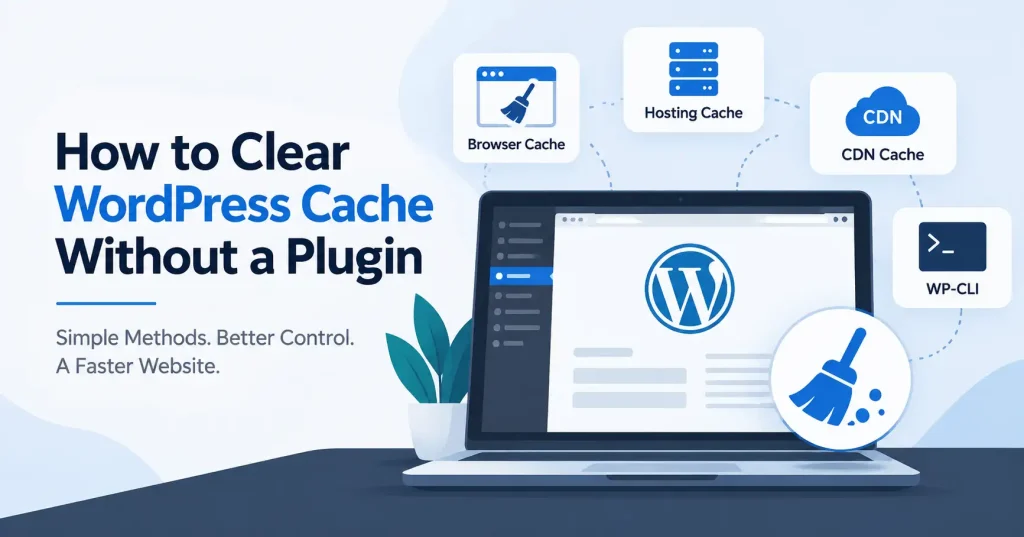
The real headache is tracking down which specific cache layer holds that stubborn old version. WordPress sites often run multiple caching layers all at once, we are talking browser cache, page cache, object cache, server cache, and CDN cache.
Clearing one layer won’t necessarily remove an outdated copy stored somewhere else.
This guide explains the practical ways to clear WordPress cache without installing a caching plugin, including options for beginners and more technical users.
What Does WordPress Cache Actually Store?
Caching saves copies of website data so your browser or server doesn’t rebuild the whole page from scratch every single time someone visits. That means faster load times, since pulling a saved response beats generating it over again.
The catch? WordPress doesn’t bake full page caching right into the core. You have to get it through a hosting setup, a CDN, a caching plugin, or some other server tool. And as the official WordPress docs point out, all that caching can sometimes hide your most recent updates.
There are several cache types you may encounter:
- Browser cache: Stores website resources such as CSS, JavaScript, and images on the visitor’s device.
- Page cache: Stores generated HTML versions of pages.
- Object cache: Temporarily stores database related results.
- Server cache: Your hosting provider may cache website responses at the server level.
- CDN cache: A CDN keeps copies of web pages and other static files closer to users. It stores these cached versions at edge sites.
That distinction matters. If you only clear your browser cache while your hosting provider is serving an old cached page, the problem won’t disappear.
When Should You Clear WordPress Cache?
Clearing the cache isn’t a daily chore. In fact, doing it too often backfires, Why? The site has to rebuild that cached content all over again from scratch. So leave it alone.
It’s useful after specific changes, such as:
- Updating theme files or CSS
- Changing website layouts
- Modifying JavaScript files
- Updating menus or widgets
- Publishing significant design changes
- Changing redirects or certain server settings
- Troubleshooting an outdated page
- Completing a WordPress, theme, or plugin update
You just made a change, right? But it’s gone. So, is it your old browser, or did the server dish out a stale cache?
How to Clear WordPress Cache Without a Plugin
The easiest method hinges entirely on your cache location. Begin simply. Try the least technical option first, moving down the lineup solely when stubborn old content refuses to budge.
1. Clear Your Browser Cache
Before you touch your WordPress setup, open a private or incognito window and test the page there. It takes two seconds. That quick check tells you if your standard browser is just serving up an old cached copy.
Try a hard refresh too. On Windows, hit Ctrl + F5 in most browsers. Mac users have their own shortcuts.
If the fresh page loads in incognito mode but refuses to show up normally, you can skip clearing your WordPress site server cache entirely.
Want a permanent fix for your browser? Head into your privacy settings and clear out all those saved images and cached files. WordPress specifically recommends checking browser caching when website changes aren’t appearing.
2. Clear Cache From Your Hosting Control Panel
Numerous WordPress hosts manage server caching right out of the box. No plugin required. Tracking down that elusive toggle simply depends entirely on your specific provider.
Log in to your hosting account and look for options such as:
- Clear Cache
- Purge Cache
- Flush Cache
- Website Cache
- Server Cache
- Dynamic Cache
- Full Page Cache
Sometimes that option sits right inside your WordPress dashboard instead of the standard file manager. Not sure if your host runs server side caching? Just ask them. Find out what layers are active and how to clear them out. As WordPress points out, managed plans often run their own caching completely separate from whatever plugin you installed..
3. Clear Cache From Your CDN
Got a CDN on your site? Flushing WordPress or your host’s cache might not actually cut it. That CDN can easily keep serving up stale versions of your pages and static assets.
Head over to your CDN dashboard. Hunt for a cache purge or invalidation button. Certain providers let you wipe the whole thing clean, whereas others let you target just one stubborn URL.
Targeted flushing is usually the smarter play if the platform allows it. Doing a total wipe forces the CDN to rebuild massive piles of stored data from scratch, which can dent your cache performance for a bit.
4. Clear WordPress Object Cache Using WP CLI
WP CLI lets skilled developers and seasoned admins easily flush that stubborn WordPress object cache.
After connecting to the server through SSH, navigate to your WordPress installation and run:
wp cache flush
This command wipes the WordPress object cache clean, Official WP CLI docs state that wp cache flush exists solely for this job. Need more control? The broader wp cache command handles adding, deleting, fetching, and purging individual entries just as easily.
Be careful with this method on production websites. Flushing an object cache can affect cached data across the site, particularly when persistent object caching is being used.
No SSH or WP CLI, Skip this. Honestly, there is zero point running server commands if your hosting dashboard hands you a safe cache purge button anyway. Just use it.
5. Clear WP CLI’s Internal Cache
WP CLI maintains its own distinct cache, entirely separate from object caches. When bizarre command glitches surface instead of stale pages, just flush it, Clear out the mess.
wp cli cache clear
The command clears WP CLI’s internal cached files. WordPress documents this separately from wp cache flush, so don’t confuse the two commands.
For normal website visitors seeing an old page, this isn’t usually the cache you need to clear.
6. Check for Server Level Caching
Sometimes the cache sits entirely outside WordPress. Your web server or hosting stack might lean on tools like Varnish, acting as a reverse proxy to grab responses before they ever hit the browser.
You wiped the browser, flushed every WordPress cache plugin, and bypassed the CDN, but that old page still stares back at you? Call your host. Ask if a server level cache is running.
Managed WordPress hosting loves doing this.You may not see a cache plugin in the dashboard because the host is handling caching outside WordPress.
7. Check Whether OPcache Is Involved
OPcache is different from normal page caching. It stores compiled PHP code in memory so PHP scripts don’t need to be compiled repeatedly.
You normally shouldn’t manually clear OPcache just because a blog post or page isn’t displaying a new version. However, developers working directly with PHP files may need to consider it after code changes.
Modern WordPress clears OPcache automatically during file updates. Still, stubborn code lingers. Why? Your hosting provider can inspect the caching layer and confirm if it requires a manual reset. They will tell you straight.
What If Clearing the Cache Doesn’t Fix the Problem?
Don’t waste time here. If you wiped multiple cache layers and stale content still pops up, stop hitting clear. Step back. Figure out the actual root cause instead.
Start with these checks:
- Open the page in an incognito window.
- Check the page from another device or network.
- Inspect the page source or browser developer tools.
- Confirm you’re editing the correct page or template.
- Check whether a CDN is serving an older version.
- Check your hosting cache settings.
- Look for redirects pointing to another URL.
- Confirm your CSS or JavaScript file is actually loading the latest version.
When updates vanish, WordPress suggests investigating your source, file location, browser cache, and server settings. Exactly that. But if a sluggish site is your real headache, flushing the cache does nothing. Absolutely nothing. Blame bloated plugins, heavy media files, messy database queries, faulty hosting, or resource heavy scripts instead.Our guide on how to fix slow website loading issues in WordPress covers those areas in more detail.
Clear Cache After a WordPress Update
WordPress updates sometimes leave you staring at an old page simply because caching layers haven’t caught up yet. After a big update, open an incognito window and check the site there. Still seeing stale files? Clear your CDN cache right now, or hit that server side cache.
Sometimes an update cuts out mid stream and traps your site on the dreaded maintenance screen. A completely different beast, when that happens, dig around for a stray dot maintenance file. That stubborn little file is usually what’s keeping WordPress from snapping back to normal.Our guide on how to fix the WordPress scheduled maintenance error explains that troubleshooting process.
How to Avoid Unnecessary Cache Clearing
Cache is useful, so don’t treat it as something that needs constant cleaning. A better workflow is to clear only the layer responsible for the stale content.
You tweak a CSS file, but your browser keeps showing the outdated design? A hard refresh might fix it. If every device still sees the old page, though, look at server side or CDN caching instead.
Keep track of your setup. Write down who handles the caching, Is it your host, a CDN, some WordPress plugin, or a mix of everything? Jotting that down saves you hours of digging later.
FAQ’s
Can I clear WordPress cache without a plugin?
Depending on your setup, you can clear browser cache, purge hosting level cache, clear a CDN. Or flush the WordPress object cache using WP CLI. Honestly? You don’t even need a WordPress caching plugin just to wipe an existing cache out.
Does WordPress have a built in cache?
WordPress boasts an object cache, true, yet authentic full page caching never simply appears out of thin air. Servers cannot manage this solo. Web hosts, external plugins, or edge networks must step up. It takes outside help.
Will clearing cache delete my WordPress content?
No. Purging a cache just wipes temporary copies, not your actual posts, pages, media, themes, or plugins. Still, check your host’s instructions first before running unfamiliar server tools. Better safe.
How often should I clear WordPress cache?
Forget any universal schedule. Instead, purge that cache only when stubborn changes refuse to appear or you find yourself knee deep in troubleshooting. Never wipe it on a routine whim, Doing that simply forces your poor system to rebuild everything from scratch.
What is the difference between wp cache flush and wp cli cache clear?
They tackle entirely distinct areas. One clears out the WordPress object cache, whereas the other completely purges internal WP CLI data. Different jobs.
Why does my website still show old content after clearing cache?
You may still be seeing an older copy from some cache. Look at what your browser is serving, and also check your hosting cache and CDN. Don’t forget the reverse proxy and any other cache system you set up beyond WordPress.
If all of that is clear, then dig into the basics. Make sure you are editing the right URL. Also confirm the right template, the correct stylesheet, and the proper server file.
Conclusion
Knowing how to clear WordPress cache without a plugin gives you control over troubleshooting. It also cuts down on bloat from single purpose tools. Try opening a private browser window first, then check your hosting cache and CDN before digging into technical routes like WP CLI.
The trick is finding the exact cache layer serving that stale content. Don’t just nuke everything at once. Once you figure out if the culprit is browser, server, object, page, or CDN caching, fixing it gets a whole lot easier.
For most site owners, the workflow is straightforward. Test, clear the specific cache, reload, and check the result from a fresh browser session. If that old version still lingers, look at your server or CDN, Don’t automatically assume WordPress is busted.
If you’re more advanced, WP CLI lets you manage object cache directly. No extra plugins required.