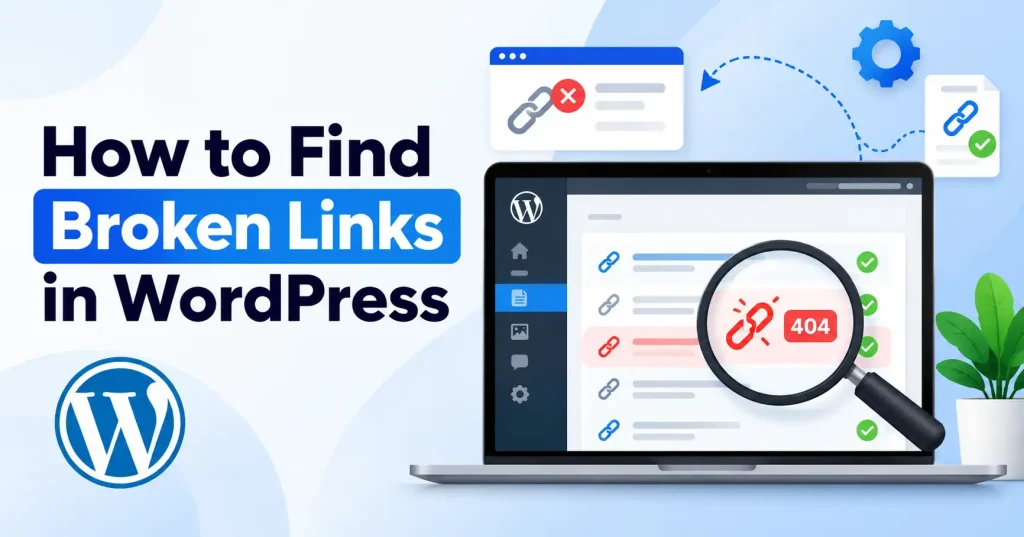

Broken links are easy to ignore. That is, until they start annoying visitors, breaking site navigation, or sending people directly to dead ends. If your WordPress site has dozens of posts or even hundreds, checking every single link by hand is a complete waste of time. Learning how to find broken links in WordPress saves you. You spot dead URLs fast and fix them before they turn into a genuine headache.
A broken link happens for many reasons. Maybe a page got deleted, a URL shifted, a site moved, or an external resource simply vanished off the web. Sometimes the link looks fine, but the destination throws a temporary error. That’s why a useful broken link audit isn’t simply about finding URLs that fail once you need to understand what caused the failure and decide what should happen next.
What Is a Broken Link in WordPress?
Broken links strand web visitors in digital dead ends. Sure, the classic four oh four error is what most picture. Yet tangled HTTP bugs, vanished files, messy redirects, and quietly deleted pages create those exact same headaches. Fix them now.
There are two main types to watch:
- Internal broken links: LThese guide visitors directly through your site via internal links to posts, pages, and images.
- External broken links: Broken links point outward to vanished third party sites or entirely relocated pages. They vanish.
Internal links need special care. You own both ends of the path. Change a WordPress URL and forget to fix your older posts? You just built a pile of broken links, completely by accident. Watch out.
Why You Should Find Broken Links in WordPress
A broken link is worse than a minor tech glitch. When someone clicks a useful link, they want to keep reading, not hit a dead end. Picture this. You drop a post on WordPress SEO, pointing folks to an XML sitemap guide, and nothing is there.Six months later, that guide is deleted or its URL changes. Every older article pointing to the old address can now send readers into a dead end.
Broken links make site upkeep a headache. Regular checks often drag larger messes into the light, like stale info, shifted URLs, botched migrations, or pages axed without a second thought for old connections.
If you’re digging into the wider technical side of WordPress, check out the WordPress SEO settings guide. It helps lock down other core configurations right alongside your link architecture.
How to Find Broken Links in WordPress
Bypassing manual checks for each article makes sense, Trust WordPress plugins, aggressive crawlers, and raw server data instead. This trio reveals the actual truth.
1. Use a Broken Link Checker Plugin
For many WordPress sites, a dedicated broken link checker is the simplest starting point. These plugins scan your content and identify links that may no longer work.
One example is Broken Link Checker, which can scan links in WordPress content and provide information about URLs that need attention. The WordPress plugin directory also includes several alternatives with different approaches to scanning and monitoring.
After installing a suitable tool, run a scan and review the results rather than immediately changing every URL it reports. Some external websites block automated requests or temporarily return errors, so a reported link should be checked before you remove or replace it.
2. Check 404 Errors
Your site’s 404 activity can reveal broken URLs that visitors or crawlers are actually requesting.
Suppose several visitors are requesting:
/wordpress-seo-guide/
But your current article now lives at:
/wordpress-seo-settings/
That pattern strongly suggests an old URL is still being referenced somewhere.
Look for repeated 404 URLs and investigate where they originate. If the problem comes from your own content, update the link. If the old URL has a useful replacement, consider a relevant 301 redirect.
If you’re already dealing with a WordPress page that returns a 404, our guide on how to fix WordPress 404 errors covers the troubleshooting process in more detail.
3. Crawl the Website With an SEO Crawler
A website crawler can follow internal links across your site and report URLs that return errors.
This approach is particularly useful for larger websites because it can show:
- The page containing the broken link
- The destination URL
- The response status
- Internal links pointing to the same destination
- Redirected URLs that may need updating
A crawler is also useful when a WordPress plugin isn’t practical because of hosting limitations or the size of your website.
4. Check Links Manually When Needed
Automated tools save time. Manual verification still matters, though.
When a checker flags an external link as broken, don’t just trust it blindly. Open the destination yourself. A temporary server hiccup shouldn’t force you to ditch a genuinely useful reference. Same goes for redirects. A page might shift its address while remaining completely fine for readers.
For critical pages, check the final destination. Does it still give value to your audience? Decide based on that.
How to Fix Broken Links in WordPress
Finding dead links is just the start. How you fix them actually depends heavily on the reason they broke.
Update the Link
Broken internal links, Change that thing. Right now. Seriously, the whole site’s navigation is messed up, and an update is the only real fix.
For example:
Old: /wordpress-seo-guide/
New: /wordpress-seo-settings/
Update the source article so visitors go directly to the correct page.
Add a 301 Redirect
Use a 301 redirect when an old URL has been permanently replaced by another relevant URL.
This is especially useful after:
- Changing post slugs
- Redesigning a website
- Migrating to a new domain
- Reorganizing categories
- Consolidating similar articles
Don’t redirect every dead URL to the homepage. A redirect should lead somewhere that makes sense for the original request.
Remove the Link
Sometimes there simply isn’t a suitable replacement. If an external resource has disappeared and the information isn’t essential to the article, removing the link may be better than sending readers somewhere unrelated.
Replace an Outdated External Source
If an external article has disappeared but the point is still useful, look for a credible replacement covering the same subject. Don’t replace a broken reference with a random page just to make the warning disappear.
How Often Should You Check Broken Links?
No single schedule fits every WordPress site, A tiny, quiet blog can just check things whenever it wants. But what about a massive content hub running wild without a pause? That place demands constant oversight.
A practical workflow is to check links:
- After a major website migration.
- After changing permalink structures or URL slugs.
- After deleting or merging older articles.
- After a redesign or navigation change.
- During routine technical SEO audits.
You should also pay attention after publishing content that contains many external references. Third party websites can change independently of your WordPress installation.
Common Broken Link Mistakes to Avoid
One mistake is treating every reported link as genuinely broken. Automated checkers can encounter temporary failures, access restrictions, or server responses that need another verification.
Another mistake is fixing the destination without checking the source pages. If ten articles point to the same outdated URL, changing only one article leaves nine broken links behind.
It’s also easy to create new problems while fixing old ones. Before changing a large number of URLs, take a backup and test the affected pages afterward. Small batches are easier to troubleshoot than hundreds of simultaneous edits.
FAQ’s
How do I find broken links in WordPress without manually checking every page?
Run an SEO crawler or a plugin. These tools hunt down error URLs in a hurry, showing you precisely where they live. It is fast.
Are broken links bad for WordPress SEO?
Broken links destroy user trust, turning basic upkeep into a massive headache, Treat them like critical bugs. Fix them fast, particularly when core internal pages take the hit.
Should I redirect every broken link?
Bypass redirects for permanently relocated links lacking a valid destination. Strip the URL entirely or yield a standard 404 error if no functional landing page awaits.
What is the difference between a broken link and a 404 error?
A dead link strays wildly off course. When servers utterly fail to locate your request, a standard 404 error usually speaks up. Yet, stubborn ghosts of the web sometimes refuse to toss that classic code your way.
Can changing a WordPress URL create broken links?
Mess with a URL, and snap, old links vanish. Simple. Quick. Get those internal references patched up, pronto, and remember: a 301 redirect is your friend.
How often should I scan my WordPress site for broken links?
Run audits after major site migrations, URL shifts, redesigns, or cleanups. Publishers pumping out fresh content need these relentless scans done frequently.
Conclusion
Finding broken links in WordPress comes down to building a simple upkeep habit. Fire up a crawler or a dedicated plugin, check the flagged URLs yourself, and pick a smart fix rather than editing blindly.
If the target page shifted, just update the link. Got an important URL that’s permanently gone, Use a 301 redirect. When there is simply nowhere useful to send folks, scrap the link. Watch those recurring 404 errors too. They expose hidden snags the standard WordPress dashboard totally misses.
A spotless link profile won’t build itself. Still, a bit of routine maintenance and careful patching keeps visitors sliding right through your pages instead of slamming into dead ends.