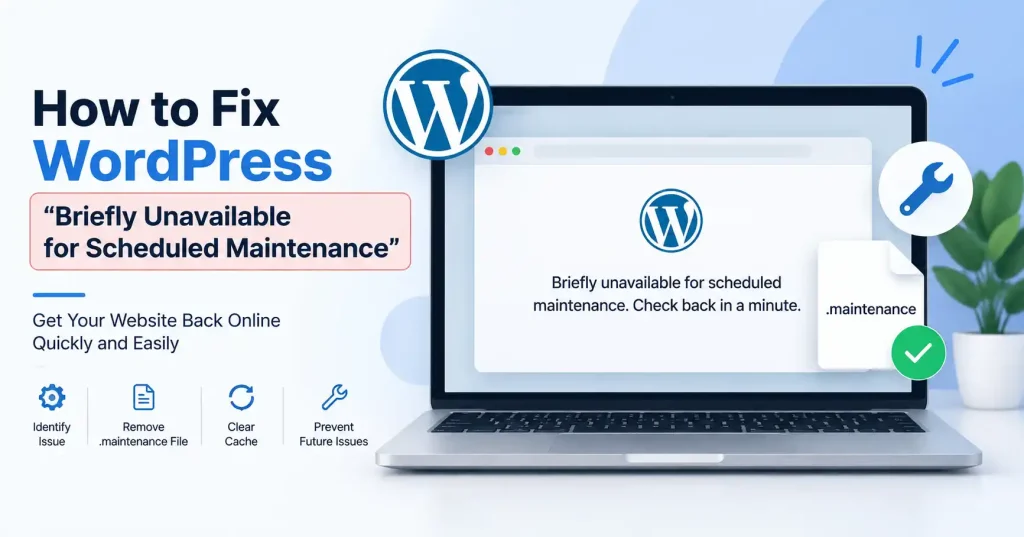

If your website suddenly displays “Briefly unavailable for scheduled maintenance. Check back in a minute,” WordPress is usually in the middle of an update. The message normally disappears automatically once the update finishes. If it sits on the screen for several minutes though, you are probably dealing with the wordpress scheduled maintenance error.
The bright side? This mess is usually simple enough to fix. WordPress drops a temporary, maintenance file right into your site root directory during updates. When something interrupts that update, like a timeout, server glitch, or dropped connection, the file stays stuck. That is why your site keeps showing the maintenance screen.
What Causes the WordPress Scheduled Maintenance Error?
WordPress enters maintenance mode during core, plugin, or theme updates. It simply plants a small maintenance file directly inside your root directory to pull this off.
Usually, the platform sweeps away and deletes this file once the process finishes. Yet when an update stalls midway, that file lingers, Visitors, and you, stare at a stubborn error message instead of your actual site.
Common triggers include:
- A plugin or theme update being interrupted
- PHP or server execution timeouts
- Hosting resource limitations
- An unstable internet connection during an update
- Multiple updates running at the same time
- Server configuration or file permission problems
- A failed WordPress core update
WordPress checks the dot maintenance file to confirm if upkeep mode is active. That explains why deleting that stubborn leftover artifact fixes things instantly.
How to Fix the WordPress Scheduled Maintenance Error
You hit update. Give the system a minute. But if that message just lingers and the site refuses to budge, you can safely pivot. Try these next steps instead to get things moving again without losing your progress.
1. Connect to Your Website Files
You need access to the WordPress installation files. Depending on your hosting provider, you can use:
- Your hosting control panel’s File Manager
- FTP
- SFTP
- SSH, if your hosting account provides it
That WordPress root directory? Usually, it is just the main folder holding things like wp admin, wp-content, and wp-includes. Not sure where yours lives? Check your hosting provider docs first before you go deleting anything.
2. Find the .maintenance File
Open the WordPress root directory and look for a file named:
.maintenance
The dot at the beginning matters. Certain FTP tools hide system directories by default, forcing you to flip a setting just to see them. Watch out. Do not mistake these for normal folders. You specifically need that exact file named dot maintenance sitting right inside your primary WordPress root folder.
3. Delete the .maintenance File
Make sure the update has stopped completely first. Delete the maintenance file. You barely ever need to look inside it anyway. The whole point is simply getting rid of that nagging flag so WordPress quits locking you out of your own site. After that vanishes, open a brand new browser tab. If all went well, your front end and dashboard should load right back up instantly.
4. Clear Your Browser and Site Cache
If the maintenance message still appears after deleting the file, don’t immediately assume the fix failed.
Clear your browser cache, or just fire up an incognito window, Got a WordPress caching plugin, hosting level cache, CDN, or reverse proxy running? Purge those too.
This matters most when your host loves holding onto server responses. You actually want to check that what is on your screen right now is the live page, not some stale version stuck in the system..
What to Do If the Site Still Shows the Maintenance Message
Sure, ditching that hidden maintenance file handles the standard version of this mess. But it never magically reverses an update that went completely off the rails.
First off, log straight into your WordPress dashboard. Hit the updates section and check if the system is begging you to finish or retry a stalled process.
Look closely at whatever plugins or themes were updating right before everything broke. If one choked mid process, you might have to reinstall manually or push that update through again.
And if a critical error pops up the second you ditch that file, the mode itself is not the real culprit. It is usually just a broken theme, a bad plugin, a PHP version clash, or an unfinished core update.
This is precisely why having a fresh backup saves your skin. Your overall site architecture counts, too. If you are knee deep in building or restructuring, check out this guide on how to create a WordPress website step by step before tweaking any major settings.
Check for Failed Plugin or Theme Updates
A stuck maintenance screen can sometimes be the first visible symptom of an interrupted update.
If you regain dashboard access, check Plugins → Installed Plugins and Appearance → Themes. Look for components showing an incomplete update, warning, or unusual status.
Update one component at a time rather than triggering a large batch of updates immediately. That makes it easier to spot the exact plugin or theme causing trouble if it breaks again.
If the dashboard stays locked tight, turn off plugins right through the filesystem. Just rename the folder inside wp-content/plugins. It’s a bit advanced, sure. Backup everything first, or at least check that your recent backup actually works.
Check Hosting and Server Resources
That stubborn maintenance file warns of trouble. Blame a sluggish server, tiny PHP limits, starved resources, or weird file permissions for halting your updates entirely.WordPress’s own documentation notes that update failures can occur when PHP times out or WordPress cannot write files correctly.
Dig into your hosting control panel. Check PHP errors, resource warnings, server logs, and recent changes. On managed WordPress hosting? Support can usually spot failed update processes from server side logs that WordPress itself hides.
For websites that depend heavily on search traffic, it’s also worth keeping your technical foundation clean. A properly configured SEO plugin can help with broader WordPress optimization see this guide to free WordPress SEO plugins for an overview of the main options.
How to Prevent WordPress Maintenance Problems
Preventing every bad update is impossible. Still, you can lower the odds of getting stuck in endless maintenance.
Keep Reliable Backups
Back up your WordPress files and database constantly. Updates fail, breaking everything, that saved archive stays your final lifeline. Never blindly trust your web host to handle it. Inspect their schedule, then test if restoring those lost files actually works when total disaster finally strikes your site.
Avoid Updating Everything at Once
Updating everything at once creates chaos. For vital sites, stagger updates in smaller waves. Test immediately after each major change, Figuring out what broke becomes much simpler this way.
Keep WordPress and Plugins Compatible
Old plugins and themes can create problems when WordPress core changes. Purge every abandoned plugin. Never let dead software linger. Right before a massive update drops, you must verify if your vital themes and tools actually support that exact WordPress version.
Use a Stable Hosting Environment
Hosting performance affects more than page speed. If PHP processes regularly time out or your account repeatedly reaches resource limits, routine WordPress updates can become unreliable.
If maintenance problems happen frequently, investigate the server rather than repeatedly deleting .maintenance.
Is It Safe to Delete the .maintenance File?
Generally, yes when an update has clearly become stuck and you’re certain WordPress isn’t still performing the update.
The file itself is a temporary maintenance marker created during the update process. Clear out that stray file and WordPress stops thinking it is stuck updating. But hold on. Yanking it away while an actual update runs? Bad move, Don’t do it.If you have just started an update, wait first. If the site has been stuck for an unusually long period, check your hosting activity or update status before intervening.
FAQ’s
Why does WordPress say “Briefly unavailable for scheduled maintenance”?
That warning pops up during updates or maintenance. If the process crashes, a stray file stays put. Suddenly, the notice refuses to vanish. Annoying.
Where is the .maintenance file located?
It sits squarely in your WordPress root, sharing tight quarters alongside wp-admin, wp-content, and wp-includes
Can I delete .maintenance using cPanel?
Fire up your hosting’s File Manager and find that WordPress root directory, Don’t forget to enable hidden items! Then, just locate the, maintenance file. Update stalled? Confirm it, then trash that thing, Immediately.
What if I can’t find the .maintenance file?
First, make sure hidden files actually show up in your file manager. Still missing? Blame a stubborn caching layer, some unruly plugin, or just overly strict server settings hiding the truth.
Will deleting .maintenance delete my WordPress content?
Nope, the . maintenance file is totally separate. It’s not your posts, your pics, your plugins, none of that, but you know, a current backup is still smart. Just in case.
What should I do if the error keeps returning?
Ignore the maintenance file entirely. Check failed plugin updates, PHP crashes, tight resource caps, broken permissions, or raw server logs instead. Persistent headaches almost always trace back to underlying hosting friction or bad code.
Conclusion
That annoying WordPress scheduled maintenance error usually pops up because the platform got stuck in maintenance mode mid update. Honestly, most of the time it is an easy fix. Just dig into your WordPress root directory, find the leftover dot maintenance file, and trash it. Boom, your site works again.
Don’t stop there if it keeps happening, though, Dig deeper. Look at failed updates, server resources, PHP errors, file permissions, and how your backups run. Fixing the real root cause beats deleting that same file over and over.
For site owners, the smart workflow is pretty straightforward. Wait a minute after an update, make sure it is actually frozen, ditch the dot maintenance file, clear caches, check plugins, and look at your hosting environment if it acts up again.