
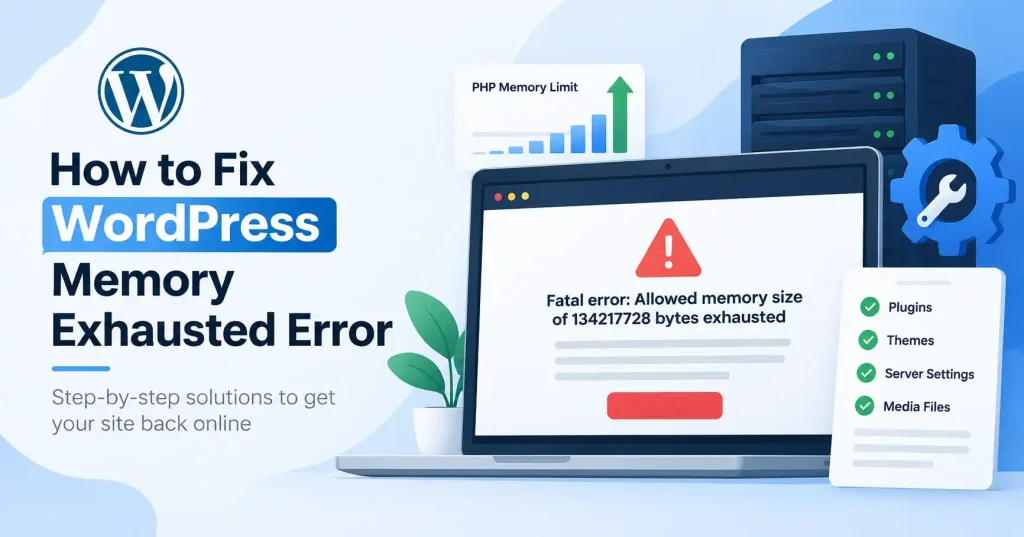

The wordpress memory exhausted error pops up when a PHP script running your site demands more RAM than your server allots. Messages like allowed memory size exhausted show up, sometimes just a blank white screen, a 500 internal server error, or a critical notice.
Usually, WordPress isn’t actually to blame. A heavy plugin, a bloated theme, background backups, image processing, database queries. Or custom code can easily blow past your host’s memory ceiling. Bumping up the limit fixes the crash right now. Still, you should figure out why your site is swallowing so much juice in the first place.
What Causes the WordPress Memory Exhausted Error?
WordPress uses PHP. For each PHP request, there is a set memory limit. When the code hits that limit and tries to grab more memory, PHP shuts down the request. After that, you see a memory exhaustion error.
A typical error may look something like this:
Fatal error: Allowed memory size of 134217728 bytes exhausted
The exact number tells you the memory limit in bytes. In this example, 134,217,728 bytes equals 128 MB.
Common causes include:
- A plugin using excessive memory
- A theme or custom PHP code consuming too many resources
- Large image processing operations
- WooCommerce or other complex plugins performing heavy queries
- Importing or exporting large amounts of content
- A backup or migration process
- An outdated or poorly optimized plugin
- Hosting level PHP memory restrictions
- Multiple resource intensive operations running at the same time
The file named in the fatal error isn’t automatically the culprit. PHP reports the file it was working with when memory ran out, which may simply be the point where the limit was reached.
How to Fix WordPress Memory Exhausted Error
Backing up a live site matters a lot, Nudge those toggles just once, walking through them step by step. You isolate the actual gremlin this way, No blindly cranking thresholds higher and praying something sticks.
1. Check the Current PHP Memory Limit
First, figure out the memory PHP and WordPress are actually allowed to use.
Pop into WordPress, Go to Tools, then Site Health, Info, and finally Server. You will spot PHP memory stats right there, though what shows up depends heavily on your specific host and WordPress version. Look closely for both the PHP memory limits and the WordPress memory limits.
Do not skip this. Simply tossing WPMEMORYLIMIT into wp-config. php changes nothing if your underlying server limit remains suffocatingly tight. WordPress can only request additional breathing room if the base PHP setup actually allows it.
2. Increase WordPress Memory in wp-config.php
Assuming your host lets you tweak things, bumping up the memory WordPress asks for just takes a quick edit to wp-config. php.
Drop this right above the line reading / That’s all, stop editing! Happy blogging. /:
define( ‘WPMEMORYLIMIT’, ‘128M’ );
Need extra breathing room in the dashboard, Add this too:
define( ‘WPMAXMEMORY_LIMIT’, ‘256M’ );
WordPress splits memory management. WPMEMORYLIMIT handles the frontend, while WPMAXMEMORYLIMIT takes the admin screens. Official docs put the default single site frontend at 40 megabytes, but the admin ceiling climbs up to 256 megabytes instead.
Match the number to your actual workload and host limits, Don’t crank it through the roof just because you can.
3. Increase the PHP memory_limit if the Server Is Restricting WordPress
WordPress still reports a low memory limit, even after you adjusted wp-config.php.
That usually means the issue is not just in WordPress. It may be your PHP setup.
Where to check depends on your host. Some settings show up in php.ini. Others are in your hosting control panel. In some cases, it sits in deeper server settings.
You may see a line like this:
memory_limit = 256M
One more thing: not every host lets you change this freely. If you are on shared hosting, there can be strict limits that you cannot override.
If that is what you have, contact your host support and ask them to raise the limit. WordPress itself suggests this exact move when the server blocks your attempt to boost memory.
4. Find the Plugin Causing the Memory Spike
Problem appeared after a plugin tweak? That’s your prime suspect. Disable them all for a spell. See if the trouble evaporates. Can’t reach wp-admin, No worries. Fire up your host’s File Manager or SFTP, rename the wp-content/plugins directory, just briefly. If the site steadies, revert the folder name. Then, reactivate plugins, methodically.
When the memory error returns, you’ve narrowed down the likely source.
This is particularly useful after plugin updates. A single plugin can cause a memory problem even when the rest of the installation is relatively lightweight.
For related WordPress troubleshooting, you can also review GoTechMantra’s guide to fixing the WordPress 500 Internal Server Error.
5. Test Your WordPress Theme
Plugins aren’t always responsible. Themes can hog memory big time. Think custom functions, page builder quirks, widgets that refresh constantly, or just sloppy code.
Try a default WordPress theme if you can, If the memory issue vanishes, that theme you were using? It’s got problems, Dig into its customizations.This is especially useful when the error occurs in the Customizer, theme settings, page builder, or another theme specific screen.
6. Check Large Images and Media Operations
Image processing can require considerably more memory than simply displaying an image. Uploading a very large image, generating multiple image sizes, or running a bulk image optimization process can therefore trigger memory exhaustion.
If the error appears specifically while uploading or editing images, look at the image dimensions and the PHP memory available to the process. Reducing unnecessarily large source files can help.
WordPress also has mechanisms for raising memory limits for particular memory intensive contexts such as image processing and administration, provided the server configuration allows it.
7. Turn on Debug Logging
If more memory doesn’t fix it, don’t just keep bumping the limit. Dig into what’s actually breaking. WordPress debugging tools can pinpoint which plugin, theme, function, or PHP file is hogging all the power, time after time.
On a production website, log errors without displaying them publicly:
define( ‘WP_DEBUG’, true );
define( ‘WP_DEBUG_LOG’, true );
define( ‘WP_DEBUG_DISPLAY’, false );
Set up the issue and then open the file at wp-content/debug.log. Check the log for words like Fatal error and “Allowed memory size exhausted.” Also scan for lines that mention a plugin or a theme.
After you finish the troubleshooting, switch debugging off on the live site. Keep it on only if you have a clear reason to do so.
8. Remove Unnecessary Plugins and Themes
A cluttered WordPress installation makes troubleshooting harder. Review your plugins and remove anything you no longer need instead of keeping unused software around indefinitely.
Don’t focus only on plugin count, though. Five lightweight plugins aren’t automatically worse than one poorly written plugin. Trim the fat. Remove unused functions, abandoned software, and plugins that bog down requests.
For site speed, guide to speed up WordPress without plugins is a true gem. It’s pure gold for making WordPress fly, no extra plugins required, it covers themes, images, scripts, and even hosting.
9. Ask Your Hosting Provider to Check Server Limits
Sometimes the WordPress setup seems fine, but the server still applies a smaller cap. Send your host the exact error text.
Ask them to look into it:
- PHP memory_limit
- Account level resource limits
- PHP FPM configuration
- Server error logs
- Whether your requested memory value is actually being applied
This matters a lot if Site Health reports a number that does not match what you set in wp-config.php.
Should You Increase WordPress Memory to 512MB or More?
Not automatically.
Look, more RAM could definitely keep a live operation from crashing right away. But honestly? Sometimes it’s just covering up a buggy plugin or some truly awful code. Even WordPress itself, in its own docs, pretty much says that more memory usually just kicks the can down the road.
Say a plugin starts sucking up RAM after an update, you boost the limit the site works. Good. But that plugin’s still a hog, right? Still eating resources. Find the actual problem, Fix it. That’s how you keep a site solid.
How to Prevent WordPress Memory Errors
Once you’ve fixed the immediate issue, keep the installation lean:
- Make sure your WordPress core, plugins, themes, and PHP are updated.
- Do not leave old plugins or themes installed if you do not use them.
- Try not to install more than one plugin for the same job.
- If you have large images, resize them before you upload.
- When you can, try changes to big plugins or themes on a staging site first.
- Also watch your server load if you run big imports, exports, backups, or media tasks.
- Before you change PHP or WordPress settings, create fresh backups.
When a site is busy, these habits help a lot. Troubleshooting gets simpler, since you can see what changed right before something breaks.
FAQ’s
What does “Allowed memory size exhausted” mean in WordPress?
A PHP process hit the memory cap that was set for it. Then it tried to use more memory than it was allowed to have. The system halted the process because there was not enough PHP memory available.
Is the WordPress memory exhausted error caused by too many plugins?
Maybe not. If one plugin is heavy or uses too much memory, that can trigger the issue. Other plugins can still run fine even if there are several of them. Try each plugin on its own instead of blaming the total count right away.
Does increasing WP_MEMORY_LIMIT fix the problem permanently?
It can fix the problem right away if the website truly needs more memory.
But if a plugin, theme, or custom code is using an unusually high amount of memory, you should track down that source. Do not just keep raising the memory limit again and again.
Why doesn’t changing wp-config.php increase my memory limit?
Your web host, it seems, might have a hard PHP cap. WordPress can’t just bypass that. Check Site Health, then, yes, prod them to up your PHP memory_limit.
Can a WordPress theme cause memory exhaustion?
Yes, theme code can raise PHP memory use. Page builders may also add more load. Custom functions, widgets, and other integrations can push usage up too. If you switch to a basic theme for a bit, you can see where the issue comes from.
Should I set WordPress memory to 512MB?
You should raise the limit only when it is truly needed. Also, make sure your hosting setup can handle it. If you simply bump the limit, it does not fix the real issue. Look instead for what is using too much RAM, like a plugin or theme, an import job, or image processing.
Conclusion
You hit a “WordPress memory exhausted” error? It’s often about resource limits, but the memory limit itself isn’t always the culprit. First thing’s first: check what PHP memory WordPress actually sees. Then, crank up WPMEMORYLIMIT, or maybe the server’s memory_limit setting, if that’s what it needs.
Still broken? Start troubleshooting. Poke at your plugins, slap on a different theme for a bit, dig through the debug logs. Your host can also check for account level PHP restrictions, but here’s the kicker: don’t just assume unlimited memory is the magic bullet. A well run WordPress site should handle its tasks without some clunky process hogging all the juice.
Want the nitty gritty on PHP settings, the PHP manual has solid info on `memory_limit` documentation.


Pingback: How to Clear WordPress Cache Properly: Complete Guide