
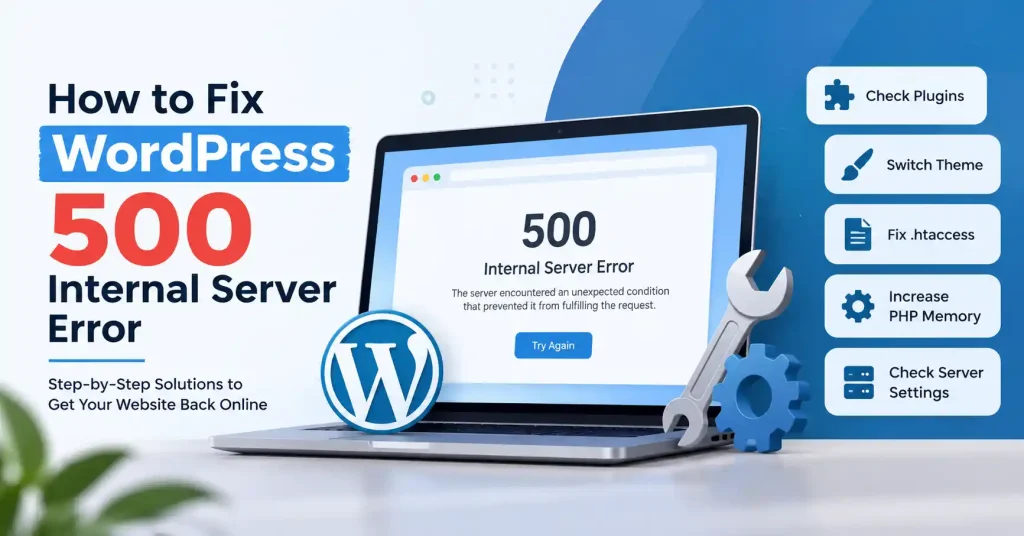

Dealing with a WordPress 500 Internal Server Error is really annoying. It can take a site that was fine and suddenly break it. The worst part is that you get almost no details. The browser usually shows something vague, like “This page isn’t working,” or “The site can’t handle this request right now.”
The better part is that you often do not need to start over. In most cases, the cause is something that changed recently. Common culprits include a bad plugin, a clash between a theme and other code, a damaged file, a corrupt htaccess setup, a PHP error, memory limits that are too low, or a strange server setting. The job is to figure out what changed and then test each possible cause in order.
And if you care about search rankings, keeping that tech stack clean matters. Our guide to WordPress SEO settings walks through several configuration spots worth checking while your site is still running smoothly.
What Does a WordPress 500 Internal Server Error Mean?
A 500 error means the server hit an unexpected snag while processing your request. Not WordPress itself.
Take a plugin with bad PHP code, for instance. You install it, WordPress tries to run it, PHP throws a fatal error, and boom. The server simply gives up, handing you an HTTP 500 without blinking.
You can trigger that exact same crash by tweaking your htaccess file, messing with PHP configurations, editing theme templates, or exhausting your hosting limits. That is precisely why that single vague error message tells you nothing about the actual root cause.
Common Causes of a WordPress 500 Internal Server Error
Several problems appear repeatedly when troubleshooting WordPress 500 errors:
- Plugin conflicts or a recently updated plugin
- A theme or custom PHP code causing a fatal error
- Incorrect .htaccess rules
- PHP memory exhaustion
- Incompatible PHP versions or server configuration
- Corrupted WordPress core files
- Hosting level resource or configuration problems
- Incorrect file or directory permissions
Did the error pop up right after a code update? Start there. Timing is usually the biggest clue you get.
How to Fix WordPress 500 Internal Server Error
Before changing files, take a backup if you can. If your hosting provider offers staging, testing the changes there is even safer.
1. Check Whether the Error Is Temporary
Start with the basics, Refresh the page. Open it in a private window. Try clicking another page on the site.
If just one URL throws an error, the root cause sits right on that exact page or somewhere in its code. But when the whole site and wp-admin go dark at once, you are dealing with a deeper server mess or a total WordPress crash.
Think back for a second. Did this start right after a plugin update, a theme swap, a PHP tweak, or a site migration? Write those details down before you touch anything else.
2. Check Your Hosting Error Logs
Your hosting control panel may provide an error log containing the actual PHP or server error behind the generic 500 response.
Look for entries generated at approximately the same time you reproduce the problem. Spotting a plugin, theme file, PHP function, memory limit, or htaccess rule narrows the hunt right away.
Stuck without log access, Reach out. Have your hosting provider dig into the server error log around the exact minute that stubborn 500 error hit, because WordPress support leans heavily on those records to tackle tricky internal server issues anyway.
3. Disable All WordPress Plugins
Plugin clashes happen all the time. Usually right after a fresh update.
Got dashboard access? Good. Head over to installed plugins, tick them all, and turn them off. See if your site works.
Locked out of the admin panel entirely? Skip the dashboard. Fire up your host’s file manager or log in via SFTP. Find the wp-content folder, then just rename the plugins directory to something else like plugins disabled.
This prevents WordPress from loading the installed plugins.
If the website comes back, rename the folder to plugins and reactivate plugins one at a time. When the error returns, you’ve found the likely culprit. WordPress documents this approach for situations where the administration area is unavailable.
4. Switch to a Default WordPress Theme
If disabling plugins doesn’t help, investigate the active theme.
Head to the dashboard. Turn on a default WordPress theme for a bit. Locked out? No problem. Just open your hosting file manager. Find the active theme folder inside wp-content/themes and rename it. WordPress will then default back automatically.
If the 500 error disappears, inspect the original theme, especially recently edited functions.php code, custom snippets, or compatibility with the current WordPress and PHP versions.
5. Regenerate the .htaccess File
A broken or poorly tweaked, htaccess file wrecks servers constantly on Apache.
Secure that file first. Then rename it to something like, htaccess old and test the site immediately.
If it loads fine, log into WordPress, go to Settings, click Permalinks, and simply hit Save Changes. You skip changing the actual structure. WordPress just needs a quick push to rebuild the standard rewrite rules from scratch.
Don’t blindly copy .htaccess rules from another website. Hosting environments differ, and one incorrect directive can create another server error. WordPress support specifically lists renaming .htaccess as a troubleshooting step for 500 errors.
6. Increase the PHP Memory Limit
Sometimes WordPress or a runaway plugin starves for PHP memory mid task. Brutal.
You can attempt to tackle this limit yourself through your wp-config, php file, control panel, or raw server settings. Exactly how far you can push those numbers depends entirely on your specific hosting setup.
Still, if a quick memory injection stops the crashing, do not just walk away. Find out what was consuming the memory. A heavy plugin, large import, inefficient query, or resource intensive process may still cause problems later.
7. Turn on WordPress Debug Logging
When the cause isn’t obvious, WordPress’s built in debugging tools can provide much more useful information.
In wp-config.php, you can use:
define( ‘WP_DEBUG’, true )
define( ‘WP_DEBUG_LOG’, true )
define( ‘WP_DEBUG_DISPLAY’, false )
That setup lets WordPress stash errors right in wp-content/debug. log while keeping messy technical stuff hidden from regular visitors. WordPress tells developers to keep these hidden on live sites. Why? Debug chatter leaks things the public shouldn’t see.
Once you track down the bug and squash it, turn debugging off again on the live page.
8. Check PHP and WordPress Compatibility
PHP upgrades occasionally shatter legacy WordPress code. Sometimes a terrifying 500 error flashes on your screen. Timing matters. Did the crash hit immediately after your host pushed an update? That single clue points directly to the culprit. Log into your hosting dashboard right now, and verify which exact PHP version runs your site.Then look at the help pages for your theme and each plugin. You want to see what PHP versions they support.
Try not to bounce PHP versions on a live site just to test. If something fails, it can be harder to fix later.
Go through your plugins and theme. If updates are available, install them. If no update exists, think about whether you can remove that plugin or theme.
9. Replace Corrupted WordPress Core Files
When your themes, plugins, htaccess, and PHP settings check out clean, damaged or missing WordPress core files are usually the hidden culprits.
Never skip the backup step. Stash your database and site files safely somewhere before swapping anything out, Next, download a fresh copy of your exact WordPress version. Use those new files to overwrite the old core. Just leave your wp-content folder and main config files completely alone. Simple as that.
Do not replace wp-config.php. Also, do not remove wp-content. Those parts hold your site settings, your installed plugins and themes, your uploads, and other key data.
10. Contact Your Hosting Provider
If the error survives all of these checks, the problem may sit outside WordPress.
Ask your host to check PHP error logs, resource limits, server configuration, permissions, recent configuration changes, and whether your account is hitting CPU, memory, process, or other hosting limits.
Give them the exact URL affected and the approximate time when the error occurs. That’s much more useful than simply saying, “My WordPress site is down.”
What to Do If Only wp-admin Shows the 500 Error
If your public site runs fine while /wp-admin throws a 500 error, don’t panic. The whole setup isn’t necessarily broken.
Begin by shutting off plugins. Test your active theme next, followed by the htaccess file. Still stuck? Dig into the server error log and WordPress debug log. WordPress. org actually suggests this exact order for admin side crashes.
You should also check if a security plugin, custom admin code, PHP limits, or a fresh code snippet is choking admin requests specifically.
How to Prevent Future WordPress 500 Errors
Crashes occur. Yet you can make fixing them much faster and easier.
- Keep regular backups. Make sure you can restore both files and the database.
- Update carefully. Don’t update every plugin and theme simultaneously when you’re troubleshooting a fragile site.
- Use staging for major changes. Test significant plugin, theme, and PHP changes before pushing them live.
- Remove abandoned plugins. If you no longer use a plugin, delete it rather than leaving unnecessary code installed.
- Monitor hosting resources. Repeated memory or CPU problems usually deserve a hosting or application level fix.
- Keep a record of changes. Knowing what changed immediately before an outage can save hours of guessing.
For broader WordPress performance work, you can also review our guide on speeding up WordPress without plugins.
FAQ’s
What is the most common cause of a WordPress 500 error?
One trigger, Forget it. Bad plugins, PHP glitches, chewed-up htaccess files, tight memory caps, and weird hosting environments all cause this. Want the fastest fix, Dig into the server error log to narrow things down fast.
Can a plugin cause a 500 Internal Server Error?
Plugins can cause major headaches. One small mistake leaves you staring at a PHP error. Or maybe it clashes with a theme, WordPress itself, or your server settings. The fix? Turn off the whole lot, Bring them back online one by one. The culprit always shows its face eventually.
How do I fix a 500 error when I can’t access WordPress admin?
Fire up SFTP or open your hosting dashboard. Deactivate plugins, rename that broken theme, or tweak htaccess. These sneaky bypass tricks let you fix a shattered dashboard entirely from the outside.
Should I delete the .htaccess file?
Delay deletion, Back it up or rename first, then check the site. When trouble traces to the htaccess file, WordPress typically regenerates standard rules through Permalinks automatically.
Does increasing PHP memory always fix a 500 error?
Sure, bumping memory saves you when PHP runs dry. Yet it completely ignores flawed plugins, broken configs, syntax glitches, or plain old server chaos. Why rely on mere band aids?
Should I enable WP_DEBUG on a live WordPress site?
Isolate logging strictly for troubleshooting. Never broadcast raw debug noise, By enabling WPDEBUGLOG while keeping WPDEBUGDISPLAY off, you uncover hidden system errors cleanly. That way, messy technical data never ruins your live pages.
Conclusion
A WordPress 500 error sounds unclear, yet the real cause is usually found. Start with the server error log. After that, check your plugins one by one and then your active theme. Next, review the htaccess file. Also test the PHP memory limit and any version or compatibility issues. Turn on and check the debug logs if you can. If it still does not show, look at what your host is doing in the background.
The secret is changing one single thing at a time. Disable a plugin and the site comes back? Great, you found the culprit. Regenerate, htaccess and it works? You narrowed the gap. That method beats tweaking a half dozen settings at once and guessing which one actually mattered.
After it is all working again, do not leave it alone. Take a moment and see what caused the failure. Replace the faulty piece, or patch it if a patch exists. Then set up a reliable backup so you can restore fast if it happens again.

Pingback: WordPress Too Many Redirects Fix: ERR_TOO_MANY_REDIRECTS
Pingback: How to Fix WordPress Memory Exhausted Error