
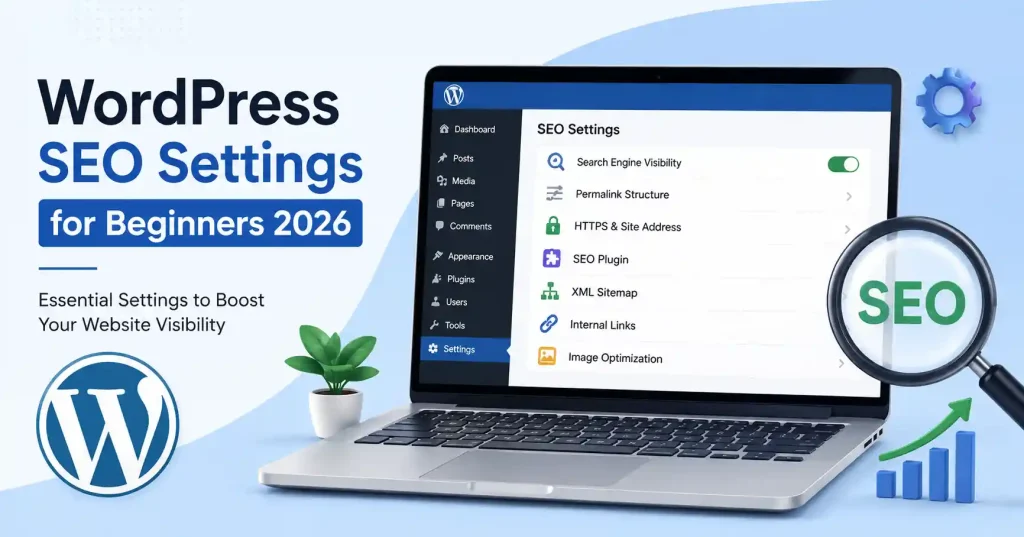

Getting WordPress SEO settings right doesn’t mean you need a dozen plugins or some technical background. A few options inside WordPress, plus sensible on page optimization, can give your site a cleaner base for search visibility. For beginners the tricky part is knowing which settings truly matter, and which ones you can safely ignore for now.
This guide covers the WordPress SEO settings worth checking in 2026, starting with search engine visibility and permalinks, then moving through HTTPS , titles, internal links, XML sitemaps, images, and the basics of technical SEO. The aim isn’t to chase every SEO setting that exists. It’s to create a layout that helps both people and search engines understand your content.
What Are WordPress SEO Settings?
WordPress SEO settings are basically the configuration choices that affect how your site is laid out, crawled, indexed, and then shown in search results. Some parts come straight from WordPress itself, while other parts are dealt with by an SEO plugin, or even your theme depending on what you use.
The key distinction is this, SEO isn’t controlled by one simple switch. Your permalink structure, indexing choices, site address, the way your content is organized, the page titles, your internal links, and the overall technical setup all work together. Missing even one, can cause weird outcomes, in a quiet way.
WordPress already gives you several search friendly features, including customizable permalinks and a setting that controls whether search engines should be discouraged from indexing the site.
WordPress SEO Settings Every Beginner Should Configure
1. Check Search Engine Visibility
Start with the setting that can make or break your sites visibility.
Go to Settings → Reading in your WordPress dashboard, and then look for Search Engine Visibility . Make sure “Discourage search engines from indexing this site” is not checked , once your website is ready to show up in search results.
This option is handy during the build phase of a private staging site , but keeping it enabled on a live website can stop search engines from properly scanning and indexing your posts. WordPress notes that turning it on inserts a noindex,nofollow robots directive into the head of the site.
A small routine helps: review this setting as soon as you launch a new website , and again after you move from staging to production.
2. Use a Clean Permalink Structure
Your links should communicate what a page is actually about, not force visitors to decode random digits or database strings.
Open Settings → Permalinks and choose Post name for most blogs and content websites. A URL like:
example.com/wordpress seo settings/
is far easier to interpret than:
example.com/?p=428
WordPress goes, in its documentation, and calls permalinks those permanent links for posts, pages, categories , and other archive pages. It also suggests a readable structure. So the URLs are easier for people and search engines to understand.
One warning though: don’t change the permalink layout on a site that already has history. If you do, the existing URLs might shift, and then links break, unless redirects are arranged properly and checked.
3. Set your website address and HTTPS right
Head to Settings → General and confirm both WordPress Address (URL) and Site Address (URL).
For a typical live website, ensure the preferred version is using HTTPS. Also verify that the WordPress URL and the site URL match each other, in a consistent way. HTTPS protects the connection between your website and visitors, plus WordPress Site Health will show whether HTTPS is active.
If your site was recently moved from HTTP to HTTPS, then verify that the old links now redirect correctly. Also check that internal references do not still target the older HTTP versions.
4. Make a Clear Site Title and Tagline
A good site title tells people what your website is really about. The tagline adds extra meaning, but it should not be shoved full of keywords or long phrases that repeat.
Open Settings → General and type a short, truthful site title. For example, a technology blog could use something like “GoTechMantra” as the site title and then add a brief statement for the tagline, basically describing the theme.
Also don’t turn the tagline into a grocery list of search terms. A simple explanation helps more than something like “SEO AI Digital Marketing Technology Tools Tips Blog.”
5. Pick One SEO Plugin
WordPress already covers a lot of the technical groundwork, but an SEO plugin can make normal, daily tweaks way easier. These tools usually offer settings for SEO titles, meta descriptions, canonical links, XML sitemaps, robots directives, and more.
You do not want multiple SEO plugins overlapping the same job. Choose one trusted option, and then go through the main features slowly, so you understand what each control does.
The bigger mistake is installing an SEO plugin and assuming the setup is finished. The plugin gives you controls, it doesn’t automatically create useful content, good site architecture, or even decent inner linking. It leaves you with the work, and that can feel a bit annoying later.
Optimize WordPress Pages and Posts for Search
After the basic options are configured, shift your attention to each page and each article. This is the spot where your main keyword should land in a calm way, not stuffed. Put it in the title, the opening lines, the headings, the URL, and only in the body where it truly makes sense.
For instance, if your topic is WordPress SEO settings, a sensible layout for a page could look like this:
- SEO title: WordPress SEO Settings for Beginners 2026
- URL: /wordpress seo settings/
- H1: WordPress SEO Settings for Beginners 2026
- Introduction: Explain what the settings do, and why beginners should configure them
- H2 sections: indexing, permalinks, plugins, content, images, links, and technical checks
Don’t push the keyword into every single heading. Search engines need meaning, not the same phrase repeating again and again.
For a broader on page process, the on page SEO checklist for beginners on GoTechMantra covers practical areas like title tags, meta descriptions, headings, URLs, inner links, and content optimization .
Write Better SEO Titles and Meta Descriptions
Your SEO title should clearly show what the page is about and give searchers a reason to click. Keep it readable, don’t jam several key phrases into it, just because you can.
Meta descriptions don’t directly steer rankings , but they can affect how your page appears to people searching. Write a short description that matches the real content, and aligns with the search intent .
Use One Clear H1
Most pages should have a single primary H1 that clearly tells the main theme. Use H2s and H3s to group supporting sections .
This setup helps visitors skim long articles, and it makes the connection between sections a bit easier to grasp.
Add Internal Links
Internal links connect relevant pages on your own website, which helps readers find useful details, and it also gives search engines more ways to crawl. Sometimes that “extra path” matters a lot.
For instance, if you write about WordPress SEO you can naturally connect it to a guide like content marketing strategy for new websites when you’re talking about how search optimization and editorial planning work together, in a practical way.
When adding a link, use clear anchor text instead of repeating the same thing like “click here”,because the link should still make sense even if someone reads only that one sentence.
Optimize images without making your site heavy
Images make an article better, however huge files can make a page feel sluggish. Before you upload, resize the image to the exact size you actually need, and use a modern file type if your setup supports it.
Give your important images descriptive file names, and write useful alt text too. Alt text should actually explain what is shown, when the visual carries meaning; it should not turn into a keyword dump. Like, if you have an image of the WordPress permalink screen , the alt text could be “WordPress permalink settings showing the Post name option.”
Don’t ignore categories and the site structure
A beginner WordPress site can get messy fast if every single post ends up with a handful of random categories and a pile of tags.
Keep your category structure simple. A technology blog might use categories such as SEO, WordPress, AI, and Digital Marketing , depending on what you genuinely publish there.
Ask yourself if a category helps visitors locate related articles. If it doesn’t, it probably shouldn’t be there.
Also check your XML sitemap and indexing
An XML sitemap helps search engines find URLs on your site. Many current WordPress setups, and SEO plugins, can generate it automatically.
The main thing isn’t just having a sitemap. Make sure it lists the URLs you truly want indexed, and it doesnt turn into some kind of dumping ground for pages that should stay private or excluded.
Also take time to verify the key pages one by one if indexing seems off. A sitemap can help with discovery, but it does not promise that every URL will show up in search results.
WordPress SEO Settings Checklist for Beginners
Before you publish a fresh WordPress site, go through these items:
- Confirm search engine visibility is enabled.
- Pick a clean permalink structure.
- Verify HTTPS and the site URLs are set correctly.
- Set a clear site title and tagline.
- Install and configure one SEO plugin if you need it.
- Write descriptive SEO titles and meta descriptions.
- Use clear H1, H2, and H3 headings.
- Add relevant internal links, where they actually help.
- Compress images and make sure the important ones have proper descriptions.
- Review your sitemap and the key indexable URLs.
This covers the basics without turning SEO into some technical thing that never seems to be done.
Common WordPress SEO Mistakes Newbies Tend To Make
One common mistake is messing with settings,without fully seeing what happens next. Permalink adjustments, indexing rules, and URL changes really need more attention than changing a blog category name,that’s usually low risk.
Another frequent mistake is treating the SEO plugin score as the finish line. A page can satisfy every plugin nudge and still miss the point of what the searcher actually wants. SEO tools help, but they should not replace your judgment,period.
Keyword stuffing is also a common trap. If the primary phrase shows up in a natural way in the title, the intro, relevant headings, the URL, and the main text, you typically do not need to keep repeating it.
FAQ‘s
Is WordPress good for SEO?
Yes, WordPress can be pretty good when it comes to SEO, and it provides a few solid bases for sure. You get customizable URLS, plus settings tied to search engine visibility, and honestly that can matter more than people think. Still, even with all that in place, your rankings hang on content quality and site organization, plus technical well being. And also how each page deals with the actual search intent, not just the keywords.
Which permalink structure is best for SEO?
For many content sites, the Post name option is often the quiet, sensible choice. It tends to keep URLs brief and easy to scan. WordPress does include several permalink alternatives, so choose what fits your layout and goals, then avoid reworking it too frequently later, unless you truly have to.
Do I need an SEO plugin for WordPress?
Not always.WordPress already has SEO related capability in the core, but adding an SEO plugin can make the daily routine a bit less fiddly, for example watching page titles, meta descriptions, canonical directions, and XML sitemaps. If you decide to use one, don’t stack several plugins that do the same job, because you might end up with extra overlap and then everything becomes confusing.
Should I change my WordPress URLs after publishing?
Usually , no. If an URL already works and it has links pointing to it, changing it can cause unnecessary trouble, and maybe a few hidden breakages. When a URL really needs changing, use the proper redirects and also revise internal links, dont leave those behind
Does WordPress automatically create an XML sitemap?
Most modern WordPress setups include an included sitemap function. Some SEO plugins may add extra sitemap settings or toggles. Instead of assuming everything matches what you expected, go and check the sitemap first, look before you trust
How often should I review WordPress SEO settings?
Review the key settings after some bigger moves, like a redesign, migration , a domain transition, setting up HTTPS, or when you install a new SEO plugin. For standard websites, a periodic technical audit is enough, you do not need to keep nudging SEO settings every week.
Conclusion
The best WordPress SEO settings are the ones that leave you with a clean, easy to follow website, then basically step back. Begin with search engine visibility, readable permalink structures, HTTPS, a sensible website hierarchy, and one consistent SEO process. After that , put more energy into improving your pages, internal linking, visuals, and actual content, rather than constantly fiddling with dashboard toggles.
If you’re starting from scratch, treat WordPress SEO settings as the foundation, not the entire strategy. Get the technical groundwork right once, then keep your focus on crafting pages that genuinely answer what people are searching for.

Pingback: 7 Best Free AI Image Generators for Websites in 2026
Pingback: Best Free Plugins for WordPress SEO in 2026
Pingback: SaaS Security Best Practices for Startups: A Practical Guide
Pingback: WordPress White Screen of Death Fix: Complete Guide
Pingback: How to Fix WordPress 500 Internal Server Error: 10 Ways
Pingback: WordPress Mixed Content Error Fix: Step-by-Step Guide
Pingback: Google Search Console WordPress Setup: Step-by-Step Guide
Pingback: WordPress Broken Links Fix: How to Find & Fix Broken Links
Pingback: How to Find Broken Links in WordPress: Easy Guide