
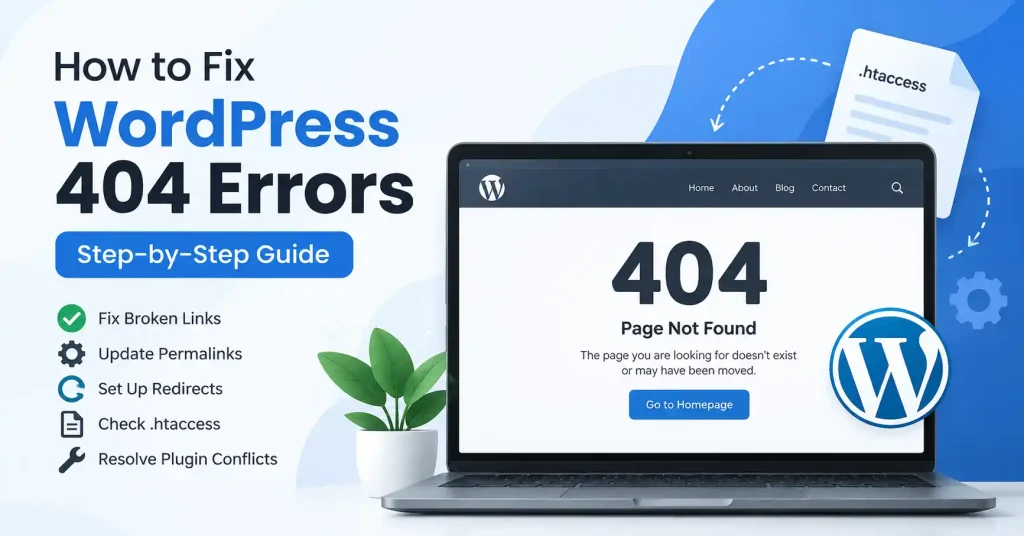

A WordPress 404 error means the URL you typed does not point to what the server or WordPress actually expects to find. You might catch a plain 404 Not Found notice, a simple page not found warning. Or maybe some custom error screen your theme put together.
The frustrating part is that a 404 does not automatically mean the content vanished entirely. A post might still sit safely in the database while its permalink structure is completely broken, or someone shoved a page to a fresh URL without setting up a redirect. Sometimes, a rogue plugin, a botched migration, a random server glitch, or even a messed up htaccess file simply stops WordPress from reading the address right.
Start small, Fixing these errors rarely requires starting over from scratch. Begin with the quick fixes, and if those fail, look deeper into redirects, plugins, and server settings.
What Causes a WordPress 404 Error?
Look, no single thing makes all WordPress 404s, but that distinct pattern, it usually just tells you.Common causes include:
- Incorrect or corrupted permalink rules
- A page or post that was deleted or moved
- A changed URL slug
- Missing 301 redirects after changing URLs
- Plugin or theme conflicts
- Incorrect .htaccess rules
- Server rewrite configuration problems
- Issues following a site migration or domain change
- Conflicts involving custom post types or taxonomies
Your homepage runs fine, but posts hit a 404. What gives? Check your permalinks first. WordPress docs point right at rewrite settings and server configurations when this happens. It is a common trap, honestly, Resetting those rules usually fixes it fast.
WordPress 404 Error Fix: Start With Permalinks
Fixing a WordPress 404 error is surprisingly painless. Just refresh your permalinks. You can actually leave the structure completely untouched, Merely visiting that backend settings screen forces the platform to rebuild its internal rules. That is literally it.
- Log in to your WordPress dashboard.
- Go to Settings → Permalinks.
- Check that your preferred permalink structure is selected.
- Click Save Changes.
- Open the URL that previously returned a 404.
This action flushes rewrite rules in WordPress. Official docs mention that just visiting the Permalinks screen triggers this flush. No need to mess with your URL structure at all. If the page loads fine after, you can usually stop troubleshooting right there. Done.
Check Whether the Page or Post Still Exists
If refreshing permalinks doesn’t help, check the actual content.
Open Pages → All Pages or Posts → All Posts and search for the missing item. Make sure it hasn’t been moved to Trash, changed to Draft, or given a different slug.
For example, suppose your original URL was:
example.com/wordpress-speed-guide/
You later changed the slug to:
example.com/wordpress-speed-optimization-guide/
Magic won’t update your links. Visitors hitting that legacy address face a frustrating 404 error unless you manually construct a proper redirect. Plain and simple.
Also check the URL carefully. A single missing character, extra word, or incorrect trailing path can produce a 404 even though the intended page is working perfectly.
Check the URL Slug
A WordPress page can exist while its URL is wrong.
Open the affected post or page. Check its slug immediately. Make sure it lines up with the exact URL you are currently testing.
Watch out for duplicate slugs, particularly on bigger sites where old content lurks. WordPress tacks an accidental number onto the end if something else already grabbed that exact name, meaning you might think your URL is totally clean while the platform quietly made it something else entirely.
Custom post types complicate things further. Name clashes between those and standard pages trigger frustrating errors.
Add a 301 Redirect When a URL Has Changed
Got a page that moved for good? Don’t just leave a dead 404 hanging there.Just set up a 301 redirect, that old web address? Point it at the new one. No more dead ends for your loyal visitors.
Plus, you keep all the juice from older links floating around the web.
For example:
Old: /best-wordpress-hosting/
New: /wordpress-hosting-guide/
Send visitors right to the matching replacement page, not your homepage. Shunting dozens of dead links back to home just frustrates people and turns URL maintenance into a headache.
This site’s layout shifts like sand, Documenting those big URL changes? It’ll save you a heap of trouble down the road, trust me.
Check for Plugin or Theme Conflicts
If isolated URLs throw 404s, a plugin or theme could be the culprit, Think back. Was there a fresh plugin, an update, a site migration, or some custom code tossed in right before things broke? Check those immediately.
If you suspect a plugin:
- Deactivate the plugins temporarily.
- Test the affected URL.
- If the 404 disappears, reactivate plugins individually.
- Test the URL after each activation.
- Investigate the plugin that brings the problem back.
If your entire site is already difficult to access, use your hosting File Manager or SFTP to temporarily rename the plugins directory. This can help determine whether a plugin is responsible without requiring access to the WordPress dashboard.
For related troubleshooting involving plugin and theme conflicts, see our guide to fixing the WordPress White Screen of Death.
Check the .htaccess File
WordPress leans on dot htaccess rules on Apache servers to keep permalinks working right. Lose those rules or let them corrupt, and your homepage loads just fine, but click a post or a page? Instant 404.
Seriously, back up that file before you mess with it. Unsure about server files? Ask your host for help.
Fixing this is painless. Rename the current file. Go to Settings in your dashboard, click Permalinks, and hit Save. WordPress builds a fresh set of rules automatically.Don’t blindly paste .htaccess code from another website. Server setups differ, and a rule that works on one installation can cause another problem on a different environment.
Check Your Hosting Server Configuration
If refreshing permalinks and rebuilding htaccess fails, the root cause might be outside WordPress entirely. Apache setups demand that the mod_rewrite module is properly configured for pretty URLs to work. WordPress docs point to missing rewrite support as the usual culprit behind stubborn 404 errors.
Sites running on Nginx need a totally different setup. Editing htaccess won’t fix an Nginx rewrite issue simply because htaccess is strictly an Apache thing. Pointless to try.
This is where your host steps in. Send them a broken URL that throws a 404, Let them know if your dashboard and homepage load fine.
Clear Caches After Making Changes
Caching can make troubleshooting confusing.
Fix the root problem first. Then flush out every layer of cache you have, Clear WordPress, your server, the CDN, and the browser too. Next, test that URL using an incognito window.
Don’t skip this step. It is vital after tweaking permalinks or redirects. Otherwise, stale cached data fools you into thinking the fix didn’t work.
Tackling multiple bugs right now? Our guide on fixing the WordPress 500 Internal Server Error tackles another frequent server glitch.
Check 404 Errors After a Website Migration
Moving a WordPress site shatters things instantly. Fresh server, new domain, or directory shift? Expect endless broken links.
Check these areas first:
- WordPress Address and Site Address: Make sure the URLs are correct under Settings → General.
- Permalinks: Visit Settings → Permalinks and save the settings again.
- Redirects: Make sure important URLs from the old site point to their correct destinations.
- Server configuration: Confirm that rewrite rules are configured for the new hosting environment.
- Internal links: Search your content for links still pointing to old URLs.
WordPress’s migration documentation specifically recommends reconfiguring rewrite rules when moving a site.
Don’t Fix Every 404 With a Redirect
Not every 404 error needs a redirect. When visitors hit an old page like a dead product URL with zero replacement options out there, letting that link throw a genuine 404 is fine. The target isn’t erasing all 404s. You just need to ensure good pages aren’t tossing out dead errors by mistake, and old high value URLs actually go somewhere sensible.
For SEO, zero in on broken links that used to hold solid info, pull in backlinks, sit in your main navigation. Or get cited around the web. Analytics, server logs, or crawling software make finding these recurring addresses fast. No manual sorting needed.
How to Prevent WordPress 404 Errors
Stopping every single missing page is impossible. Even so, slashing the preventable ones remains entirely within reach.
Keep these habits:
- Avoid changing URLs unless there’s a good reason.
- Create redirects when important URLs change.
- Keep a record of major URL changes.
- Test important pages after migrations.
- Check internal links periodically.
- Keep plugins and themes maintained.
- Take backups before making server level changes.
- Review recurring 404 URLs instead of ignoring them.
A 404 report is surprisingly useful. When visitors keep hitting that same dead URL, it exposes a broken internal link, a missed redirect. Or some old site pointing backward in time. Pay attention to it.
FAQ’s
Why is my WordPress homepage working but my posts show 404 errors?
That usually points to a permalink bug, Head straight to Settings, Permalinks, and click Save Changes without tweaking a single thing. Still broken, Dig into your htaccess file or check server rewrites right now.
Can changing permalinks cause 404 errors?
Yes. If you change the URL setup, WordPress can handle content links in a different way. Old links that people already use might stop working. In that case, you usually add redirects. This matters most when the new structure affects pages or posts that already exist.
Why does WordPress show 404 after changing a page slug?
Altering your slug changes the URL. Old links break instantly without a redirect. Always test that new slug first. Then drop in a permanent 301 redirect from the old address if anyone still needs to reach it. That saves you traffic.
Can plugins cause WordPress 404 errors?
Altering your slug changes the URL. Old links break instantly without a redirect. Always test that new slug first. Then drop in a permanent 301 redirect from the old address if anyone still needs to reach it. That saves you traffic.
Do I need to edit .htaccess to fix a WordPress 404?
Not always. Just resaving your permalink settings often fixes tricky rewrite bugs, totally skipping any manual . htaccess tweaks. Still stuck, Check your server setup or that . htaccess file.
Should every 404 URL be redirected?
No. Redirect a removed URL when there’s a relevant replacement. If no useful replacement exists, a normal 404 can be the appropriate response.
Conclusion
Fixing a WordPress 404 error isn’t about blindly tweaking settings. You’ve got to diagnose it first. Start with a permalink refresh, then double check that your content and its slug are still there. If a URL moved, set up a 301 redirect. Don’t leave visitors stranded.
When those easy fixes bomb, dig deeper. Check plugins and themes, snoop around in, htaccess, look at your hosting setup, and see what’s changed lately. This way, you avoid editing a bunch of files all at once and then wondering what actually fixed things.
Need to really get into the weeds of how WordPress handles permalinks and rewrites? The official documentation is your go to.


Pingback: WordPress Broken Links Fix: How to Find & Fix Broken Links