

1. Run a Full Benchmark Before You Touch a Single Setting
Blindly installing another optimization plugin and crossing your fingers won’t cut it. Instead, grab clean performance metrics across your homepage and several distinct URL templates, mainly because unique layouts handle scripts and assets in totally different ways. Track your raw load times, TTFB, total payload size, HTTP request counts, and Core Web Vitals. Run the test three or four times if the data swings wildly.
A proper audit points out the exact culprit, whether you’re up against an underpowered server, massive uncompressed images, script bloat, or tangled CSS stylesheets. You solve actual problems that way. No guessing required.
2. Turn on Page Caching First
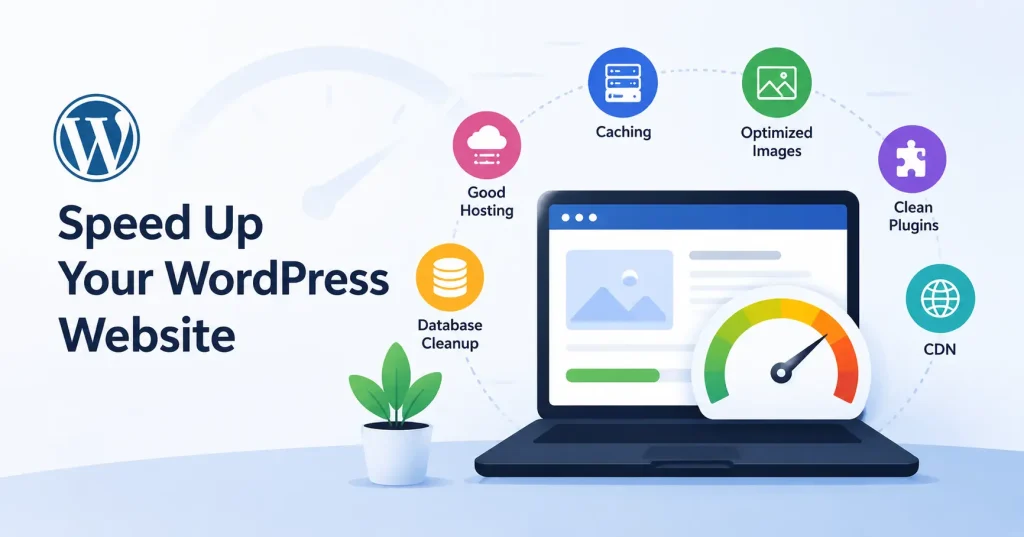
If your WordPress site crawls, turn on page caching first thing. Without caching, your server scrambles. It fires up PHP, hammers the database with queries. And builds the layout from scratch every single time a visitor clicks a link.
Caching flips the script. It hands people a pre rendered, static snapshot instead, saving massive server overhead, Even the official WordPress crew treats this as a non negotiable speed tweak.
You can lean on tools like LiteSpeed Cache, WP Super Cache, or W3 Total Cache depending on how your hosting runs. But stick to just one, Running two or three caching plugins at once? That just invites conflicting rules and completely broken site layouts.
3. Shrink Your Images Down
It is easy to blow past file sizes, but dropping a massive three thousand pixel photo into a tiny eight pixel slot just makes visitors download dead weight. Crop things to what you actually need before uploading, and run them through a compressor.
Use modern formats like WebP or AVIF when you can; even WordPress performance guides recommend it. Sure, lazy loading helps items buried lower on the page, but don’t slap it everywhere blindly. If you lazy load that main hero image right at the top, you will actually hurt your load speeds instead of fixing them.
4. Review Your WordPress Plugins
It is not just the sheer count of WordPress plugins that drags you down. Honestly, a single troublesome plugin can cripple your site speed far more than several lighter ones stacked together.
So take a good look at what is installed and figure out precisely what each one is doing. If three plugins perform the exact same job, is keeping all of them really necessary? Ditch the extras. Deactivate them first, then delete them completely.
WordPress itself even recommends disabling plugins one by one when you are hunting down a performance glitch. That is how you zero in on the exact offender.
Imagine your site suddenly speeds up after you disable a form, analytics, slider, or social sharing plugin. Bingo! You’ve found your prime suspect. Then you can hunt down a faster replacement instead of just putting up with a sluggish site.
5. Optimize CSS and JavaScript Carefully
Modern WordPress sites can bog down your pages with way too much CSS and JavaScript. Think about all the extras: page builders, fancy sliders, those animated bits, popups, trackers, and chat boxes.
A good performance plugin can often shrink down those files and push some scripts back. But here’s the thing: don’t just flip every single aggressive optimization switch. Some features, like delaying JavaScript, can totally wreck menus, forms, sliders, or even the checkout process.
So, change one thing, clear your cache, and check the site. If it’s broken, you’ll know exactly which setting to blame.
6. Check Your WordPress Hosting Setup
You can dial in every on page tweak imaginable, but a weak server ruins everything anyway. If server response times drag on an otherwise lightweight page, look at where it’s hosted.
Shared plans work fine for a tiny blog, sure. But pile on more traffic, extra plugins, a swollen database, or complex features, and you will hit a wall.
WordPress itself points out that physical hardware, heavy server loads, poor configurations, and pure physical distance all drag down speed.
Get in touch with your host and ask point blank about your CPU allocations, RAM, disk I/O, PHP version, caching setup, and hard resource caps. When you are constantly slamming into those ceilings, upgrading your hosting tier fixes far more than stacking on yet another optimization plugin.
7. Add a CDN for Static Files
Slap a CDN on your static files, images, CSS, JS, you know the drill, so they load from servers nearer to whoever’s visiting. This really helps if you’ve got folks logging in from all over the map.
But here’s the thing: a CDN won’t fix a garbage WordPress setup. Stuffing your pages with monstrous images and bloated scripts? A CDN isn’t some magic wand for that mess.
It’s just another tool you use once the basic stuff is solid.
8. Clean Up the WordPress Database
WordPress databases get clogged over time with old post revisions, forgotten temporary data, junk metadata, and other gunk. A massive database isn’t always the culprit behind a sluggish site, but clearing out actual junk does help keep things tidy.
Always back it up first, obviously. Don’t just go deleting tables or entries unless you’re absolutely sure what they do.
For bigger sites, or trickier ones, things like persistent object caching and digging into database performance become valuable tools. The official WordPress guides mention that object caching can cut down on constant database queries, speeding things up.
9. Cut Down on Third Party Scripts
Dropping a snippet onto your site takes seconds, but over time, that junk piles up unnoticed until things crawl. Ads, chat widgets, fonts, heatmaps, tracking pixels, video players, social feeds, analytics, they all chew through browser memory and fire off extra network calls.
Run an honest audit of what is running. If a tag isn’t pulling its weight with real business value, rip it out. And for the tools you actually need, push their loading time back so they don’t hold up the rest of the page.
10. Test After Every Major Change
Don’t think you just fix website speed once and you’re done. Stuff happens. A new plugin, a different theme, a page loaded with images, or some marketing gadget you just installed can drag things down again.
Keep a basic log of big performance shifts. After you make major changes, check your homepage, key landing pages, blog posts, and even product or checkout pages if that’s your thing.
For you techier WordPress folks, profiling tools can pinpoint slow code, database lookups, and outside calls, which is way better than just looking at a front end score.
A Simple WordPress Speed Optimization Checklist
If you need a sensible order of operations, start right here.
- Test the site first and pinpoint your single worst bottleneck.
- Turn on solid page caching.
- Scale down and compress bulky media.
- Purge the plugins you never actually touch.
- Tweak CSS and JavaScript with caution.
- Inspect your hosting limits alongside server response lag.
- Hook up a CDN if your geography or traffic profile actually calls for it.
- Scrub junk out of the database, but only after running a full backup.
- Cut down on external scripts that clutter the page.
- Run tests on your core URLs after each heavy tweak.
Taking things one step at a time beats toggling every shiny performance checkbox in sight. True optimization is about stripping away dead weight, not chasing an arbitrary row of green scores for vanity.
How Internal SEO Steps In After Speed Gains
Raw speed is only one piece of the puzzle alongside technical plumbing and on page adjustments. Once pages snap open instantly, you still have to verify that your layout and copy make total sense to human readers and search bots alike.
It pays to consult a technical SEO guide to audit indexation, crawl efficiency, mobile usability, and related health factors. Use an on page checklist to thoroughly comb through heading tags, internal cross links, page titles, permalinks, and structural hierarchy.
Nothing replaces raw velocity. Still, lightning speed means nothing without strong substance behind it.
FAQ’s
Why is my WordPress website suddenly slow?
A sudden dip usually traces back to an unvetted plugin, an altered theme, an uncompressed batch of raw images, host level resource throttling, a choked database. Or third party tracking scripts misbehaving. Trace your latest edits before tearing through the core settings.
Does installing a caching plugin make WordPress faster?
Most likely, provided the URLs in question can actually be cached for guests. The tangible difference hinges on server hardware, backend architecture, chosen cache rules, and how much heavy PHP work the server was grinding through in the first place.
Can too many plugins slow down WordPress?
Yes, though total count is a lazy metric. Badly written code, endless SQL queries, bloated assets, external calls, and messy plugin conflicts matter infinitely more than an arbitrary figure on your dashboard.
Should I use both a cache plugin and a CDN?
They handle different chores and complement each other well. Caching trims server side rendering time, while a CDN parks copies of static media and cached documents closer to global visitors.
Will changing my WordPress theme make my website faster?
Quite possibly, particularly if your current template drags in excess asset libraries or relies on clumsy dynamic bells and whistles. Even so, burning down your theme shouldn’t be your opening move; test first to see where the real drag lives.
How often should I check WordPress website speed?
Audit things whenever you roll out a major shift, like adopting fresh plugins, switching themes, dropping in marketing tags, or reworking page layouts. Running an occasional routine health check is smart too, since sites naturally get heavier over time.
Conclusion
Stop guessing why your WordPress crawls. Find the bottleneck first. Run diagnostics to catch that hidden drag. Is it missing cache headers, unoptimized images, bloated plugins, cheap hosting, runaway scripts, or clogged database tables? Tackle the single heaviest culprit before you touch anything else.
For most projects, the playbook stays straightforward. Lock down dependable caching, compress images, prune your plugin directory, shed excess front end baggage, clean database bloat. And verify your server can actually shoulder your typical traffic spikes.
Once that base is rock solid, test again and let fresh data dictate your next micro optimization.
Whenever you hit a wall, the official WordPress performance optimization handbook remains an invaluable reference for digging deeper than standard off the shelf plugin interfaces allow.


Pingback: How to Clear WordPress Cache Without a Plugin