
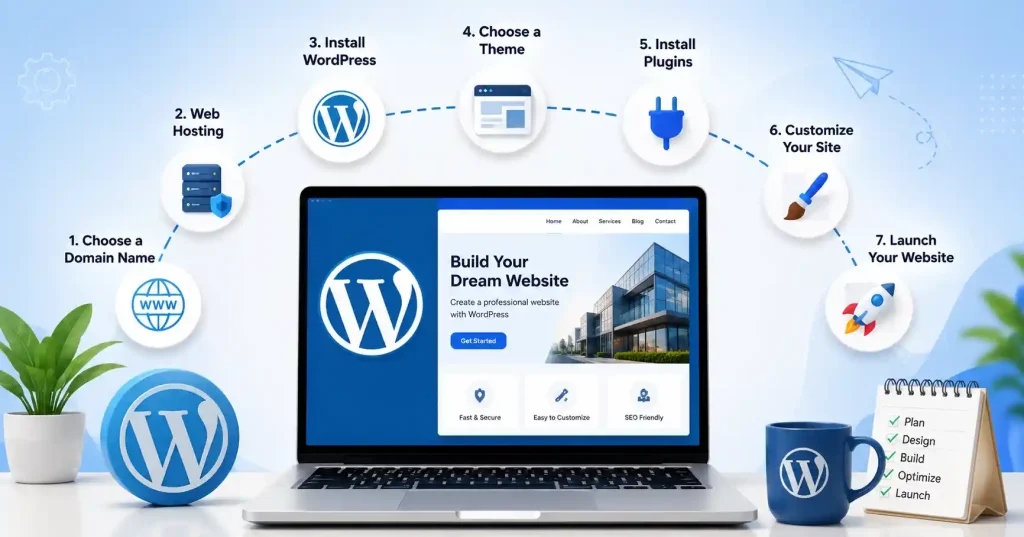

Starting with WordPress? Honestly, it’s a bit of a jungle. You have hosting, domains, themes, plugins, plus a whole lot of moving parts to figure out. Plus, a million tutorials all tell you something different. You could honestly spend hours watching videos and still not have anything online.
But here’s the thing: building a WordPress site isn’t actually that hard. Not once you get how it works. Then it all clicks. Whether it’s for your business, a personal blog, a portfolio, or even a large company, learning WordPress means you’re really running your online presence. You do not need fancy coding skills, not at all.
Why Choose WordPress?
Before getting into the whole setup process, it’s a good idea to understand why WordPress stays the most popular website platform, at least for a lot of people.
WordPress is flexible enough for just about any website type. Small businesses use it for company pages, bloggers publish thousands of articles every single day, agencies build client sites, and even bigger organizations choose it because it can scale well and it’s easy to handle.
There’s this big ecosystem of themes and plugins. Instead of building every tiny feature from the ground up , you can just give your website a boost with tools that bring a contact form, SEO helpers, a security layer, automated backups, e-commerce functionality, and more.
If your goal is to attract visitors from search engines after launching your website, our guide on How to Increase Website Traffic Without Ads explains practical ways to grow organic traffic using SEO and content marketing.
Step 1: Register a Domain Name
Your domain name is your website’s online identity.
Choose something that’s:
- Easy to remember
- Short and simple
- Relevant to your business
- Easy to spell
- Free from unnecessary numbers or symbols
For businesses, using your company name tends to create the most solid brand recall.
Make sure you really take your time here, because once you move your domain later there is more work involved, it will not just be a simple swap.
Step 2: Choose Reliable Web Hosting
Your web hosting provider keeps your website files around, then makes them reachable online.
Many beginners choose the least expensive hosting they can find, and later see slower page loading speeds, or they get stuck with less responsive client support.
When comparing hosting providers, look for:
- Good uptime
- Fast server performance
- Automatic backups
- Free SSL certificate
- One-click WordPress installation
- Responsive technical support
Reliable hosting provides a much better experience for both visitors and search engines.
Step 3: Install WordPress
Most hosting companies now offer one-click WordPress installation.
The process usually takes only a few minutes.
After installation, you’ll receive your WordPress login details.
You’ll access your dashboard by visiting:
yourdomain.com/wp-admin
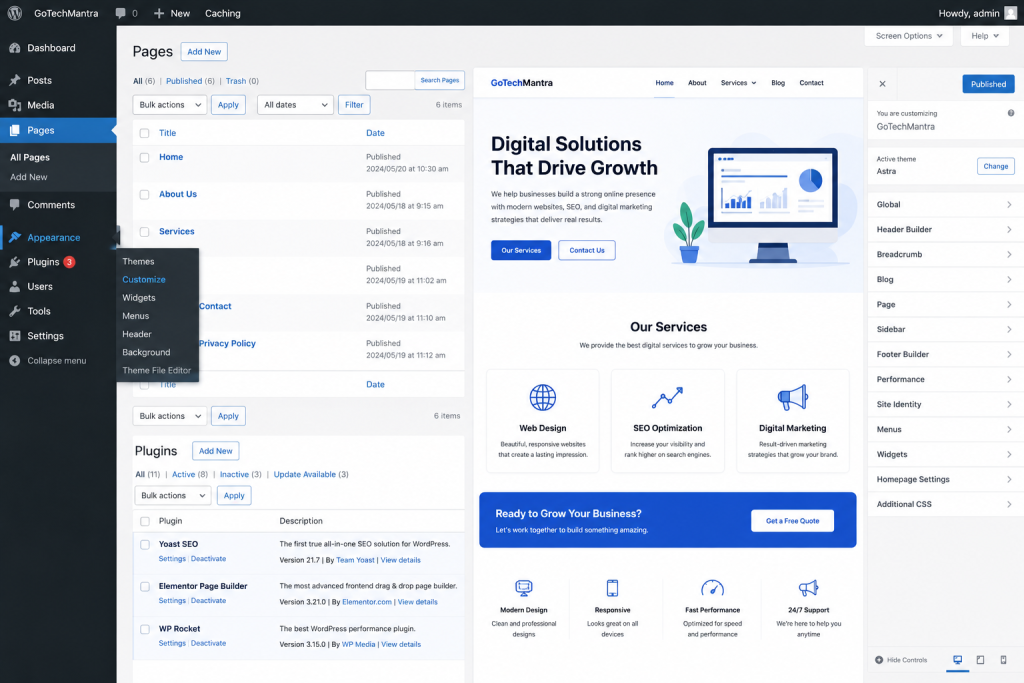
This dashboard is your control center, where you’ll be making pages, posting blog entries, installing themes, managing plugins, and setting up little customizations for your website.
No need to panic if it feels unfamiliar at the start. After a few days of using it , moving around in WordPress becomes second nature.
Step 4: Select a Professional Theme
Your theme controls how your website looks.
One mistake many beginners make is choosing themes packed with unnecessary animations and features.
A clean, responsive, lightweight theme usually performs much better.
When selecting a theme, consider:
- Mobile responsiveness
- Loading speed
- Customization options
- Regular updates
- Compatibility with popular plugins
Remember that visitors care far more about readability and usability than flashy animations.
Step 5: Create Essential Website Pages
Before publishing blog posts, create the pages every professional website needs.
These typically include:
- Home
- About Us
- Services
- Blog
- Contact
- Privacy Policy
Each page should have a clear purpose.
Like for instance, your About page needs to explain who you are and the way you help people, not just state your business history. Instead of only listing the background, talk about your role, and the guidance, you offer.
Step 6: Install Essential Plugins
Plugins add new features to your WordPress website without requiring programming knowledge.
Some useful plugin categories include:
| Plugin Category | Purpose |
| SEO | Improve search engine visibility |
| Security | Protect your website |
| Backup | Create automatic backups |
| Contact Forms | Collect enquiries |
| Cache | Improve loading speed |
Try not to install too many plugins.
Every additional plugin increases maintenance and may affect website performance.
Only install plugins that genuinely add value to your website.
Step 7: Configure Basic Website Settings
Before launching your website, spend a little time adjusting the basic WordPress settings.
Review:
- Website title
- Tagline
- Time zone
- Permalink structure
- Discussion settings
- Reading settings
Switching up your permalink structure in the beginning can be really important, because URLs that are more search friendly are easier for everyday people and search engines to understand, and track.
Step 8: Customize Your Website
Now it’s time to get your website to reflect the real brand, not just the idea of it.
First upload your logo, then pick brand colors and choose fonts that are easy to read. Try to keep the look simple and consistent across each page, because people notice patterns , even when they do not say anything. Visitors should quickly figure out who you are and what the site offers.
Also watch your navigation menu.When the menu is clean and clear, users can reach the main pages faster which lowers frustration, and makes browsing feel smoother overall.
Step 9: Optimize Your Website for SEO
Launching a website without basic SEO is like opening a store yet not putting up a signboard for customers to see.
Even when your site looks really great, search engines still need a nudge, to understand your pages, and what they are about.
Focus on:
- Writing unique page titles
- Creating helpful meta descriptions
- Using proper heading structure
- Optimizing images
- Adding internal links
- Writing useful content regularly
One thing a lot of beginners seem to miss is that SEO starts right from the first page they publish. They might spend a bit more time on each page, for example tightening up title tags or refining the content layout, and that usually brings calmer but more durable long term results than trying to patch everything later on, months after.
If you’re unsure where to begin, our On Page SEO Checklist walks through the essential optimization steps that every WordPress website should follow before publishing new pages or blog posts.
Step 10: Make Sure Your Website Works on Mobile
More people browse websites on mobile devices than ever before.
After building your pages, test them on:
- Smartphones
- Tablets
- Different screen sizes
- Multiple browsers
Check whether:
- Text is easy to read
- Buttons are easy to tap
- Images scale correctly
- Menus work properly
- Contact forms are easy to complete
A website that works well on desktop but performs poorly on mobile creates a frustrating experience for visitors.
Step 11: Publish Your First Blog Article
Your website should not stay still after you hit publish.
When you share useful material, search engines end up with a clearer picture of what your site is about and at the same time people get more reasons to return again.
Try rethinking the questions your customers ask over and over, like they are never quiet.
Those repeated questions can become dependable blog ideas, not just random thoughts.
For instance if you operate a digital marketing agency, you may publish beginner friendly guides, case studies, niche guidance, or step by step tutorials that solve actual annoyances.
With time, content builds authority, and later on those posts can turn into trustworthy sources of natural traffic.
Keep Your Website Secure and Updated
Launching your website isn’t the finish line.
WordPress requires regular maintenance.
Make it a habit to:
- Update WordPress
- Update plugins
- Update themes
- Delete unused plugins
- Create regular backups
- Monitor website security
Small maintenance tasks performed consistently usually prevent much bigger problems later.
Common Mistakes Beginners Should Avoid
Every new website owner makes mistakes, but some are easier to avoid than others.
Common examples include:
- Choosing poor-quality hosting
- Installing too many plugins
- Ignoring website backups
- Publishing thin or duplicate content
- Forgetting image optimization
- Using weak passwords
- Never updating WordPress
One other mistake is spending weeks trying to make the website look perfect before actually publishing it.
A good website that is live is almost always more useful than a perfect website that never gets launched.
You can keep improving the website later on, piece by piece.
If you need practical tutorials directly from WordPress experts, the WPBeginner Blog has great beginner friendly guides for WordPress setup, plugins, security, website optimization, and troubleshooting.
FAQ’s
Is WordPress free to use?
Yes. WordPress itself is free, but you will need a domain name and web hosting though, to put your website up online.
Do I need coding knowledge?
No, most beginners can manage to stitch together a professional WordPress website, using themes, plugins and the built in editor without needing to write any code.
Which hosting provider should I choose?
Go with a hosting provider that has strong uptime, quick performance , dependable customer support , automatic backups, and a one-click WordPress installation. Don’t just pick based on price alone, because that can be a bit misleading . When you check the options, try to focus more on steadiness and responsiveness than on the cheapest plan .
How long does it take to build a WordPress website?
A simple website can be put together within a few hours. A full business website with optimized content might take several days, it really depends on how many pages there are.
Which plugins should every beginner install?
A lot of sites tend to need an SEO plugin, plus a security plugin, and some form of backup solution. Also, using a caching plugin helps a fair bit and a contact form plugin is usually recommended, for those simple reasons.
Conclusion
Learning how to create a WordPress website doesn’t demand years of technical experience, or deep programming knowledge either. When you grasp the flow, like picking a domain, choosing dependable hosting, installing WordPress, setting up the must-have pages, working on SEO optimization, and then keeping your website in good condition you’ll feel ready to build almost any kind of site. Try not to chase perfection before you go live. Hit publish first, keep iterating, and make each update do a bit more good than the previous one.

Pingback: WordPress Scheduled Maintenance Error: How to Fix It