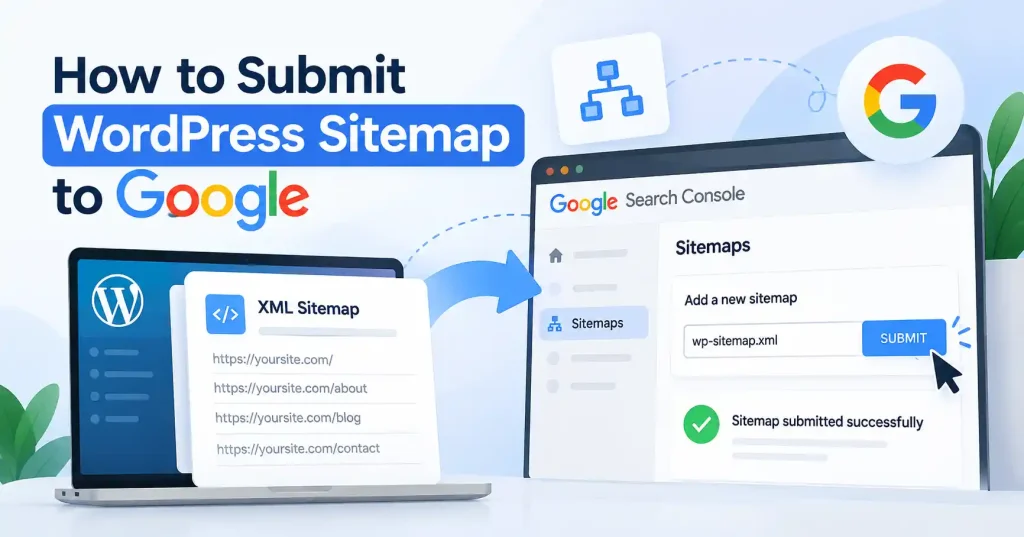

If you want Google to sniff out your WordPress content faster, one of the easiest technical SEO moves is submitting your WordPress sitemap to Google via Google Search Console. WordPress spins up a sitemap on its own, sure. But Google still needs a nudge to actually find and digest it.
It takes just a few minutes once your property is verified. The real trick is figuring out which URL to drop in, making sure the thing actually works. And decoding whatever weird status Search Console throws back at you.
This guide walks through the whole drill. You will learn how to locate your sitemap, push it to Google, scan for errors, and fix common hiccups.
What Is a WordPress Sitemap?
A sitemap is just an XML file pointing out your site’s key URLs.Instead of letting crawlers wander your archives blind, it hands search engines a clean, deliberate blueprint of the posts and media assets you actually want ranked.
Think of it as a roadmap. It guarantees nothing, mind you, since Google indexes whatever it pleases regardless of what you submit. But the file makes discovering your pages ten times easier.
Fresh WordPress setups generate basic XML sitemaps automatically now, No plugins required. That said, hefty SEO suites love hijacking the job, meaning the actual URL pointing to your file changes depending on your setup.
Double check what is generating the feed before submitting anything anywhere. Running two sitemap generators at once just confuses search bots..
How to Find Your WordPress Sitemap
The first step is finding the actual sitemap URL generated by your site.
For many standard WordPress websites, the sitemap may be available at:
https://yourwebsite.com/wp-sitemap.xml
Replace yourwebsite.com with your own domain and open the address in a browser.
Run an SEO plugin? Your sitemap might sit at a totally different address. Plenty of setups lean on an index file that splits everything out, pointing off toward separate maps for pages, posts, categories, and whatever else you publish.
Never assume your address matches someone else’s site, Punch the actual link into your browser and verify that the page actually loads.
Your robots. txt file is another spot worth inspecting. If it was configured right, you will spot a Sitemap line in there telling search crawlers where to look.
Still sorting out the site basics? The WordPress SEO settings guide walks through a few related tweaks you should handle before messing with Search Console.
How to Submit WordPress Sitemap to Google
Verify the link works first. Then, go ahead and submit your WordPress sitemap straight into Google Search Console.
Step 1: Open Google Search Console
Head over to Google Search Console and pull up your property. Seriously, double check it. That split matters a ton if your setup is scattered across different protocol variants, whether that means plain HTTP, secure HTTPS, with the www, or just completely bare.If Search Console isn’t set up yet, first verify your website ownership. You can follow this Google Search Console WordPress setup guide for the complete setup process.
Step 2: Open the Sitemaps Report
Head to Search Console and open the Sitemaps tab.
You will spot a submission field immediately. Skip typing your full domain name, that is unnecessary, provided the console already has your property pinned down. Enter the sitemap path in the submission field.
For example:
wp-sitemap.xml
If your SEO plugin generates a sitemap index, enter the appropriate sitemap index path instead.
Step 3: Submit the Sitemap
Type in the sitemap path or direct link, then hit Submit.
Search Console chews on the file and flags the status, If Google reads it without trouble, it shows up right on your Sitemaps report.
Don’t assume everything gets indexed overnight, though. Far from it. Submitting a sitemap just points Google toward your preferred pages. Merely a hint. Indexing stays uncertain, meaning those links might vanish entirely without warning.
Step 4: Check the Sitemap Status
After submission, return to the Sitemaps report and review the status.
Pay attention to errors rather than assuming that submission alone means everything is working.
A healthy sitemap should be accessible to Google and contain URLs that you actually want considered for search. If the report shows an error, open the relevant details and investigate the specific problem.
What Should Be Included in a WordPress Sitemap?
Trim your sitemap hard, Pack it with real value. Ditch those extra WordPress links, seriously.
For a typical content website, that might include:
- Important blog posts
- Core pages
- Product or service pages
- Useful category pages
- Other canonical URLs that you want appearing in search
Junk or duplicate URLs need to stay out of your sitemap. Honestly, it matters.
Picture a WordPress site holding five hundred posts. A hundred of those are just stale archives, accidental copies, or pages blocked from indexing anyway. A sitemap is not a mindless brain dump of every database row. Instead, it signals to search engines the exact, high value pages you actually want ranked.
That is why you should audit your sitemap settings whenever you swap SEO plugins, alter taxonomies, mess with URL structures, or tweak indexing rules.
WordPress Sitemap vs SEO Plugin Sitemap
People often ask if they should trust WordPress to handle sitemaps or if an SEO plugin should do it. No single answer fits every site. It depends entirely on the level of control your project demands, Simple sites usually do just fine with the default setup. But if you already rely on an SEO plugin to manage titles, metadata, redirects. Or indexing, using that same plugin for your sitemap often unlocks extra settings. Consistency matters most here. Never pile up multiple SEO plugins just because each one throws in a sitemap feature.Decide which system should control your sitemap and make sure Search Console is receiving the correct one.
Common WordPress Sitemap Problems
Sometimes the sitemap exists but Google can’t process it. Here are several problems worth checking.
The Sitemap URL Returns a 404
Sitemap throwing a 404, Really dig into it. Did your SEO plugin shove it somewhere unexpected, If you’ve recently swapped plugins, that old URL might be stubbornly hanging around.
A quick fix, though. Head over to Settings, then Permalinks, and just hit save, No need to touch a thing, honestly. Just saving it jolts WordPress into refreshing the whole shebang.
The Sitemap Contains the Wrong URLs
A sitemap loads fine while entirely misconfigured. You must hunt for URLs that redirect, canonicalize elsewhere, or bear a strict noindex tag. Duplicates linger. Junk accumulates. Bottom line: a sitemap only performs when it mirrors the exact pages you want Google to discover and index.
Google Can’t Fetch the Sitemap
If Search Console claims Google failed to grab your sitemap, test it yourself. Pull up the file right in your browser, Does the server actually spit it back normally? Or are firewalls, security tools, or locked down authentication gates slamming the door on crawlers?
Also, peek at your robots, txt. Did you accidentally block Googlebot?
Multiple Sitemaps Are Being Submitted
Big websites can actually run multiple valid sitemaps. That is totally fine. An SEO plugin might build a index that splits posts, pages, and categories into separate files.
The problem isn’t necessarily having multiple sitemap files. The problem is submitting outdated or conflicting sitemap URLs without understanding what each file contains.
Should You Submit a Sitemap After Every New Post?
No. You generally don’t need to manually submit the sitemap every single time you publish a brand new WordPress article. Once that file sits accessible out there, Google drops by on its own to check for fresh changes.
For individual links, Search Console features a handy URL Inspection tool. It helps when troubleshooting or when you just want to force a quick crawl. Say you launch a massive product page and need to know right now if Google sees it. Inspecting that single URL beats hammering the submit button on your entire sitemap over and over.
Sitemap Best Practices for WordPress
Before considering your sitemap setup finished, run through this quick checklist:
- Test your sitemap URL first, Spot any errors? Check twice.
- The HTTPS prefix has to match your exact domain, no exceptions.
- Only crawled pages belong here, Above all, make sure critical sections weren’t accidentally tagged as noindex. That mistake kills visibility.
- Is your robots, txt blocking the map or vital pages? Fix that.
- Finally, push the sitemap through the right Search Console property.
- Check the Sitemaps report for processing errors.
- Review the sitemap again after major SEO plugin or site structure changes.
Big websites need to watch their sitemap size and structure, Google caps individual files at fifty thousand URLs or fifty megabytes uncompressed. What do you do if you exceed that? Split everything across multiple files and use a sitemap index. Simple.
Does Submitting a Sitemap Improve Rankings?
Submitting a sitemap will not magically shoot your rankings up. That is simply not its job.
Its real purpose is getting Google to spot your URLs and figure out which ones actually matter to you. Rankings still depend on a messy mix of other things, including content quality, pure relevance, technical site health, internal links, and Google judging the page.
Treat it as technical plumbing, not a shortcut.
FAQ’s
1. What is the default WordPress sitemap URL?
On most modern WordPress sites, you’ll find the default XML sitemap at yourdomain. com/wp-sitemap. xml. But watch out. An SEO plugin or custom setup might use a different address entirely.
2. Do I need a sitemap plugin for WordPress?
Not necessarily. WordPress makes sitemaps automatically. Sure, an SEO plugin adds some extra knobs to twist, but you do not need a pile of plugins just for a basic sitemap.
3. How long does Google take to process a sitemap?
There is no fixed schedule. Google crawls and processes sitemaps at totally different speeds, depending on the specific site and its systems. Seeing your sitemap there? That does not mean every single URL will instantly show up in Google.
4. Does submitting a sitemap guarantee indexing?
Sitemaps point Google right at your URLs, yet indexing remains a gamble. Zero guarantees your entire site actually makes the cut.
5. Should I submit a sitemap more than once?
Forget resubmitting your sitemap, Accessibility and maintenance are the enduring imperatives. Always.
6. What should I do if Google says my sitemap has errors?
Open Search Console sitemap details to spot the exact error. Then check the URL, server response, robots txt rules, indexing settings, redirects, and the URLs inside the sitemap itself. That matters.
Conclusion
Getting your WordPress sitemap over to Google isn’t rocket science. First, track down the correct address, verify that it actually loads without coughing up errors, and drop it straight into Search Console. Then just watch the status.
The real trick happens before and after you hit submit. A proper sitemap requires exact canonical URLs that Google should crawl, meaning your robots. txt file, internal routing, and core WordPress settings must all cooperate to let bots reach those pages. No friction allowed.
Once it works, leave it alone. You do not need to resubmit it every single time you publish a new article. View it merely as background plumbing, checking in only after major site overhauls, and rely on Search Console whenever specific pages act up.