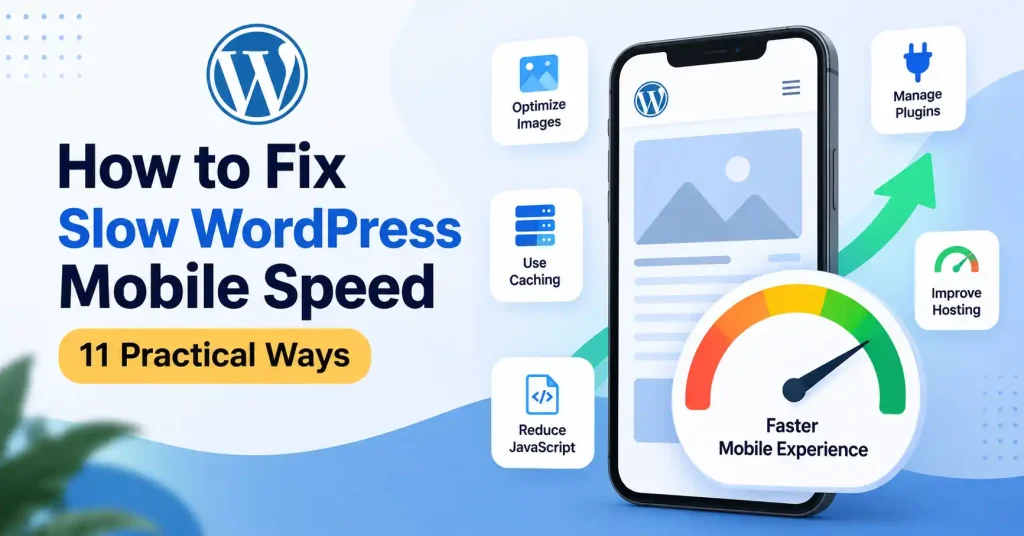

Your WordPress site might smoke on a desktop and still crawl on a phone. Why? Usually it is heavy JavaScript, bloated themes, slow server response times, or random third party scripts soaking up bandwidth. When your wordpress mobile speed slow issue pops up in audits, ignore the obsession with a neat score. Look at it as a roadmap showing exactly where mobile browsers choke.
Think about the phone in your reader’s hand. It packs less processing power than a laptop and deals with shaky cell towers. Extra page weight hurts mobile users way harder. WordPress handles responsive images using srcset and sizes under the hood. Even so, your plugins, page builders, and theme choice dictate whether those tools actually help or just waste your time.
Why Is WordPress Mobile Speed Slow?
There is no single culprit behind a sluggish WordPress site on mobile. Performance usually drags because of several layers acting at once, from your hosting and caching to bulky images, fonts, plugins, and third party scripts.
Take a typical homepage. Throw in a massive hero photo, three different font weights, a chat widget, some heavy animations, and a random video embed. None of those pieces look terrible by themselves. Pile them together, though, and you give a mobile browser a mountain of work.
That is why step one is finding the actual bottleneck. Do not just toggle every optimization plugin you stumble across.
1. Test Mobile Performance Before Making Changes
Start by testing the actual pages that matter. Don’t rely only on the homepage.
Check your homepage, an important blog post, a service page, and any landing page that receives significant traffic. Look at metrics such as:
- Largest Contentful Paint (LCP)
- Interaction to Next Paint (INP)
- Cumulative Layout Shift (CLS)
- Time to First Byte (TTFB)
- Total page size
- Number of requests
The useful question isn’t simply, “What score did I get?” Ask what is delaying the page. If the server response is slow, image compression won’t solve the root problem. If JavaScript is keeping the browser busy, changing the hosting provider may not produce much improvement.
2. Compress and Resize Images for Mobile
Images are one of the first places to investigate when WordPress mobile speed is slow. A phone rarely needs a huge image downloaded at its original dimensions just because the source file is available.
Resize images to match the largest size at which they’re actually displayed. Use modern formats where appropriate, compress them before or during upload, and avoid putting unnecessarily large photographs into content areas that display them at a much smaller width.
WordPress has native responsive image support, allowing browsers to select an appropriate image from available sizes.
There’s another detail worth checking: don’t blindly lazy load everything. If your main hero image is the element responsible for LCP, delaying it can make the visible part of the page slower.
3. Use Page Caching Properly
Caching cuts down heavy server work, plain and simple. Rather than forcing WordPress to rebuild a page through PHP and raw database queries every single time someone visits, a cache simply hands over a saved copy.
WordPress docs call this a top tier performance boost since it lifts a massive processing load off the server.
Before you go hunting for a caching plugin, look closely at your current setup. If your host handles server level caching already, check that configuration first.Multiple overlapping cache systems can create unnecessary complexity.
After enabling caching, test both logged out and mobile visitors. Clear old cache files after major changes and confirm that updated content still appears correctly.
4. Reduce Unnecessary JavaScript
Mobile browsers have to download, parse, and execute JavaScript. That’s different from simply downloading a file.
Look at scripts added by page builders, sliders, popups, forms, analytics platforms, chat tools, social widgets, and marketing software. Some may be useful on one page but completely unnecessary on another.
For example, a booking widget might be essential on a contact or booking page but has little reason to load across every blog article.
Defer non critical scripts where it is safe to do so, remove unused functionality, and test interactive elements after making changes. Aggressive JavaScript optimization can sometimes break menus, forms, checkout functions, or tracking.
5. Review Your WordPress Theme
Your theme handles an enormous amount of front end markup, scripts, and layout elements on every single page. Heavy animations, sliders, custom widgets, and bloated icon libraries will absolutely destroy your mobile speed way faster than a clean, simple layout. Still, that does not mean you need to scramble for the most primitive design available out there.
Instead, look at what the theme actually loads. If you’re using only a small percentage of its features, there’s little value in carrying all that additional code to every visitor.
For a broader site speed cleanup, you can also review GoTechMantra’s guide on how to reduce WordPress page load time.
6. Remove Plugins That Add Front End Bloat
Plugin count by itself isn’t a useful measure of performance. Five lightweight plugins may have less impact than one poorly optimized plugin that loads large scripts and makes repeated database or external requests.
Audit your plugins and ask:
- Is this plugin still needed?
- Does it load files on every page?
- Could another existing tool handle the same job?
- Does it add unnecessary widgets, scripts, or styles?
- Is it actively maintained?
Before you turn off any key plugin on a live site, make sure you have a backup. Also have a clear test plan before you change anything. If you can, run the changes on a staging area first. Then compare speed and behavior before and after.
7. Improve Your Hosting and Server Response
Sometimes WordPress isn’t the root issue. It is the server itself.
If TTFB stays stubbornly high, dig into your hosting setup, server resources, database speed, PHP settings, and caching. WordPress documentation points to hosting, server load, software versions, themes, plugins, and bloated images as performance killers.
A CDN helps with static files like images, CSS, and JS, especially for users oceans away from your origin server. Yet a CDN won’t magically fix a sluggish application backend. If WordPress drags its feet generating that first byte of data, you have to fix the source.
8. Optimize Fonts
Fonts are easy to overlook because they don’t look like traditional page assets. Yet multiple font families and weights can add requests and increase the amount of data browsers need to process.
Keep the font setup simple. If your design only needs regular and bold weights, there’s little reason to load several unused variations.
Prioritize efficient font formats. Stop loading hidden typography below the fold. Does your stubborn theme secretly sneak in extra styles you never wanted, Check anyway.
9. Limit Third Party Scripts
Hidden third party tools quietly ruin mobile apps. Audit every single thing, from targeted ads, chat plugins, and video players, down to review widgets and random social embeds. Clean house.
Every service can introduce additional network requests and browser work.
Try loading tools only where they’re needed. A live chat system may make sense across commercial pages, but a lightweight informational blog doesn’t necessarily need every marketing integration running immediately.
This is particularly useful when a site has accumulated tools over several years. Old integrations often remain long after the team stops using them.
10. Make the Mobile Layout Lighter
Responsive design means more than just squeezing desktop layouts down onto tiny screens. A mobile layout needs to cut out the visual clutter entirely.
Take a hard look at giant spacing, massive headings, background videos, motion graphics, heavy sliders, and pure fluff. If a desktop section adds zero real value on a phone, strip it back. Don’t just scale it down.
Block themes in modern WordPress give you responsive styling tools right out of the box. You can tweak properties for specific screen sizes.
Don’t just test one phone preset and call it a day. Check multiple widths. A page can look totally fine at one size and then fall apart with weird gaps somewhere else.
11. Recheck After Every Major Change
Speed optimization becomes much easier when you work methodically.
Use this workflow:
- Record the current performance results.
- Identify the largest bottleneck.
- Make one meaningful change.
- Clear the relevant cache.
- Test the same URL again.
- Check the page on an actual mobile device.
- Confirm that forms, menus, tracking, images, and other functionality still work.
- Keep the change only if it improves performance without creating another problem.
This approach may feel slower than installing an optimization plugin and switching on every setting. In practice, it’s much easier to troubleshoot.
A Simple Mobile Speed Checklist
Before considering the work finished, check the following:
- Images are properly resized and compressed.
- Responsive image markup is working correctly.
- Page caching is enabled and correctly configured.
- Unnecessary plugins have been removed.
- Large JavaScript files are reduced or delayed where appropriate.
- Third party scripts are limited.
- Fonts and font weights are under control.
- The theme isn’t loading unnecessary features.
- Server response time is reasonable.
- CDN configuration is working where useful.
- Mobile layouts don’t contain unnecessary visual elements.
- Changes have been tested on a real phone.
If the site still feels slow after these steps, go back to the test data. The next problem may be deeper in the database, hosting stack, custom code, or a particular plugin.
FAQ’s
Why is my WordPress site slower on mobile than desktop?
Mobile devices generally have fewer processing resources and may use slower or less consistent connections. A page that feels acceptable on a desktop can therefore expose heavy images, JavaScript, fonts, or third party resources on a phone.
Does a caching plugin fix slow WordPress mobile speed?
Caching can cut down some server work and make repeat loads faster. Still, it does not solve every speed issue. If the page has big images, too much JavaScript, bad hosting, or heavy third party scripts, it can remain slow.
Should I remove all WordPress plugins to improve mobile speed?
No. Plugin quantity isn’t the right metric by itself. Identify plugins that add unnecessary front end assets, database work, external requests, or other overhead, then test them individually.
Are large images the main reason WordPress mobile speed is slow?
Images are often a factor, but they are not always the top reason. Even if a page compresses and sizes its images well, it can still load slowly. The cause might be scripts in JavaScript, slow responses from the server, font downloads, add ons from third parties, or a theme that is too heavy.
Does a CDN improve WordPress mobile performance?
A CDN helps move static files faster by using servers that are near the people visiting your site. It does not, by itself, speed up PHP that runs slowly, fix slow database work, or correct caching that is set up wrong.
How can I check whether my WordPress mobile speed improved?
Check the same URLs before and after you make the updates. Look at the main performance numbers, the total page size, and how many requests the page makes. Also test it on a real phone and note what feels usable. Use the same testing setup each time, so the two results can be compared fairly.
Conclusion
Fixing a sluggish WordPress site on phones is not about chasing some arbitrary performance score. The practical goal? Cut out the heavy lifting before a visitor even tries to touch your page.
Tackle the worst bottleneck first. Shrink bloated images, set up caching, trim down JavaScript, audit every plugin and third party script, clean up mobile layouts, and look at your host if the server drags. Make one change, Test it on a real phone. Repeat.
For maintenance, build one solid habit: check speeds whenever you drop in a major plugin, tweak a template, paste a new tracking script, or upload a pile of media. That keeps tiny speed drops from turning into a painfully slow mobile site down the road.