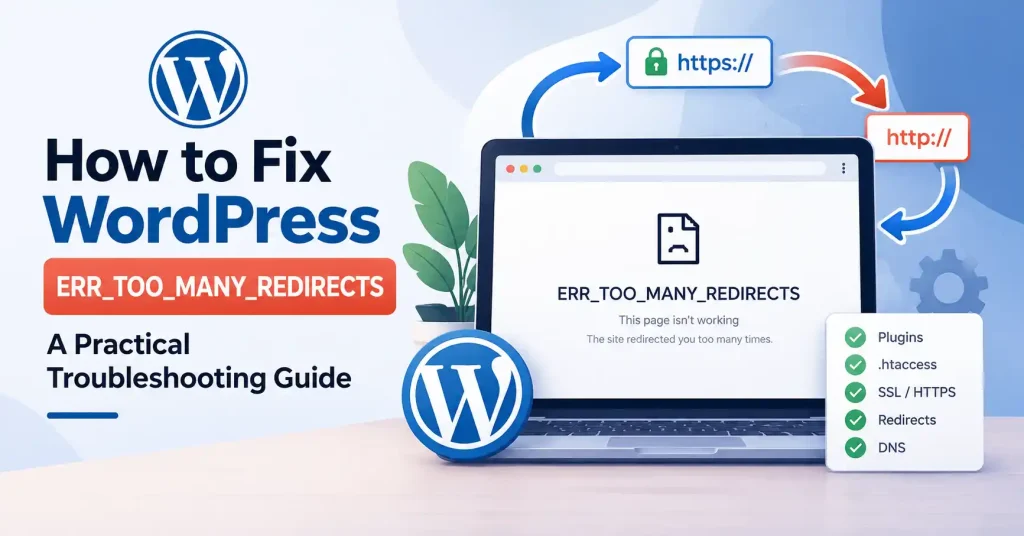

That endless loop where a visitor gets bounced from one URL to another until the browser just quits? That is the ERRTOOMANY_REDIRECTS error. Don’t panic yet, Your whole WordPress site isn’t necessarily dead. Most of the time, two stubborn redirect rules are fighting each other. Or WordPress thinks your site URL is one thing while the server expects something completely different. This guide runs through a real world fix for too many redirects in WordPress, beginning with the easiest stuff and working up to server fixes.
What Does ERR_TOO_MANY_REDIRECTS Mean in WordPress?
A redirect tells a browser to fetch a different URL. That happens all the time when a site shifts from HTTP to HTTPS, shuffles an old page somewhere new, or bumps visitors from a non www address onto the www version.
Things break down when those rules turn into a loop. Say your server pushes http://example. com over to HTTPS, but another rule sends HTTPS right back to HTTP. The browser bounces back and forth until it gives up and throws an ERRTOOMANY_REDIRECTS error.
WordPress depends heavily on its home and siteurl settings to map out its whole URL setup. Messed up values, crossed HTTPS rules, rogue plugins, caching layers, or proxy setups will trigger these loops easily.
Common Causes of Too Many Redirects in WordPress
Stop and check the timeline first. What happened right before the glitch showed up? A redirect bug following a fresh SSL plugin install needs a totally different approach than one popping up because you shifted your entire site to a new domain.
Common causes include:
- Incorrect WordPress Address or Site Address settings
- HTTP and HTTPS versions being configured inconsistently
- Conflicting www and non www redirects
- SSL or security plugin redirect rules
- Cloudflare, CDN, or reverse proxy configuration conflicts
- Incorrect .htaccess rules
- Redirect rules added by an SEO or redirect plugin
- Cached redirect responses
- Incorrect domain or DNS configuration
That last point is easy to overlook. If the domain points somewhere unexpected, the problem may exist outside WordPress entirely.
WordPress Too Many Redirects Fix: Start With These Checks
Don’t immediately edit .htaccess or database values. Start with the changes that are easy to reverse.
1. Test the Site in a Private Browser Window
Pop open that broken page inside an incognito or private window. Does the site load fine there? If yes, bad cookies or leftover cache are usually the culprit.
Try flushing out all the stored cookies and cached files tied directly to that domain. This trick saves the day when redirect loops pop up right after swapping HTTP for HTTPS, tweaking your domain name, or messing with login settings. WordPress uses cookies for authentication, so stale cookie data can sometimes complicate troubleshooting.
2. Check WordPress Address and Site Address
If you can access the WordPress dashboard, go to Settings → General.
Check these two fields:
- WordPress Address (URL)
- Site Address (URL)
They should point to the correct domain and use the intended protocol. For an SSL enabled site, that means both should use HTTPS. Don’t set WordPress to use https://example, com while some other part expects http://example. com.
If the dashboard locks you out, check these values right in the database, Or define them in wp-config. php temporarily. WordPress docs explicitly point the finger at conflicting WPHOME, WPSITEURL, and database URL values when nasty redirect loops happen.
3. Check Your SSL and HTTPS Configuration
SSL migrations are a frequent point of failure. Your WordPress setup might think it runs on HTTPS while your actual server or reverse proxy claims the connection came in via plain HTTP. That is a problem.
This mismatch triggers an endless loop. WordPress keeps shoving forced redirects down the pipe, constantly fighting whatever the proxy is doing in the background.
Deactivate any SSL plugins momentarily and test the site. Check if your CDN or host already has an HTTPS redirect running.You want one consistent HTTPS strategy rather than several systems trying to enforce the same redirect independently.
4. Clear WordPress, Server and CDN Caches
Redirect responses can be cached, making troubleshooting surprisingly confusing. You might correct the configuration and still see the old redirect because one caching layer hasn’t been purged.
Clear the relevant caches from your WordPress caching plugin, hosting platform, CDN, and browser. Then test the site again using a private browser window.
Caching plugins have also been reported in WordPress support discussions as the source of redirect related problems, so temporarily disabling caching can be a useful diagnostic step.
Check Plugins That Control Redirects
Several types of WordPress plugins can modify URLs:
- SEO plugins
- Redirect managers
- SSL/HTTPS plugins
- Security plugins
- Caching and performance plugins
Did trouble follow a fresh install, Deactivate and test. Locked completely out of wp-admin? No problem. Simply use your hosting File Manager or SFTP to rename that plugin folder, or even the entire wp-content/plugins directory temporarily. That brute force method guarantees you will discover if a rogue plugin is the actual culprit.Once the site loads, restore the directory name and test plugins individually.
This approach is also useful for separating a WordPress level problem from a server configuration problem.
Regenerate the .htaccess File
On Apache based hosting, a damaged .htaccess file can contain redirect rules that fight with WordPress or another service.
Before changing it, make a backup. Then rename .htaccess to something like .htaccess-old and test the site.
Once the site loads up, jump straight into WordPress and open Settings, then Permalinks. Leave the actual structure alone. Just hit save. That simple click forces the system to rebuild your standard rewrite rules.
Got bigger server headaches on your hands, Check out our guide on fixing WordPress internal server errors for extra troubleshooting tips.
Whatever you do, do not copy a random htaccess file from somewhere else. Just don’t. Hosting environments and custom configurations differ, and an unrelated rule can create another problem.
Check Cloudflare, CDN and Reverse Proxy Settings
Bypass WordPress completely, Check redirect rules inside your CDN or Cloudflare instead.
For example, WordPress may expect HTTPS while the proxy connects to the origin server using HTTP. Depending on how the proxy and origin are configured, that can create a continuous HTTPS redirect loop.
Bypass the CDN temporarily. That single step isolates the real trouble spot immediately. Does the application actually run normally once you yank that proxy away from the front door? If it does, thoroughly audit every SSL rule, redirect loop, page rule, and cache layer before flipping it back on. Backend hosts operate identically.
WordPress needs to correctly understand whether the original visitor request was HTTP or HTTPS.
Check Domain and DNS Configuration
Fixing a redirect loop doesn’t always mean digging into WordPress. If example, com points to one server while www. example. com maps somewhere else entirely, your redirect path gets messy fast. Check that both hostnames hit the right server. Make sure your canonical domain is set up straight.
This matters most right after a host swap, a domain migration, adding Cloudflare, or pushing a staging site live.
Temporarily Disable Redirect Rules
If you have custom redirects in an SEO plugin, redirect plugin, server configuration, or hosting control panel, temporarily disable them.
Then test the website using the canonical URL. If the loop disappears, restore the rules gradually until you identify the conflicting rule.
Don’t delete everything at once.Save your current setup first, it makes reversing a tricky troubleshooting fix way easier.
Want more WordPress tricks? Check out our practical guide on fixing the White Screen of Death.
What If You Still Can’t Find the Redirect Loop?
Stop guessing. Look at the actual redirect chain instead. Fire up browser tools or a checker, then track where it starts and precisely where that loop happens. What you really need is an exact sequence laid out step by step.
HTTP → HTTPS → HTTP → HTTPS
or:
non-www → www → non-www
Once you know the exact URLs involved, check which system controls each transition. You could have redirects hiding in WordPress, the . htaccess file, or even your CDN. Did your site just move to a new host, Ask them to check the web server setup and proxy headers right away.
WordPress’s own troubleshooting guidance also points to conflicting proxy, CDN, server, and HTTPS configurations as potential causes.
How to Prevent WordPress Redirect Loops
Once you’ve fixed the problem, take a few minutes to prevent the same issue from returning.
- Keep one clearly defined canonical domain.
- Use HTTPS consistently across WordPress and your hosting setup.
- Be careful with redirect rules so they do not overlap across plugins and server settings.
- Before you edit .htaccess, wp-config.php, or any database values, make a backup first.
- If you can, try major changes to domains, SSL, and the CDN on a staging site first.
- Document custom redirects so you know which system is responsible for them.
If you keep things simple, it is easier to find what went wrong. With a setup where WordPress, a plugin, the CDN, and the server each try to rewrite links on their own, troubleshooting gets much harder.
FAQ’s
Why does my WordPress site say ERR_TOO_MANY_REDIRECTS?
Your browser spins endlessly. Blame mismatched HTTP settings, broken WordPress links, CDN caching, rogue plugins, corrupted rules. Or a stubborn cached redirect that simply refuses to quit.
Can an SSL certificate cause too many redirects?
Blame the certificate rarely. Your HTTPS configuration is snarled somewhere between WordPress, the web server. And whatever hidden proxy or CDN you happen to sit behind. Stop staring at that stupid little padlock. Trace the whole damn path.
How do I fix ERR_TOO_MANY_REDIRECTS without accessing WordPress?
Access your hosting control panel or SFTP to deactivate plugins, inspect that . htaccess file, and verify configuration settings. You might even want to dig into the database. URLs must be checked.
Should I delete the .htaccess file?
It’s safer to back it up and rename it first. If the redirect disappears, you have useful evidence that .htaccess was involved. WordPress can regenerate its standard rewrite rules through the Permalinks settings.
Can Cloudflare cause WordPress redirect loops?
Sure. A clash between how the CDN handles SSL and what your origin server expects can trigger a loop. Check out your redirect, cache, and SSL rules right alongside WordPress.
Why does the site work in incognito mode but not normally?
Sometimes, your browser just freezes, holding onto stale data. A quick purge of that site’s cookies and cache often does the trick. If the issue persists everywhere, though, it’s probably a server configuration problem.
Conclusion
Fixing those frustrating WordPress “too many redirects” errors isn’t usually a quick fix, Start by checking your WordPress Address and Site Address settings. Seriously, get your HTTPS setup solid. Then, clear out all that cached data. You’ll often suspect a plugin is causing issues, so deactivate them one by one, watching closely. Sometimes, you’ll have to dive into your, htaccess file too. And don’t forget any Content Delivery Network or proxy services you’re using.
Did this whole mess start after moving your site, changing domains, or adding an SSL certificate? If so, really zero in on exactly what changed right before the redirect loop popped up. The key here? Change just one thing, then test it. Figure out if WordPress, a bad plugin, your server, or the CDN is causing this redirect madness. Once you know that, solving it gets much simpler. And honestly, make a full backup before you touch anything. It’s a lifesaver if you need to undo a mistake.