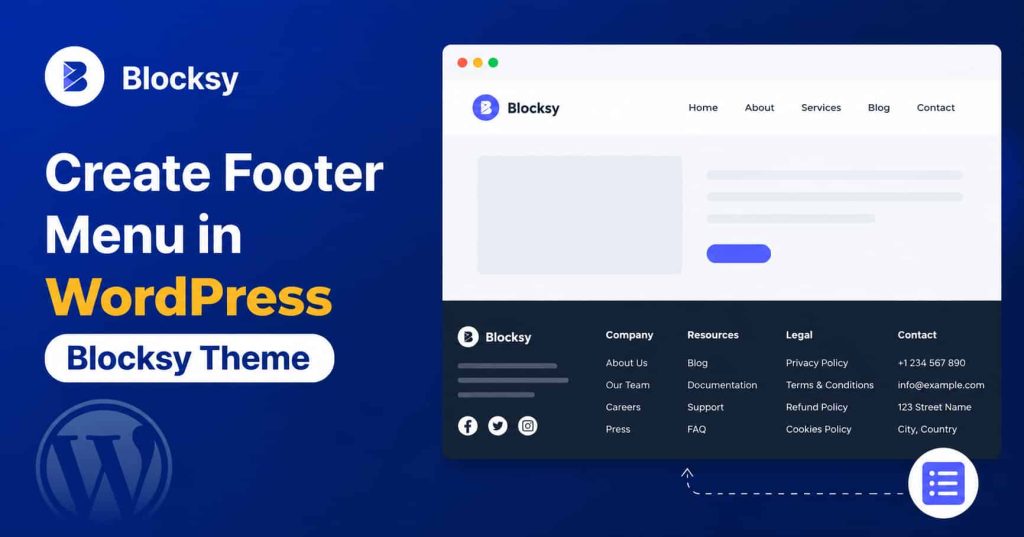

A well organized footer can make a WordPress site feel a lot less annoying to browse. If you’re working with Blocksy, the footer menu setup is pretty easy, because the theme has a drag and drop Footer Builder. With that tool you can drop in important links like About, Contact, Privacy Policy, Terms, categories and other useful pages right at the bottom. In this guide, you will see step by step how to create a footer menu in WordPress Blocksy theme, how to connect it with a WordPress menu, tweak the layout, and confirm it displays well on desktop and mobile.
Why put a footer menu on a WordPress website
The footer is often treated as a last thing, but visitors actually use it. A person who has finished reading a post might look for a contact page, privacy policy, category archive, or some other section, without going back up to the main navigation again.
A footer menu also gives you a spot for secondary navigation, and that matters. You do n’t have to repeat every single item from your main header menu. Rather, keep the footer centered on the pages that help visitors figure things out, move around, or feel confident about your website.
For example, a simple blog footer might include:
- About Us
- Contact
- Privacy Policy
- Terms and Conditions
- Sitemap
- Important categories
The point isnt to occupy every spare inch of space. A smaller footer, that stays easy to read, usually performs better.
Create a WordPress Menu for your Blocksy Footer
Before you add a menu to the Blocksy Footer Builder, make the real menu in WordPress first. Then the Blocksy Footer Menu element can pull from that menu as its source.
Follow these steps:
- Log in to your WordPress dashboard.
- Go to Appearance → Menus. Depending on how your WordPress is arranged, you may notice the menu management interface under updated navigation options instead.
- Click Create a new menu.
- Name the menu clearly, like Footer Menu.
- Add the pages , posts , categories, or custom links you want visitors to see.
- Arrange the items in the exact order you want them displayed.
- Save the menu.
Don’t add too many links, just because you have space available. Think about what a visitor might realistically need after reaching the bottom of a page.
If you’re working on the broader SEO structure for your website , you can also check the on page SEO checklist for beginners to make sure your pages, headings, URLs, and internal linking are properly organized.
How to Create Footer Menu in WordPress Blocksy Theme
Once your WordPress menu is ready , you can place it in the Blocksy footer using the theme Footer Builder.
Step 1: Open the Blocksy Customizer
From your WordPress dashboard, go to Appearance → Customize. Then open the Footer area.
Blocksy uses a visual Footer Builder where you can add , and arrange different footer elements. It works with rows and columns so you can decide where your menu should appear, instead of leaning on a locked in footer layout.
Step 2: Choose a Footer Row
You will usually notice footer rows where elements can be dropped in. Pick the row where you want the menu to show up.
For a straightforward website, the bottom row or a middle row is often a good choice. If your footer includes a logo social icons, or contact details then you can use separate columns to keep everything neatly organized.
Step 3: Add the Menu Element
Browse the available footer elements, then locate Menu or Footer Menu. Drag the element into the footer row and place it in the specific column where you want it to display.
Blocksy’s Footer Menu component is made for showing a simplified navigation list, so it works well for secondary links and those important pages in the footer.
Step 4: Select Your WordPress Menu
Click the Footer Menu element you just add ed. Youll see a setting called Select Menu.
Pick the Footer Menu you made earlier. The links should show up in the live preview pretty much right away.
This is the part that often throws people off. Just making a WordPress menu alone does not automatically put it into the Blocksy footer. The menu has to be selected inside the Footer Menu element, so Blocksy knows exactly which set of links to show.
Step 5: Tweak the Menu Layout
Blocksy includes several controls for how the footer menu looks. You can change the direction of the items, spacing, alignment and also device based visibility.
For example, a horizontal menu can work really well when you have four or five short links:
About | Contact | Privacy Policy | Terms
If you have more links, a vertical setup may be the better idea, especially on smaller screens.
You can also tune the alignment so the menu sits in a natural way with the rest of your footer stuff.
Step 6: Tweak the Footer Row
Don’t stop at the menu just like that. Hit the footer row and take a look at spacing, column makeup, width, and those responsive settings too.
Blocksy lets footer rows run with more than one column, and it also gives separate layout options depending on the device.
One layout that tends to work well can be:
- Column 1: Logo or a short descriptor
- Column 2: Footer menu
- Column 3: Contact details
- Column 4: Social links
You do not need all four blocks. A two column footer can feel more crisp for a small blog.
Make the Blocksy Footer Menu Work on Mobile
A footer that looks solid on a desktop screen can feel weird on a phone. This becomes extra obvious when many menu items get squeezed into one horizontal line.
Check the footer inside Blocksy’s responsive preview before you publish. If the links seem crowded, bump the spacing a bit, or switch the menu direction so the items stack in a calmer way, naturally.
Blocksy also has element visibility options, so footer things can be shown or not shown depending on the device you are on, I mean it adapts, yeah.
For the mobile version keep it simple, visitors shouldn’t need to tap tiny links or wade through a crowded footer just to get to a regular, basic page.
What Should You Include in a Blocksy Footer Menu?
The exact links you pick depend on the kind of website you are building. For a typical business site, footer links that tend to help include:
- About
- Services
- Contact
- Privacy Policy
- Terms and Conditions
- Refund or Shipping Policy
For a blog, you may use: - About
- Contact
- Popular Categories
- Start Here
- Privacy Policy
- Terms
For an ecommerce website, consider linking to customer focused pages like shipping details, returns, account pages, and customer support.
Also, the footer should not become a second sitemap. Choose links by what people will likely need, not by what you can fit.
Common Footer Menu Problems and Fixes
The menu isn’t showing
First, check that the WordPress menu is not empty and that it has been saved properly. After that, open the Blocksy Footer Menu element, and just confirm the right menu is actually selected.
The wrong links are appearing
This usually happens when Blocksy is linked to some other WordPress menu. Open the Select Menu option, then pick the menu you want to show. If you do not see the expected entries, it’s almost always this.
The menu looks too crowded
Try reducing the number of links, or change the item direction from horizontal to vertical. You can also tweak the spacing between the menu items, so everything feels less jammed.
The footer looks different on mobile
Go into the responsive settings in the Footer Builder. Blocksy can control visibility and layout depending on the device, so don’t assume the desktop setup will be perfect on smaller screens. Sometimes the order and padding change too.
Changes aren’t appearing
Double check that you saved or published your Customizer updates. If you have a caching plugin, or any server side cache enabled, clear that cache and reload the page again to verify.
Footer Menu SEO and Usability Tips
A footer menu is not some magic SEO trick. It mainly helps people and search engines a bit, because its job is making useful pages easier to locate. that’s it.
Try using link text that actually describes the destination, not vague labels. For example, Contact Us feels more precise than Click Here. And Privacy Policy already tells visitors what they will find, right away.
Also it’s smart to review those footer links from time to time. Sites evolve. URLs get renamed, pages get removed, and content gets moved around. If your footer has broken links, even a polished website can start to look unmaintained, a little ignored.
For more practical search guidance, check this post on how to rank a new website on Google fast. It’s especially helpful if you’re building a new WordPress site, and you’re working on overall search visibility.
Blocksy Footer Menu vs Footer Template
For most websites, the default Footer Builder is enough. You can add a menu, a logo, social icons, contact details, copyright text, and other elements without rebuilding the footer from the ground up.
Blocksy also offers a bit more advanced footer tweaking via its Pro features. For instance Blocksy Pro lets you build custom Footer Templates with Content Blocks , which can be handy when you want a design that is more layered than what the standard builder gives you.
If all you want is a simple strip of links at the bottom of your website, then there’s usually no need to overthink the whole setup, not really.
For the official element settings and the latest Blocksy docs, check the Blocksy Footer Menu documentation.
FAQ’s
Can I create a footer menu in Blocksy without coding?
Yes. With Blocksy’s Footer Builder you can add the Footer Menu element and then configure it through the WordPress Customizer, no CSS or PHP required.
Do I need to make a separate WordPress menu for the footer?
It’s recommended. Having a separate footer menu gives you control over which links show up in the footer without messing with your main navigation… most of the time.
Can I use the same menu in the header and footer?
Yes, you can pick an existing menu. However using a dedicated footer menu usually makes it easier to keep things limited, in a good way, and focused in the footer.
Can I change the footer menu from horizontal to vertical?
Yes. The Footer Menu element has controls for item direction and spacing, so you can set up a layout that fits your design.
Can I hide the footer menu on mobile?
Yes. Blocksy includes visibility controls for footer elements, letting you decide whether an element appears on desktop, tablet, or mobile.
Do I need Blocksy Pro to create a basic footer menu?
No. The standard Footer Menu element is available with the regular Blocksy footer setup. Blocksy Pro brings extra options and additional elements for more advanced footer layouts.
Conclusion
Making a footer menu in the WordPress Blocksy theme doesn’t really require custom code or a fussy setup. You can simply create a dedicated WordPress menu, then go to the Blocksy Footer Builder, add the Footer Menu element , pick the menu you already made, and afterward adjust spacing, alignment, and what it does when the screen gets smaller.
Also try to keep that final footer menu actually useful, not crowded. A handful of well chosen links, not a long list , can make it easier for people to navigate, keep things tidier, and give quick entry to the pages that matter. Before you press publish, check the footer on desktop and on mobile, and tap each link one time to be sure everything behaves as expected.