
Broken links are easy to overlook. A page gets deleted, a URL slug changes, an external resource disappears, or a website migration leaves behind old URLs. The site may still look perfectly fine to you, but visitors can quietly run into dead ends.
A proper wordpress broken links fix process starts with finding the actual broken URLs, identifying why they stopped working. And then choosing the right solution. Sometimes that means editing an internal link. Sometimes it means adding a 301 redirect. And sometimes, leaving a genuine 404 alone is the correct choice.
This guide walks through a practical way to find and fix broken links without randomly changing URLs or adding redirects everywhere.
What Are Broken Links in WordPress?
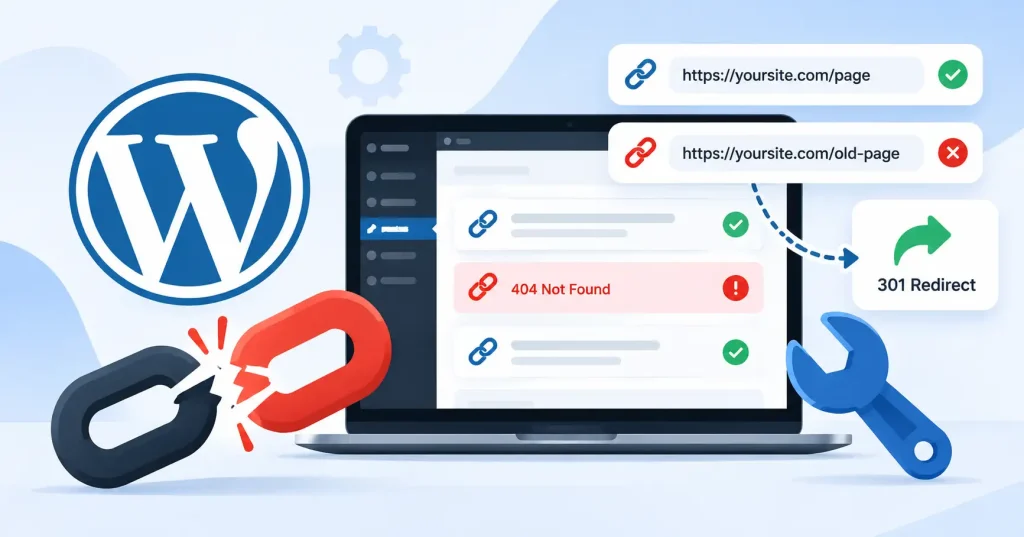
A broken link is just a hyperlink that leads nowhere useful anymore. Sometimes the destination throws a 404 Not Found error, hits a deleted page, points to some dead URL, or breaks because the external site completely changed.
Internal broken links, you control those. They are yours to fix, External ones take a bit more guesswork, though. After all, somebody else owns that other page.
For example, imagine an article contains a link to:
example.com/wordpress-seo-guide/
You later rename the article and change its slug to:
example.com/wordpress-seo-settings/
Dead links trap visitors on bare 404 pages when you lack a redirect. What makes it worse? The original content sits right there, abandoned.
Why Broken Links Matter for a WordPress Website
Defunct URLs are inevitable on massive sites. Time simply breaks links, yet it is never a catastrophe.The problem is allowing important or frequently visited broken URLs to remain unresolved.
Broken links can create several practical problems:
- Visitors might just ditch a page if a handy resource fails to load.
- Internal paths grow shaky.
- Key pages get buried deep within your site.
- Old links still drag in traffic post redesign.
- Honestly, routine site upkeep turns into a major headache once broken links start piling up everywhere.
A four oh four response isn’t always a fire to put out. If a page is gone for good and you’ve got no smart replacement, sending that standard 404 is actually the right move. The point is fixing the real broken paths. Don’t just shove every dead link somewhere else.
How to Find Broken Links in WordPress
Before fixing anything, build a list of the broken URLs. Otherwise, you risk changing links that aren’t actually broken.
1. Use a Broken Link Checker
A WordPress link checker scans pages and posts for broken URLs that fail to load. Better ones even sniff out missing images, pointing you precisely to the offending spot. Why wait, Fix them.
For example, the WordPress plugin directory includes tools that scan content and report the broken URL, HTTP status and location where the link was found.
Don’t immediately install several link checking plugins. Pick one suitable tool, run a scan, and review the results before making changes.
2. Check 404 Reports
Your site logs show dead ends. When URLs break after a redesign or permalink swap, visitors and search engines keep hammering them. Those old 404s? Pure gold.Look for patterns rather than treating every entry equally. A missing URL receiving repeated requests deserves more attention than a strange URL generated by a bot.
3. Review Your Site After Major Changes
Broken links often appear after:
- Changing post or page slugs
- Deleting old content
- Changing permalink structures
- Moving a website to a new domain
- Migrating hosting
- Restructuring categories
- Removing products or services
Make link checking part of your post launch checklist whenever you make one of these changes.
WordPress Broken Links Fix: 7 Practical Ways to Fix Them
Find those busted links. Each one’s a custom job you can’t just slap the same patch on every 404.
1. Replace an Incorrect Internal Link
If the page stays live while the link goes astray, simply update that exact original post right away without waiting.
For example, if an article links to:
/wordpress-seo-guide/
but the correct page is now:
/wordpress-seo-settings/
update the link directly.
This is usually preferable to adding a redirect when you control both sides of the link. It removes the broken reference instead of creating another request between the old and new URLs.
For broader WordPress configuration advice, you can also refer readers to GoTechMantra’s guide to WordPress SEO settings.
2. Add a 301 Redirect When a URL Has Permanently Changed
So, you ditched the old URL for a fresh one? Right. A 301 redirect is usually the smart move there.
Suppose you changed:
/best-wordpress-hosting/
to:
/wordpress-hosting-guide/
A redirect grabs anyone asking for an old address and drops them right at the new article. No dead ends. They really shine after chaotic site migrations, messy URL overhauls, or massive content consolidation.
WordPress supports redirect functionality, while dedicated redirect plugins can also provide redirect management and 404 logging.
The destination should be genuinely relevant. Don’t redirect every deleted URL to the homepage just because it prevents a 404.
3. Restore a Deleted Page When It Still Has Value
Sometimes the simplest fix is bringing the original page back.
Got traffic on an old piece? Does it still hold value or pull inbound links, Bring it back instead of shipping visitors to some random URL.
Hold on, though. Check the facts first, Update anything stale. Reviving a dead, dusty page just to fix a broken link is a bad idea.
4. Remove a Link When No Replacement Exists
Not every broken external link deserves a replacement.
Suppose an article links to a discontinued tool that no longer exists. If there isn’t a comparable resource worth recommending, remove the link or rewrite that section.
A clean paragraph without a link is better than sending readers toward an irrelevant destination.
5. Fix Broken External Links
External links rot constantly. Sites purge pages, alter paths, shift architecture, or simply vanish into thin air. Spot a broken one? Always hunt for the actual current version on that exact same domain first before giving up. If it exists elsewhere, replace the old URL. If not, find a genuinely useful alternative.
For technical WordPress troubleshooting, the official WordPress developer documentation is a useful reference when the problem involves permalink or rewrite configuration.
6. Refresh WordPress Permalinks
Sometimes the link itself isn’t wrong. WordPress’s rewrite rules may be the problem.
Head to Settings, then Permalinks. Look at your setup. Just click Save Changes, No need to actually alter the structure. WordPress docs suggest this fix whenever 404 errors hit your pretty permalinks out of nowhere.
On Apache servers, rewrite configuration can also affect how WordPress resolves URLs.
This is a surprisingly useful troubleshooting step after plugin changes, migrations or server moves.
7. Check Plugins, Themes and Server Configuration
If only certain URLs are failing, investigate recent changes before modifying your server files.
A plugin may be altering redirects or rewrite rules. A theme or custom post type can also create URL conflicts.On Apache, mod_rewrite and your . htaccess file dictate permalinks, though Nginx relies on entirely different directives. Did the breakage happen right after you tweaked server configs or dropped in a plugin? Take that hint. Whatever you do, don’t tweak multiple settings at once, you’ll just muddy the water.
How to Fix Broken Links After a WordPress Migration
Some migration issues deserve closer focus. URL bugs can show up in more than one spot.
Work through this sequence:
- Confirm the WordPress Address and Site Address are correct.
- Save the permalink settings again.
- Test important old and new URLs.
- Check redirects from the previous domain or URL structure.
- Search your content for links pointing to the old domain.
- Review 404 logs for URLs receiving repeated requests.
- Clear relevant WordPress, server, CDN and browser caches.
Tackling a messy 404 crisis? Don’t panic. Our deep dive guide breaks down permalinks, stubborn slugs, hidden htaccess glitches, and migration traps with total clarity.
Don’t Automatically Redirect Every 404
Easy mistake, honestly. Just because a 404 pops up doesn’t mean the entire domain has crumbled, since the error only tells you that one particular file isn’t sitting at that exact web address.
For example, if someone enters:
example.com/random-page-that-never-existed/
there may be nothing to fix.
Now, if a link that used to draw steady traffic suddenly throws a 404 error post URL change, you have an actual problem on your hands. Go dig into it.
The playbook here isn’t complicated, Send visitors to a relevant substitute page via redirect, sure. If nothing fits? Let the 404 stand.
How to Prevent Broken Links in WordPress
You can’t prevent every broken external link, but you can reduce avoidable problems.
Keep a URL change process
Whenever you change a published URL, record the old address and decide whether a redirect is required.
Review links during content updates
When updating an older article, quickly test its important internal and external links. It takes less time than running a separate cleanup project later.
Be careful with permalink changes
Don’t change a site’s permalink structure casually. Established websites can have hundreds or thousands of URLs referenced by internal pages, external websites and bookmarks.
Monitor 404s regularly
A monthly review is enough for many smaller sites. Larger websites or frequently updated stores may need more frequent checks.
FAQ’s
What causes broken links in WordPress?
Common causes include deleted pages, changed slugs, incorrect URLs, permalink changes, website migrations, removed external resources, plugin conflicts and server rewrite problems.
Are broken links bad for SEO?
Shattered links? They absolutely wreck site navigation and gum up crawling, particularly when crucial URLs remain obstructed. Still, not every 404 warrants a full blown SEO panic attack and a redirect. Just patch up the broken URLs that truly lead somewhere valuable, or those you genuinely need to keep live.
Should I redirect every WordPress 404?
No. Redirect a URL when a relevant replacement exists. A genuine missing page with no suitable replacement can remain a 404.
Is a 301 redirect better than editing an internal link?
If you control the internal link, editing it directly is usually cleaner. A 301 is useful when visitors, bookmarks or external websites may still request the old URL.
Can a WordPress plugin find broken links?
Yes. Several WordPress plugins can scan site content and report broken URLs, HTTP responses and the pages containing those links. Check the plugin’s current features and compatibility before installing it.
Why do WordPress links work on the homepage but not on posts?
This can happen when WordPress permalink rewrite rules or server configuration aren’t working correctly. Saving the permalink settings can refresh the rewrite rules if that doesn’t solve the problem, investigate .htaccess, server configuration, plugins and custom post types.
Conclusion
A practical wordpress broken links fix strategy isn’t about eliminating every 404 on your website. It’s about finding the URLs that matter, understanding why they fail, and choosing the least disruptive fix.
Start by scanning your content and reviewing 404 activity. Correct internal links when the destination has simply moved, use 301 redirects when a URL has been permanently replaced, restore valuable content when appropriate, and remove links that no longer serve a useful purpose.After you move things around or change URLs, don’t just assume all the links are still good. Do another check! A little bit of upkeep with your links now means avoiding a huge mess later. It also makes your WordPress site much simpler for everyone to get around.