
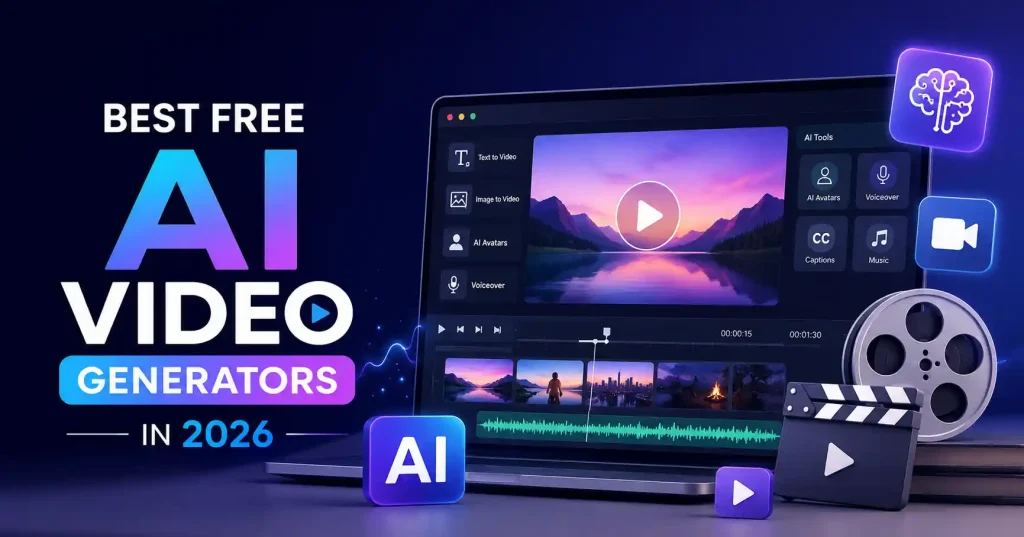

Making a video used to be a whole production: script, finding clips, voiceover, stitching it together, slapping on subtitles, then exporting. Now, a free AI tool can manage most of that with just a prompt. The catch, of course? “Free” seldom means truly unlimited. Usually, you hit limits on credits, how long clips can be, video quality, what you can export, or which AI models you can even touch.
So, for anyone making videos, creators, marketers, teachers, small biz owners, the real question isn’t just “which one is free?” It’s about figuring out which free plan actually lets you finish the video you’re trying to make. A quick ad spot, a YouTube explainer, someone just talking to the camera, or some wild AI scene, they all need a different approach.
What to Look for in a Free AI Video Generator
Need quick social videos? Speed and simple editing are king over fancy cinematic options, but for product demos or ads? Then consistent branding, voiceovers, captions, and commercial rights are way more important. That’s where you focus.
Check these areas before committing to a tool:
- Free credits or generation limits
- Maximum video length and resolution
- Watermarks on free exports
- Text to video and image to video support
- AI voiceovers, captions, and music
- Editing capabilities after generation
- Commercial use restrictions
Free plans also change frequently.That sweet credit deal? It might vanish soon. Costs and limits shift constantly, meaning today’s generous offer is merely temporary, never a permanent guarantee.
7 Best Free AI Video Generators in 2026
There isn’t one winner for every creator. The following tools stand out because they solve different video production problems.
1. Canva : Best for Simple Social Videos
Canva makes a sensible move, bringing AI generation and editing tools together under one roof. Their AI video tool is pretty slick you type a prompt, and it spits out a short clip. Then, bam, you’re right in the regular editor, dropping in graphics, transitions, text, you name it. Right now, Canva says these AI clips come with audio already synced, complete with dialogue and sound effects.
For marketers, this is a real win. Forget jumping between a generation tool and a separate editor. You can crank out a visual, drop it straight into a social post, add your branding, and have the entire layout finished, all without leaving Canva. It streamlines the whole messy process.
Best for: Social media posts, marketing visuals, presentations, and branded short clips.
2. InVideo AI : Best for Script to Video Content
InVideo AI takes a different approach.This tool doesn’t just spit out a quick clip. It takes a topic, really runs with it, and builds a whole video. We’re talking script, visuals, the works, voiceover, captions, music, even smooth transitions.
It’s a godsend for creators churning out explainer stuff, those top ten lists, promo bits, or even those faceless YouTube channels. No more piecing each scene together by hand. Plus, you can tweak it all with simple text commands, a real lifesaver if you need to ditch a scene or tweak the narration.
The free plan has limitations, including restrictions around generation and exports, so it’s better suited to testing the workflow than assuming you can produce unlimited videos without paying.
Best for: Faceless videos, explainers, marketing videos, and script led content.
3. Pika : Best for Short Creative Clips
Pika is more focused on short form visual experimentation. It works well for turning ideas or images into unusual, stylized clips and adding creative effects that would otherwise take considerably longer to produce manually.
It’s a good fit when the video itself is the visual hook. Think animated product concepts, transformations, social media effects, or a still image that needs a little movement.
The free allowance is limited, so Pika isn’t the obvious choice for producing long videos. Its strength is creating individual shots that you can combine with other footage.
Best for: Short creative clips, effects, image animation, and social content.
4. Kling AI : Best for Motion Focused AI Video
Kling AI is worth considering when movement is the priority. It can generate text to video and image to video scenes, making it useful for cinematic experiments, character movement, camera motion, and animated concepts.
The free experience can vary by account, region, model, and current promotion. That’s why it’s better to check the credits shown in your account instead of relying on an old “X videos per day” claim found in an article.
Kling is especially useful when a static AI image isn’t enough and you need the subject or camera to move naturally.
Best for: Cinematic motion, image to video experiments, and short AI generated scenes.
5. Runway : Best for Creative Control
Runway is a strong option for creators who want more control over generated footage. Its Gen 4 system is designed around consistency across characters, objects, locations, and scenes, which matters when you’re trying to create more than one disconnected clip.
The free access is better viewed as an opportunity to test the platform rather than a complete free production environment. You may also encounter limitations around credits, resolution, and watermarks depending on the current plan.
If you’re learning AI filmmaking or experimenting with more deliberate visual storytelling, Runway is worth having on your shortlist. Runway AI video tools
Best for: Creative experimentation, cinematic shots, and controlled AI video workflows.
6. HeyGen : Best for AI Avatar Videos
HeyGen makes sense when you don’t need an imaginary cinematic scene. Instead, you need someone or something that looks like someone delivering a script on screen.
It’s useful for product explainers, training videos, presentations, onboarding content, and social clips where a presenter is expected. You can write the script, select an avatar and voice, and generate the presentation without recording yourself.
The free tier is limited, so it’s primarily useful for testing the avatar workflow or producing occasional short videos.
Best for: Presenters, tutorials, training videos, and business explainers.
7. CapCut : Best for Editing AI Generated Clips
CapCut is slightly different from a pure text to video generator.The real magic? It all kicks in after you hit record. AI dives into the boring stuff: editing, writing captions, adding wild effects, it can even yank out backgrounds or whip up quick video snippets. Basically, your raw footage gets a serious glow up, ready for its online debut.
Smart move for creators, I’d say. Grab some clips with one AI, then jump to CapCut or another app to tie it all up. Don’t expect one AI to nail every single step.
Best for: Reels, Shorts, TikTok style videos, captions, and final editing.
How to Choose the Right Free AI Video Generator
Really, forget the fancy stuff. You need the tool that just clicks with your workflow, simple as that.
- For social media graphics and short clips: Start with Canva or CapCut.
- For faceless or narrated videos: Try InVideo AI.
- For cinematic experiments: Test Kling or Runway.
- For creative effects: Pika is a better fit.
- For presenter led content: HeyGen makes more sense.
A two tool workflow can also work better than trying to force one platform to handle everything. Generate original clips in a video model, then assemble, caption, resize, and brand them in an editor.
If you’re creating videos as part of a broader marketing workflow, it can also help to review your other AI options alongside your video stack. GoTechMantra’s Best AI Tools for Digital Marketing in 2026 covers tools for content, SEO, campaigns, and other marketing tasks.
Are Free AI Video Generators Actually Free?
Yeah, usually. But there are catches. Free plans often dish out just a few credits. You might get shorter clips, crappier resolution, slow processing times, watermarks, or less powerful models. Some platforms dole out recurring credits, others just give you a one time shot.
And here’s a big one: “free generation” doesn’t always mean “free for everything.” Before you slap AI footage into a client ad, a product launch, or any other commercial gig, you absolutely have to pore over the platform’s licensing and usage terms.
Also expect imperfect results. AI video can still struggle with hands, readable text, object consistency, physics, facial details, and continuity between shots. A good workflow includes human review rather than publishing the first generation untouched.
Tips for Getting Better Results From AI Video Tools
Your prompt has a bigger impact than many beginners expect. Instead of writing “a woman walking in a city,” describe the subject, setting, movement, camera, lighting, mood, and format.
For example:
“A young entrepreneur walking through a modern coworking space, morning sunlight through large windows, slow tracking camera, realistic documentary style, shallow depth of field, vertical 9:16 composition.”
Generate short shots rather than trying to create an entire three minute story in one prompt. Short clips are easier to review, replace, and edit. You’ll also get more control over pacing once you assemble the final video.
For blog and marketing content, consider creating several reusable shots product close up, workspace scene, person using the product, abstract background, and a closing frame. That gives you a small visual library you can reuse across Shorts, Reels, presentations, and ads.
If you’re also producing visuals for your website, GoTechMantra’s Best Free AI Image Generators for Websites can help you build the image side of the same content workflow.
FAQ’s
What is the best free AI video generator in 2026?
There isn’t one universal winner. Canva is a strong choice for simple branded content, InVideo AI for script led videos, Pika for creative clips, Kling for motion focused generation, Runway for creative control, and HeyGen for avatar videos.
Is there a completely free AI video generator with no limits?
Not among the mainstream cloud tools. Free services generally place limits on credits, duration, resolution, queues, models, or exports. “Free” should be understood as free access within a defined allowance.
Can I create YouTube videos with AI for free?
Yeah, you can. InVideo AI, for one, conjures up the whole shebang: scripts, visuals, voiceovers, music, even subtitles. Then, editors like CapCut let you weave it all together, adding that final sheen. But do double check scripts, visuals, audio, and licenses before going live.
Which free AI video generator is best for Shorts?
Canva and CapCut are practical for short form workflows, while Pika and Kling are better when you want original AI generated visual clips. The right choice depends on whether you’re generating footage or mainly editing it.
Can AI generate a video from an image?
Yes. Several current AI video platforms support image to video workflows. This is useful when you already have a product image, character design, illustration, or other starting visual and want to add movement.
Do free AI videos have watermarks?
Honestly, it’s a bit of a crapshoot, Watermark rules? They shift, differing by platform, by plan. So, before you commit a free tier to your main workflow, always, always run a test export first.
Conclusion
The best free AI video generator isn’t always the one flashing the slickest demo reel. It’s the tool giving you enough free runway to actually finish what you started instead of wrestling roadblocks at every turn.
For quick branded clips, start with Canva. Reach for InVideo AI when a script needs turning into a full production, Pika for strange visual effects, Kling or Runway for raw generated footage, HeyGen for talking heads, and CapCut when finishing touches matter most. Run a real test project through the pipeline before you marry any single platform.
The core lesson is pretty straightforward, Let algorithms spit out the rough footage fast. Then pour your actual effort into what viewers care about: story, pacing, sharp edits, clarity, and a real hook. That mix beats chasing whatever shiny new model dropped today.

Pingback: Best AI Voice Generator for Content Creators in 2026
Pingback: Best AI Tools for Freelancers in 2026: Top 10 Picks