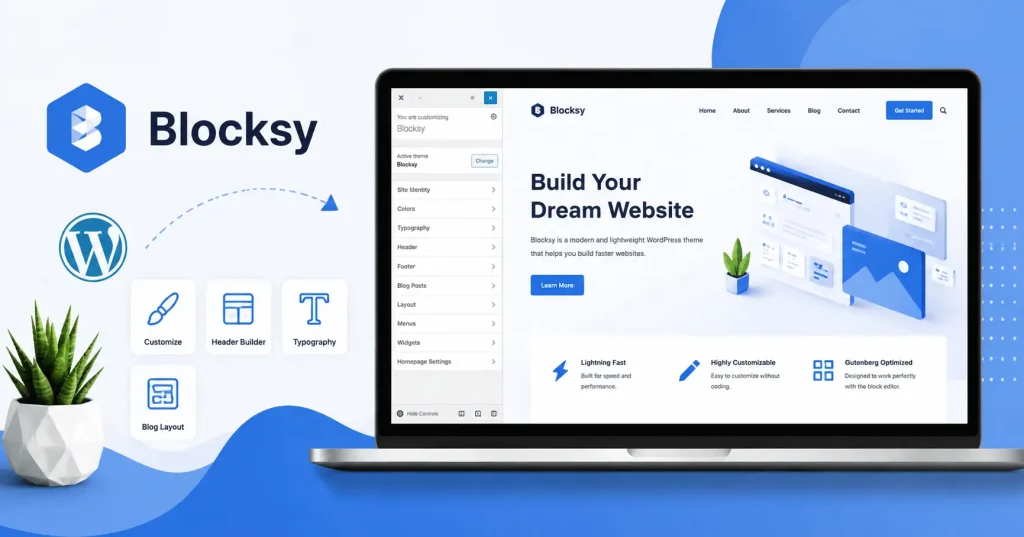

So, if you want a fairly simple Blocksy theme tutorial and you want to build your WordPress site without getting stuck in a pile of settings, you’re here for a reason. Blocksy lets you manage the overall site layout, the colors, typography, header, footer, and even blog styling. And yeah, it still works nicely with the WordPress block editor, which is honestly a big deal when you’re starting out.
Whether you’re aiming for a blog, a business site, a portfolio or a small online shop, the initial setup is pretty manageable. The only real “trick” is knowing what settings make a difference sooner, and what settings you can delay for later without messing things up.
What is the Blocksy theme?
Blocksy is a WordPress theme made by CreativeThemes. It’s built for the block editor and comes with options for everyday website parts, like menus, logos, page layouts, color settings, typography controls, sidebars, and WooCommerce pages.
For a beginner , its biggest advantage is that you don’t have to edit theme files just to make basic design changes. Most of the work can be handled via WordPress’s customization interface, so you can keep moving without needing to touch code.
Blocksy also plays well with starter sites, that can save time if you don’t want to design every section from a blank page . Its official documentation goes over theme settings, header and footer builders, extensions, blocks, WooCommerce settings, and troubleshooting, all in one place.
Blocksy Theme Tutorial: How to Set It Up
Before you change colors , or design your homepage, prepare the basic WordPress installation. If you haven’t created the website yet, you can follow this [WordPress website setup guide for beginners] so you understand how the domain, hosting, WordPress, theme, and plugin setup process works.
1. Install Blocksy
From your WordPress dashboard, go to Appearance → Themes → Add New then type in “Blocksy”. Pick the theme, hit Install, and after that activate it. The official install steps follow this same basic path, more or less.
Once it is active, WordPress may suggest the Blocksy Companion plugin. If you install that, you get more Blocksy features and starter site functionality, which helps you move faster.
Try not to install a dozen extra plugins right away. Begin with the theme and only the tools you genuinely need. A leaner setup is easier to debug later.
2. Choose a Starter Site or Begin From Scratch
If you are brand new to WordPress, a starter site is often the quickest way forward. Blocksy includes pre made sites that you can import, and then adjust with your own branding plus your content.
Go to Blocksy → Starter Sites, pick a design that feels like the kind of website you are aiming for , and look over the required plugins before you import it. The layouts you see can work with the block editor or other compatible page builders, depending on the particular starter site
For instance, a local service business might start with a business oriented layout, swap out the demo logo and imagery , update the service pages, and revise the contact info. This is a lot quicker than trying to reverse engineer spacing and page structure from the beginning
3. Set Your Site Identity
Now set the core brand values. Add your logo, site title, tagline, and favicon where they fit
Keep the branding calm and direct. Usually, one main logo, a small set of colors, and two or three font families are enough. Beginners often trip up by adjusting every single design control, because the Customizer shows so many options
4. Configure Colors and Typography
Blocksy lets you steer global design settings so whatever you tweak can be repeated pretty consistently, through out the whole website.
Start with these basics:
- Primary brand color
- Text color
- Background color
- Heading font
- Body font
- Button styling
If your website is for a business, use the same brand colors across button styles , link colors, headings, and other visual pieces. Consistency tends to matter more than stacking a lot of decorative effects.
For typography, prioritize readability. A fancy heading font might look amazing in a demo but become harder to read when your long blog posts start piling up.
5. Build the Header
The header is one of the first spots visitors notice. With Blocksy, you can place header elements like the logo, navigation menu, search, account controls, and other components using the header builder options. The theme documentation has dedicated notes for header tweaks.
For a basic blog, you do not need a complicated header. A good starting arrangement is:
Logo → Main Menu → Search or call to action
Try to keep the menu simple, especially on mobile. A header that looks perfect on a desktop screen can start feeling weird once it gets squeezed onto a phone.
6. Tweak the Footer
The footer is easy to ignore, but it can help visitors quickly locate important details. Add links to your main pages, contact info, copyright text, and relevant social profiles.
For a small business website, a helpful footer could include:
- About
- Services
- Contact
- Privacy Policy
- Terms
- Social links
Just don’t turn the footer into another, bigger navigation menu with dozens and dozens of links. Keep it useful and quick to scan.
How to Arrange Blog Pages in Blocksy
If you are building a content site, take a bit of time to work on the blog layout before publishing a lot of articles. Blocksy offers settings for blog and archive layouts, so you can choose how posts display on category , tag and archive pages.
Before readers click into an article they usually need to see a few basic things first. Like the featured image, a clear title, a short excerpt that does not ramble, plus author details and the publication date. For many blogs, that combo alone can be more than enough.
Also, you should think about whether your blog really needs a sidebar. A sidebar can be helpful for searching, categories, showing newer posts, or newsletter signups, but it is not automatically better in every case. On a content focused website, a tidy single column setup might actually feel smoother and give a nicer reading flow.
If you are publishing content that’s focused on SEO, this [SEO friendly blog post guide] can assist you in merging your Blocksy layout with solid on page content practices.
How to Customize the Homepage
Your homepage needs to answer three questions fast: what this website is about, who it serves, and what the visitor should do next.
For a business site, you could arrange it like this:
- A strong headline and a brief introduction
- The main call to action
- The core services or products
- The advantages, or key differentiators
- Testimonials or supporting information
- About section
- Contact call to action
For a blog, the homepage can instead lean into recent posts, key categories, spotlighted content, and an email signup, so it feels more alive.
Don’t push to fill every possible section. Empty space is useful, when it helps visitors breathe and also gives them room to understand what they are seeing
Blocksy and the WordPress Block Editor
One reason Blocksy feels approachable for beginners is its compatibility with the WordPress block editor. You can write posts and assemble pages using standard WordPress blocks, rather than depending on a separate page builder for everything.
That doesn’t mean page builders are always wrong. If you need very tailored landing pages, then a builder might be the better fit. But for a regular blog or business website, starting with the native editor can keep your whole setup easier to oversee.
A practical angle is to use Blocksy for the site’s global look and then rely on WordPress blocks for most of the actual content.
Common Blocksy Mistakes Beginners Should Avoid
The biggest beginner mistake is changing too many settings at once. If something breaks, you won’t know which tweak caused it, not really.
A better workflow is to customize the site in this order:
- Install and activate Blocksy.
- Set the logo and site identity
- Choose colors and typography
- Configure the header
- Configure the footer
- Set the homepage and blog layout
- Check mobile views
- Publish your content
- Test menus, forms, buttons and important links
Also avoid importing a starter site onto a live website without thinking about what existing content it might affect. If you already have a working site, a backup or staging environment is a sensible precaution.
Is Blocksy Good for Beginners?
For many beginners yes. Blocksy offers a wide range of visual customization options while still working well with the WordPress block editor. It can also expand with your site as you get more comfortable with WordPress.
The free version is more than enough to absorb the theme direction and put together a simple website. If you later decide you need features that live in the paid ecosystem, it makes sense to check them against your real needs, not just pay for everything from day one.
For technical questions, installation troubles and deep feature instructions, the [official Blocksy documentation] is the best place to verify things, because the guides are maintained directly by the theme’s developers.
FAQ’s
Is Blocksy easy for WordPress beginners?
Yes. Most everyday design adjustments can be handled inside WordPress and Blocksy visual settings, instead of editing theme files. Beginners can begin with a starter site , or make a plain layout by hand.
Is Blocksy free?
Blocksy offers a free version inside WordPress, with extra commercial features sold separately.
Do I need Elementor with Blocksy?
No. Blocksy works with the WordPress block editor, so you can make a lot of websites without installing Elementor or another page builder.
What is Blocksy Companion?
Blocksy Companion is the partner plugin that brings extra Blocksy features , like access to starter sites and added extensions.
Can I use Blocksy for an online store?
Yes. Blocksy works with WooCommerce and it includes theme settings made for ecommerce sites.
Should I use a Blocksy starter site?
If you’re new to WordPress, or you just want to ship quickly, a starter site can be a handy launch pad. If you already have a sharp layout idea and a solid content organization, building by hand might give you more authority over the end outcome .
Conclusion
A good Blocksy theme tutorial shouldnt leave you clicking through every setting just because its there. Start with the basics : install the theme set up your branding, tweak the header and footer, pick a blog layout that is readable, and do a fast check of the whole site on mobile.
After that stuff is steady, then write the content, and adjust the appearance based on real visitor needs. Blocksy gives you plenty of room for tailoring, but the best WordPress website isnt the one where you changed the most settings. It s the one that loads cleanly , reads smoothly, behaves well on mobile, and helps people quickly locate what they came for.