
Starting a deck from zero often takes more time than you think.First you have to choose the main points. Then you sort the notes into a clear order. After that, you write what goes on each slide.
Next comes the visual part. You need images or charts, and you have to make sure the design looks the same across the whole set.
AI tools for presentations can cut some of that work. They can help make an outline, draft the text for slides, and suggest slide layouts. Some tools can also produce visuals to match the topic.
Still, you should expect changes. The first draft is not usually what you want to show to other people. You will need to review it. You should decide the message, pick the examples, check that the facts are right, and set the tone yourself.
What Can AI Do for a Presentation?
An AI presentation tool may cover multiple steps that usually need different apps. On some platforms, you can type a brief prompt and get a first version back. That draft can include a plan for the slide flow, the text for each slide, and design elements like layouts and images. Canva, for instance, claims its Magic Design for Presentations can build a draft from your text prompt, and then you can revise both the words and the look.
That doesn’t mean AI understands your presentation automatically. A sales pitch, employee training deck, university presentation, and investor update may all cover similar subjects but need very different structures.
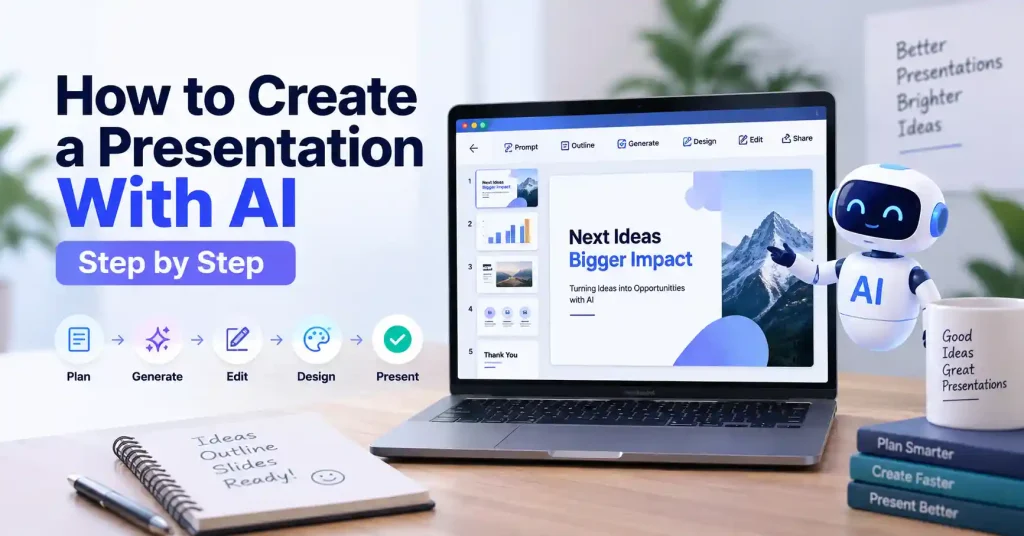
A useful AI workflow therefore looks less like “type a topic and download the PPT” and more like this: brief → outline → draft → edit → verify → design → rehearse.
How to Create Presentation With AI: Step by Step Process
1. Define the purpose before opening an AI tool
Start with the outcome. What do you actually want people to understand, decide, or do when you wrap up?
Take a vague topic like AI in marketing. That is far too broad. A sharper brief looks different: build a ten slide deck for small shop owners showing how AI handles content, customer support. And research, complete with real examples and a checklist to get started.
You need to lock down the audience, the slide count, the tone, and the exact call to action. Give the system real constraints, or it will just guess.
2. Ask AI to build the presentation outline
Before generating polished slides, create the structure first. This makes it much easier to spot missing ideas or unnecessary sections.
A simple business presentation might follow this sequence:
- The problem
- Why it matters
- Current approach
- Where AI can help
- Practical use cases
- Example workflow
- Risks or limitations
- Recommended tools
- Implementation plan
- Key takeaway
You don’t have to follow that structure exactly. The point is to make the story logical before worrying about fonts, images, or animations.
3. Write a detailed prompt
The quality of the prompt has a direct effect on the usefulness of the first draft. Instead of writing “make a presentation about digital marketing,” give the tool enough context to understand what you’re trying to accomplish.
Try a prompt such as:
Slide one introduces practical AI marketing for small business owners, ditching heavy tech jargon. Drop the complexity.
The next five slides target core areas. Content creation gets a boost. Customer service gets faster, while email campaigns run much smoother and social media posting finally gets organized. Performance tracking stops being a guessing game once and for all. Every single slide features a brief, real world example they can actually use tomorrow.
Slide seven through nine refine those strategies.Slide ten wraps it all up with a thirty day action plan, Keep it simple.
4. Generate the first draft
Now let the AI create the initial deck. Tools such as Canva can generate presentation layouts and content from a prompt, after which you can select a direction and customize it.
Don’t spend too much time choosing between tiny design differences at this stage. You’re looking for a workable starting point.
The first draft should answer three questions: Does the story make sense? Are the important points covered? Is anything clearly wrong or irrelevant?
5. Edit the AI generated content
This is where the presentation starts becoming yours.
AI tends to produce slide copy that is longer than it needs to be. A paragraph that looks acceptable in a document can be painful to read on a screen. Cut long explanations, remove repeated points, and turn complicated ideas into short statements.
For example, instead of a slide saying:
“Artificial intelligence can provide businesses with various opportunities to improve their overall marketing efficiency by assisting with content generation, customer analysis, campaign planning, and other repetitive activities.”
Use:
AI can help marketers:
- Draft content faster
- Analyze customer feedback
- Generate campaign ideas
- Automate repetitive tasks
The audience should understand the slide in a few seconds. Your spoken explanation can carry the detail.
6. Replace generic visuals with useful ones
AI can suggest images, but don’t add visuals simply because an empty space feels uncomfortable.
A product presentation may benefit from a product screenshot. A process slide might work better as a simple diagram. A marketing report may need a chart instead of a decorative stock image.
When the idea is visual, show it. When it isn’t, don’t force it.
7. Keep the design consistent
Pick a tight visual system and stick to it, Use the exact same fonts, heading sizes, spacing, colors, and image treatment everywhere.
Making a presentation for a client? Use their established branding. Do not let some algorithm invent a fresh visual identity on every single slide. Canva lets you drop in brand assets and tweak those generated designs after the initial draft comes out.
A rookie error is trying to make each slide look totally unique, Variety is fine. Consistency makes a deck easier to follow.
8. Fact check everything that matters
Never assume an AI slide is accurate just because it looks slick. Verify names, dates, stats, pricing, and technical claims. If you are showing business results, grab the original source data. Do not let AI recreate numbers from memory. That is risky. It matters most when high stakes are involved, like a client pitch, an executive review, a classroom grade, or a public stage.
9. Turn dense information into visual structure
When your slide is stuffed, shrinking the text won’t save it. Split that messy idea up. Try a timeline, a quick checklist, a diagram, or a simple comparison. Take an AI workflow, for instance. Just map it out: Research, Draft, Review, Approve, Publish, and Measure, that hits the brain way faster than half a dozen dense paragraphs ever could.
10. Rehearse the finished presentation
A presentation isn’t finished when the slides look good. Read it aloud.
You’ll quickly discover slides that have too much text, awkward transitions, weak examples, or information that just doesn’t need to be there. You may even find two slides can become one.
If you can, present the deck once without stopping to edit. Make notes afterward, and then do one final revision.
Common Mistakes When Using AI for Presentations
AI can make presentation creation faster, but it can also make mediocre decks easier to produce. Watch for these problems:
- Using a vague prompt: The tool has little context, so the result becomes generic.
- Accepting the first draft: AI generated content still needs editorial judgment.
- Putting too much text on slides: A presentation isn’t a blog post copied into PowerPoint.
- Using decorative visuals: Images should support the point, not fill empty space.
- Skipping fact checking: Polished wording can hide inaccurate information.
- Overdesigning the deck: Too many animations, colors, icons, and layouts can distract from the message.
If you’re using AI for other marketing tasks too, it helps to think about the entire workflow rather than treating each tool as a separate experiment. Our guide to best AI tools for digital marketing covers how different AI tools can fit into research, content, design, and marketing workflows.
How to Get Better Results From AI Presentation Tools
The biggest improvement usually comes from giving AI better source material.
Stop asking an AI to pull a miracle out of thin air. Feed it your actual notes, messy research, customer complaints, or old meeting transcripts instead. The more raw context you dump into the system, the less sterile and generic the final piece inevitably looks. Or split the work up entirely. Have one tool build a rough outline, push that rough copy to a second for a sharp polish. And let your presentation software handle the heavy visuals. Better.
And don’t overlook the final human edit. Our guide on how to humanize AI content explains a similar principle for written content: AI can provide a useful starting point, but specificity and editorial judgment make the final work stronger.
Best AI Presentation Workflow for Beginners
If you’re new to AI presentation tools, keep the process simple:
- Write a one paragraph brief.
- Generate three possible outlines.
- Choose the strongest structure.
- Generate the first slide deck.
- Remove unnecessary content.
- Replace weak examples and visuals.
- Check every factual claim.
- Apply consistent branding.
- Rehearse the presentation.
- Export and review the final file on the device you’ll use.
Skip the usual trap completely. Rather than wasting precious hours fixing a messy AI slide deck, you simply build a quick one from scratch instead.
FAQ’s
Can AI create an entire presentation?
Yes. Plenty of AI slide tools whip up an initial deck straight from a text prompt. You get outlines, content, and styling all at once. Still, always check the work yourself before you present.
What should I include in an AI presentation prompt?
State your topic, audience, goal, slide count, and tone instantly. Then drop key points, layout preferences, brand rules, and reference materials right here. Simple as that.
Can I use AI to create a PowerPoint presentation?
Depending on which AI tool you use, you might be able to save the finished slides as a PowerPoint file. You could also keep working on the deck right there in the same app. Before you begin, look at the export or download choices in that tool.
How many slides should an AI presentation have?
No more stressing over slide numbers. Three slides might do the trick for a quick internal memo. A big workshop? That’ll need way more. Just build your deck around what your audience actually needs. Simple as that.
Should I fact check an AI generated presentation?
Sure. An AI answer can be wrong or out of date. If something matters, check the key claim with a solid primary source or another trusted authority.
Is an AI generated presentation ready to present immediately?
Most of the time, no. Think of the deck as an early version. Go over the layout first. Fix the parts where the writing feels thin. Verify the details. Swap out any images that do not fit. Match the look to your brand. Then practice the talk a few times before you share it.
Conclusion
Mastering artificial intelligence for slide decks does not mean handing your entire creative process over to a machine. It is really about accelerating tedious groundwork so your own insights finally take center stage. Algorithms thrive on generating structural outlines, raw drafts, and basic formats. Yet, you still need strict human oversight to guarantee factual precision, relevance, and a truly coherent narrative arc.
Start with a focused prompt. Nail the core skeleton before styling, keep bullets brief, and choose imagery that illuminates the concept rather than cluttering it. Afterward, rigorously audit critical data points. Rehearse.
The flashiest deck rarely wins. It simply gets the room aligned.