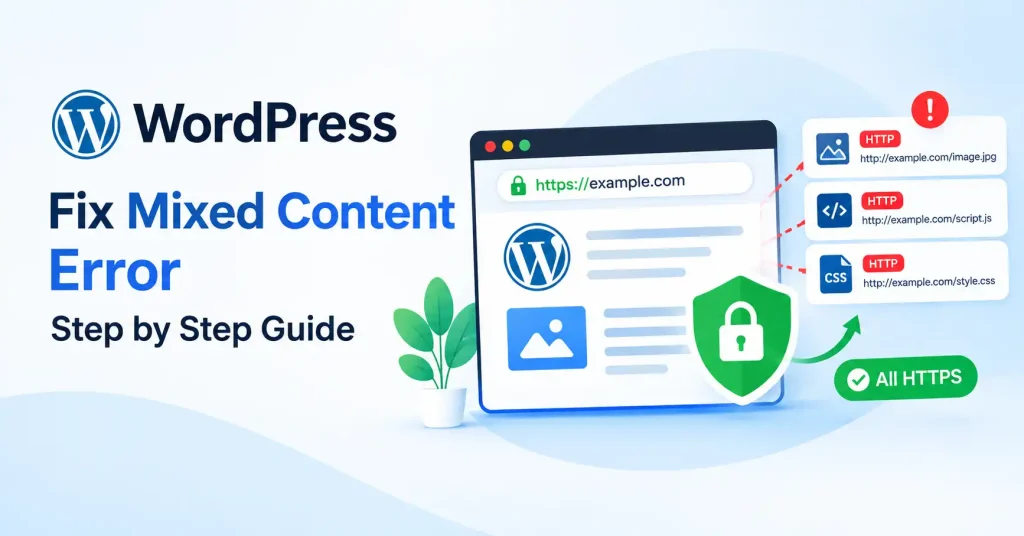

If your WordPress site runs on HTTPS and the browser still screams about insecure content, you are looking at a mixed content headache. It happens all the time. Usually right after a move from HTTP to HTTPS, a switch in hosting providers, slapping on an SSL certificate, or pulling in ancient content.
The silver lining? Mixed content isn’t actually that hard to hunt down once you know the spots. The catch is ruthless. One single old HTTP link hiding inside an image, stylesheet, script, iframe, database row, or plugin setting will throw a warning.
This guide breaks down what mixed content really is, how to sniff out those insecure URLs, and how to fix them properly without blindly flipping random WordPress switches.
What Is a WordPress Mixed Content Error?
Secure HTTPS pages trigger mixed content errors by stubbornly dragging in external scripts over plain HTTP. Why risk such an avoidable security flaw?
For example, your page might load at https://example.com, while an image is still requested from http://example.com/image.jpg.
That creates a partially insecure page. Modern browsers can automatically upgrade some types of content, while other resources particularly scripts, stylesheets, iframes, and certain requests can be blocked.
You may notice symptoms such as:
- Images not appearing
- Broken CSS or page layouts
- JavaScript features failing
- Browser console warnings
- Embedded content not loading
- Security warnings in development tools
The exact symptom depends on which HTTP resource is being requested.
What Causes Mixed Content in WordPress?
Most WordPress mixed content issues are not really created by WordPress. Usually, they come from older links that were left behind when the site moved to HTTPS.
Common causes include:
- Old HTTP URLs in the database: Older posts, pages, widgets, or theme settings may still contain http:// links.
- Theme files: A theme can contain hard coded HTTP references to CSS, JavaScript, fonts, images, or other assets.
- Plugins: Plugins sometimes store external URLs or generate resource links dynamically.
- Images and media: An image uploaded or inserted before the HTTPS migration may still use an HTTP address.
- Third party services: Fonts, videos, scripts, analytics tools, or embedded content may still point to HTTP.
- CDN or caching configuration: A CDN, reverse proxy, or cached page can sometimes continue serving an outdated URL.
The first step isn’t to replace everything blindly. Find the exact insecure resource first.
How to Find the WordPress Mixed Content Error
Your browser developer tools are actually your best bet here. Pull up that broken page, Right click anywhere, hit Inspect, and click the Console tab. Reload now. Look closely for warnings about mixed content or blocked HTTP resources, that will point right to the fix.
You’ll usually see the exact URL responsible. That’s much more useful than guessing which plugin or theme is causing the problem. Browser developer consoles specifically provide mixed content warnings that can help identify insecure requests.
For example, you might find:
Mixed Content: The page at ‘https://example.com/’ was loaded over HTTPS, but requested an insecure resource ‘http://example.com/wp-content/uploads/image.jpg’.
Now you know exactly what needs attention.
WordPress Mixed Content Error Fix: Step by Step
Once you’ve identified the HTTP resources, work through these fixes in order.
1. Confirm Your WordPress URLs Use HTTPS
Go to WordPress Dashboard → Settings → General.
Check:
- WordPress Address (URL)
- Site Address (URL)
Both should normally use your HTTPS version, such as https://example.com.
If one still uses HTTP, changing it may resolve a large portion of the problem. However, don’t change these values casually if your site is behind a proxy or has a specialized hosting configuration. In those cases, check how HTTPS is being handled by the server or CDN first.
GoTechMantra’s WordPress SEO settings guide also covers checking your WordPress and site URLs when configuring HTTPS.
2. Replace Old HTTP URLs in WordPress Content
If your website was migrated from HTTP to HTTPS, older database entries may still contain absolute HTTP URLs.
Search your WordPress database for references to:
http://yourdomain.com
Then replace them with:
https://yourdomain.com
Don’t perform a direct database replacement without a backup. WordPress data holds serialized values. Careless search operations wreck stored settings. You need a migration tool that handles this data correctly, Manual database editing? Too risky. Skip it entirely and use proper software.
3. Check Images and Media
Open a page where the browser reports mixed content. Inspect the affected image or media element and check its source URL.
If the image points to:
http://example.com/wp-content/uploads/2026/09/example.jpg
Switch the source over to HTTPS whenever that secure link actually exists. You might need to swap out that stubborn image buried deep inside the WordPress editor, a page builder, some obscure widget, or theme settings. It all just depends.
4. Check Your Theme and Plugins
If the mixed content warning points toward /wp-content/themes/ or /wp-content/plugins/, the source is likely theme or plugin code.
Don’t edit plugin files directly unless you know exactly what you’re changing. An update can overwrite the modification.
Instead:
- Update the affected plugin or theme.
- Check its settings for an HTTP URL.
- Look for a newer version if the resource is generated incorrectly.
- Temporarily disable the suspected plugin on a staging site to confirm the cause.
This is also why keeping a clean backup before troubleshooting is useful.
5. Fix External HTTP Resources
Sometimes the problem isn’t hosted on your WordPress server at all.
You might have an external resource such as:
- A web font
- JavaScript library
- Video embed
- Tracking script
- CDN asset
- External stylesheet
If the provider supports HTTPS, change the resource to its HTTPS version. If it doesn’t, consider replacing the resource rather than forcing visitors to load it insecurely.
Browsers increasingly restrict insecure resources loaded from secure pages, particularly active content such as scripts and stylesheets.
6. Clear WordPress, CDN, and Browser Caches
After correcting the URLs, clear your caching layers.
Depending on your setup, that could include:
- WordPress caching plugin
- Hosting cache
- CDN cache
- Server side cache
- Browser cache
Then reload the page inside a private or incognito window. Why? You might have fixed the actual source file, sure, but your browser is still serving up an older cached version. If you are stuck fighting a much wider caching mess, check out GoTechMantra and their guide on clearing WordPress cache.
What If the Mixed Content Warning Won’t Disappear?
If the warning remains after changing the obvious URLs, look deeper.
Check the page source and browser Network tab for HTTP requests. Pay particular attention to CSS files, JavaScript, fonts, iframes, background images, and dynamically generated requests.
CSS can be especially easy to miss because an insecure URL may be buried inside a stylesheet rather than visible in the page editor. Developer tools expose those requests that the standard WordPress editor masks, you must check whether your CDN, caching plugin, or reverse proxy actually spots HTTPS. Sometimes a site seems fully secure in your browser, yet the server mistakenly assumes the raw request arrived via plain HTTP. That mismatch breaks things.
Should You Use a Plugin to Fix Mixed Content?
A WordPress plugin can be useful when you’re dealing with a large site or a migration containing hundreds of old references. But automatic replacement shouldn’t be your only fix.
Plugins can help identify or rewrite insecure URLs, but the underlying references should still be corrected where possible. Otherwise, future cache purges, plugin changes, or template updates can bring the problem back.
For a small website, manually fixing a handful of known resources is often cleaner. For a large site, use a proper database search and replace workflow and test the result carefully.
How to Prevent Mixed Content After Moving to HTTPS
Once you’ve fixed the current warnings, prevent the problem from returning.
Keep these checks in your maintenance routine:
- Always use HTTPS URLs for new internal resources.
- Vet third party services first, every time, Keep themes and plugins patched.
- Did you run tests on key pages after big migrations, Check the console when you tweak SSL, CDN, or caching configs.
- Make sure redirects pull HTTP visitors straight to HTTPS.
Keep it simple. Every single asset on an HTTPS page needs secure delivery. MDN backs this up completely. Serve your own files over HTTPS, and pull in third party resources that way too, whenever you can.
FAQ’s
What causes mixed content in WordPress?
This problem often shows up when a secure HTTPS page still pulls something from plain HTTP. You might see it with older images, JavaScript files, style sheets, font files, embedded frames, links to database addresses, or services loaded from a third party.
Is mixed content a serious WordPress problem?
It can be. Some assets refresh automatically, but browsers block others. That leaves parts of your site broken. Styles and scripts might just fail to load, leaving your pages completely shattered.
How do I find the exact mixed content URL?
Launch browser developer tools. Jump straight to the console or network tab prior to reloading that stubborn page. It instantly flags insecure requests, pinpointing the exact URL causing trouble.
Can an SSL certificate fix mixed content automatically?
Launch browser developer tools. Jump straight to the console or network tab prior to reloading that stubborn page. It instantly flags insecure requests, pinpointing the exact URL causing trouble.
Should I replace HTTP with HTTPS in the WordPress database?
Switched your site to HTTPS? Those old internal links need fixing. Backup that database right away, then run a search and replace that treats WordPress data with care.
Why does my site still show mixed content after I fixed the URL?
Old HTTP links can stick around even after you change things. This can happen with caching, a CDN setup, theme code, plugins, CSS files, or requests built on the fly. Open DevTools, go to the Network tab and the Console tab, then clear every related cache and check again.
Conclusion
Fixing WordPress mixed content errors boils down to this: track down that single lingering HTTP resource and force it to HTTPS. Period. Forget fiddling with standard dashboard settings because the browser console must be your absolute first stop. Check your site addresses, fix stubborn database entries, inspect media files, dig through active themes and plugins, and swap out insecure external assets. Finally, clear every layer of your cache, Work through these steps methodically. Even the most stubborn warning will vanish.