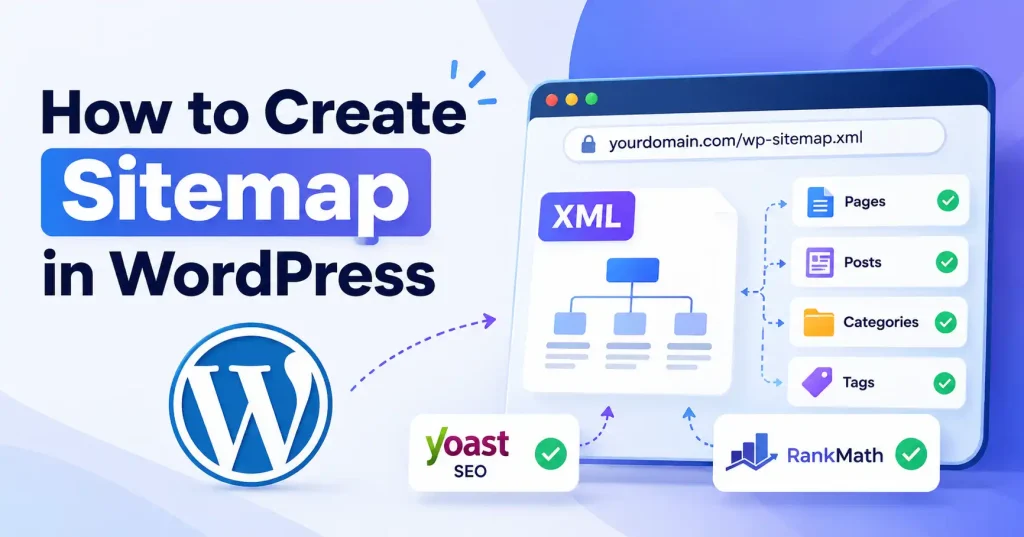

Learning to build a sitemap in WordPress? Good news, you probably won’t have to construct one by hand. WordPress creates them automatically. Plus, SEO plugins like Yoast SEO and Rank Math let you pick exactly which URLs make the cut. A sitemap helps search engines sniff out key pages, posts, categories, and other content ready for indexing. It won’t magically boost your site’s ranking or guarantee indexing, but it sure makes crawling a big or constantly changing site smoother.
What Is a WordPress Sitemap?
A sitemap is merely an XML file. It lays out every URL so crawlers locate them fast. Think of it as a detailed directory, pointing search engines straight to the vital pages on your site that genuinely matter.
Consider a busy blog. Hundreds of posts live scattered across random categories and deep archives, meaning relying purely on internal links to catch every single URL is a massive gamble. A sitemap hands web crawlers a neat, organized roster of everything ready for inspection.
A standard WordPress sitemap pulls in posts, pages, categories, tags, or authors, all depending on your specific configuration.
Why Do You Need a Sitemap in WordPress?
A sitemap is no magic SEO shortcut. Search engines still call the shots on crawling and indexing.
Yet, building one properly gives bots a necessary nudge. Especially across massive digital domains drowning in endless pages, or constantly dropping fresh content into the void.A sitemap is especially useful when:
- Your website has hundreds or thousands of URLs.
- You regularly publish new blog posts.
- Some pages aren’t strongly connected through internal links.
- Your site has recently been redesigned or migrated.
- You want a clearer way to communicate your indexable URLs to search engines.
Your small site links internally like a champ, so a sitemap feels optional. Still, it quietly pulls its weight for technical SEO. Keep it.
How to Create Sitemap in WordPress
WordPress sitemaps give you options. Ultimately, your specific route hinges upon a single fundamental question, Just how much granular control do you truly need?
Method 1: Use WordPress’s BuiltIn Sitemap
Modern WordPress sites build a basic XML sitemap automatically, Zero plugins needed.
Naturally, you can easily locate your primary sitemap index right here:
yourdomain.com/wp-sitemap.xml
Replace yourdomain.com with your actual domain name.
To check it:
- Open your WordPress website.
- Add /wp-sitemap.xml after the domain name.
- Press Enter.
- Check whether the XML sitemap index loads.
You should see references to different sitemap files. Your WordPress setup changes things. You might see post, page, taxonomy, or other content sitemaps, this way is simple. It works fine when deep controls don’t matter.
Method 2: Create a Sitemap with Yoast SEO
Look, an extra sitemap plugin, you probably don’t need it if Yoast SEO is already running. Just set it up and boom, automatic XML sitemaps.
So, once Yoast SEO’s in:
- Head to Yoast SEO, then Settings inside WordPress.
- Look over your content and indexing settings.
- Check that search engines can actually find what you want them to see, and nothing important is blocked by mistake.
- Open up your XML sitemap index from the plugin. Inspect those files.
- Is everything that matters in there? Make sure.
Yoast also provides controls for determining which content types should be available to search engines. This helps when your site hoards dead weight like forgotten custom post types or random URLs search engines should ignore. Seriously. Tackling broader WordPress optimization requires auditing your current plugins first. Why deploy a single purpose tool if you do not actually need to?
Method 3: Create a Sitemap with Rank Math
Rank Math crafts XML sitemaps instantly. Just delete that extra generator plugin immediately after setup, because you simply will never need it anymore.
To configure it:
- Open Rank Math → Sitemap Settings.
- Start with the sitemap module, Scrutinize configurations across posts, pages, and categories.
- Ultimately, just strip out whatever dead weight you do not need.
- Save your changes.
Rank Math sitemap settings help complex sites by letting you pick which content types actually show up in the output. But don’t dump every single URL in there just because you can. The sitemap exists for one main reason, it helps search engines find URLs that matter and deserve to be indexed. Keep the junk out.
What Should Be Included in a WordPress Sitemap?
Only specific URLs belong in your sitemap. Why waste space, Feed search engines precisely what matters most.
For a typical business or content website, this usually means important:
- Pages
- Blog posts
- Product or service pages
- Relevant category pages
- Other valuable custom post types
Your sitemap shouldn’t ever hold blocked, redirected, duplicated, or intentionally dropped URLs. Think about an outdated post routing visitors elsewhere, Dropping that obsolete link right into your index? Pure junk signals for crawlers, Instead, the sitemap needs to point directly toward the live, canonical destination. Always keep it impeccably clean.
How to Submit a WordPress Sitemap to Search Engines
Building a sitemap is just step one, you need to push that file straight into webmaster tools immediately. That way, crawlers know where to look. Take Google, for instance. Use Search Console. Do not bother feeding them every single page by hand, Just drop the main index in and let the system handle the rest.
The process is straightforward:
- Open your website property in Search Console.
- Go to Sitemaps.
- Enter the sitemap path, such as wp-sitemap.xml, or the sitemap generated by your SEO plugin.
- Submit it.
- Check the reported status and discovered URLs.
Bing Webmaster Tools lets you handle sitemap submissions and track how Bing finds your site. But fair warning. Submitting one doesn’t guarantee every single URL pops up in the search results. It simply provides search engines with another source for URL discovery.
How to Check if Your Sitemap Is Working
Don’t assume your sitemap is correct just because the URL loads.
Open the sitemap and look for a few basic technical signals:
- The sitemap loads without an error.
- Important pages or posts are present.
- URLs use the correct HTTPS version.
- Redirected URLs aren’t unnecessarily included.
- Deleted or intentionally excluded content isn’t appearing.
- The sitemap reflects recent content changes.
Look at your sitemap inside webmaster tools. Got errors? Investigate them instead of endlessly spamming resubmissions. Websites running aggressive caching or strict security plugins demand a careful double check, ensuring those third party tools are not accidentally blocking search engine access to the critical file.
Common WordPress Sitemap Problems
One common mistake involves installing several sitemap plugins doing the exact same thing, this creates tangled configuration headaches. Figuring out which sitemap actually goes to search engines becomes a guessing game.
Another trap? Accidentally hiding crucial content via some SEO plugin setting, Set a valuable page to noindex and you are sunk. Just shoving it into a sitemap won’t fix the underlying block.
Check your robots. txt too, A sitemap points crawlers to your URLs, sure, but robots. txt decides what they are allowed to touch. They do completely different jobs, Don’t treat them like synonyms.
Moved to HTTPS recently? Or shifted your whole domain structure? Look over that sitemap right now. Leaving dead HTTP links or stale domain paths in your primary sitemap is a fast track to trouble.
Sitemap Best Practices for WordPress
A few simple habits can keep your sitemap clean as the website grows.
Keep it focused. Include URLs that are valuable and intended for search visibility.
Keep it updated. Your sitemap should reflect your current website structure.
Avoid unnecessary URLs. Never treat your vital sitemap as a dumping ground for endless WordPress URLs.
Check after major changes. Check your sitemap after migrations, redesigns, URL swaps, or major plugin updates.
Maintain strong internal links. Merely adding a sitemap fixes neither broken internal links nor awful navigation entirely.
Once your WordPress site moves past basic setup, inspect the plumbing. Canonical URLs, smart redirects, complex architecture, and indexing demand careful attention right alongside the sitemap itself. Truly.
FAQ’s
Does WordPress automatically create a sitemap?
Yes. Modern WordPress builds drop an XML sitemap right in. Just head to /wp-sitemap. xml and you will find the index.
What is the sitemap URL in WordPress?
Usually, a WordPress sitemap lives at yourdomain, com/wp-sitemap. xml. But some SEO plugins use a different address entirely.
Do I need a sitemap plugin for WordPress?
WordPress handles sitemaps natively. Yet, an SEO plugin proves useful when you demand precise control over which exact content types and taxonomies appear inside them. That matters.
Should every WordPress page be in the sitemap?
Forget duplicates and dead ends. You only need clean, indexable links designed explicitly for search engines. Why waste precious time chasing the rest?
Does a sitemap improve Google rankings?
A sitemap won’t hand you higher rankings on its own. Its main job? Helping search engines crawl URLs and grasp your site’s actual content.
How often should I submit my sitemap?
You usually skip resubmitting your sitemap for every single article you drop. If the link stays put and updates itself, search engines just swing back by on their own schedule. Seriously. Only check webmaster tools when massive site overhauls happen or errors pop up.
Conclusion
Learning how to create sitemap in WordPress is mostly about choosing the right generation method and keeping the resulting file clean. For many websites, the built in sitemap works fine. But plugins like Yoast SEO or Rank Math give you way more control over content types and indexing rules.
The practical goal isn’t building the biggest sitemap out there. Keep important URLs discoverable. Drop unnecessary entries. Check the file after major site changes, and maintain strong internal linking. A clean sitemap matters most when it accurately reflects your site structure and actual SEO priorities.